How to Sync Photos Between an iPhone and an Android Phone Privately
Mixed-phone households have a quiet, constant annoyance: one person's on an iPhone, the other's on Android, and there's no easy way to land both their photos in one place. iCloud only really likes iPhones; Google Photos wants everything uploaded to Google. This guide shows you a third way — one photo library that both phones back up to and browse, running on a server in your own home, with no monthly fee and nobody else holding your pictures.
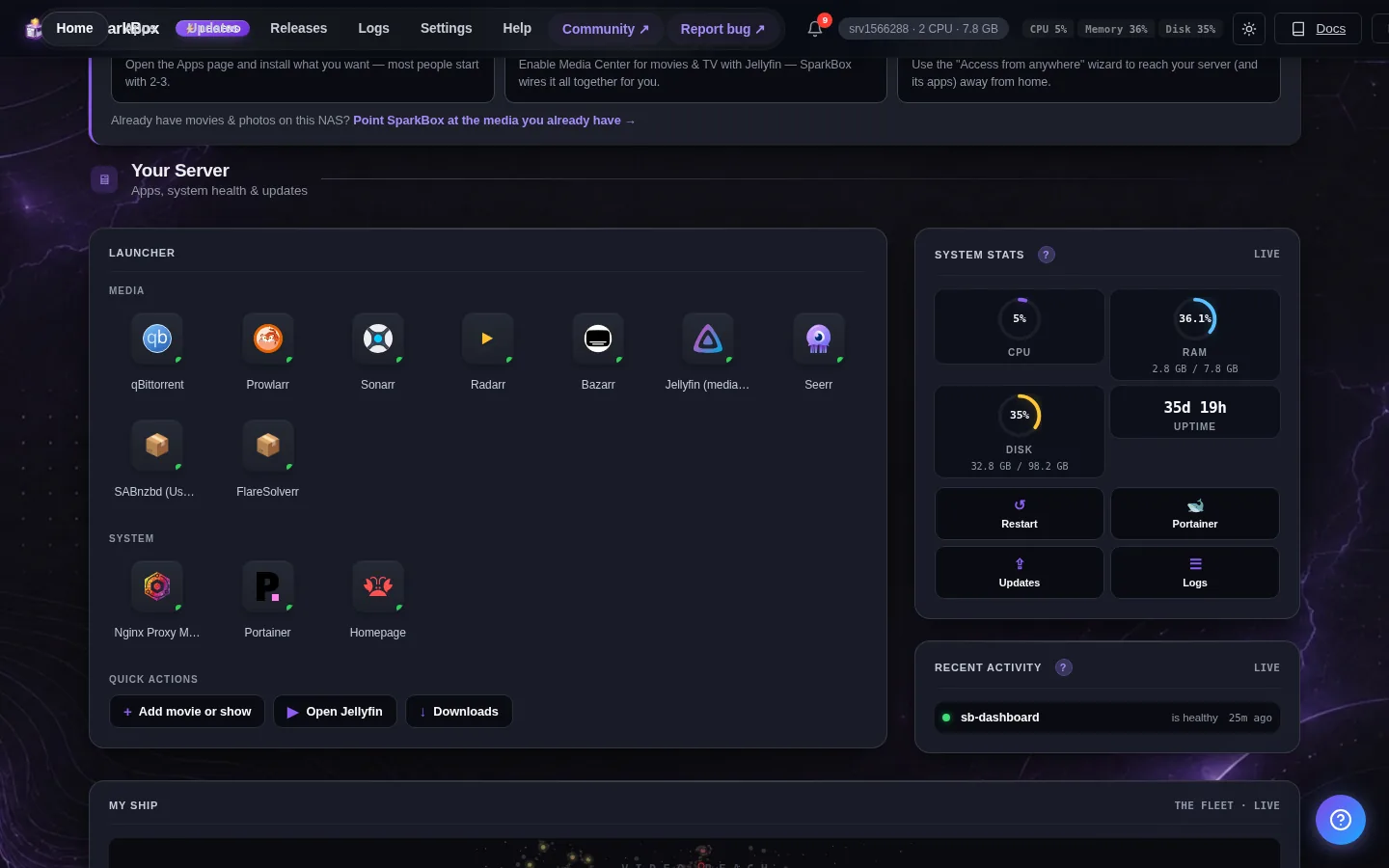
Tested on: a UGREEN DXP4800 Plus and a $7/month Hostinger VPS, both running SparkBox 1.6.315. The photo part is powered by Immich (version 2.7.5 in this build), which has proper apps for both iPhone and Android — that's the key to making this work across the two.
1. Why iPhone + Android photos are a pain today
Apple and Google each build their photo service to keep you inside their world. iCloud Photos is smooth on an iPhone and awkward everywhere else. Google Photos works on both, but it wants every picture uploaded to Google's servers, and the free storage ran out years ago.
So a couple or family with both kinds of phone ends up with photos scattered in two places, paying two companies, and never quite having one shared shoebox of memories. Sharing a single album back and forth is clunky, and neither service is something you actually own.
The alternative is to run one photo library yourself that doesn't care what phone you carry. Both phones back up to it, both phones browse it, and it lives on hardware in your house.
2. What you're building
SparkBox is a free tool that sets up handy apps on a home server (a UGREEN or other NAS, an old PC, or a cheap cloud server) without making you learn Linux. One of those apps is Photos, which is built on an excellent open-source project called Immich. People often describe it as "Google Photos, but it's yours."
Here's why it solves the mixed-phone problem specifically:
- It has real, polished apps for both iPhone and Android — same features on each.
- Each app backs the phone's camera roll up to your server automatically in the background, just like Google Photos does.
- Everyone browses the same library, with smart search (find "beach" or "dog" or a person's face) handled on your own server, not a company's.
- You can give each person their own account and still share albums or a whole library between them.
It does ask a bit more of your server than the lighter apps — plan on roughly 1.5GB of memory for it — because the face recognition and search run at home instead of in someone's data center.
If your main goal is leaving iCloud behind on the iPhone side, we also have a focused walkthrough for that: replace iCloud photos the easy way. This guide is the cross-phone version of the same idea.
3. Step 1: Turn on the Photos app
This assumes SparkBox is already installed. If not, self-hosting without the terminal walks you through getting there with no command line.
Then:
- Open your SparkBox dashboard in a browser.
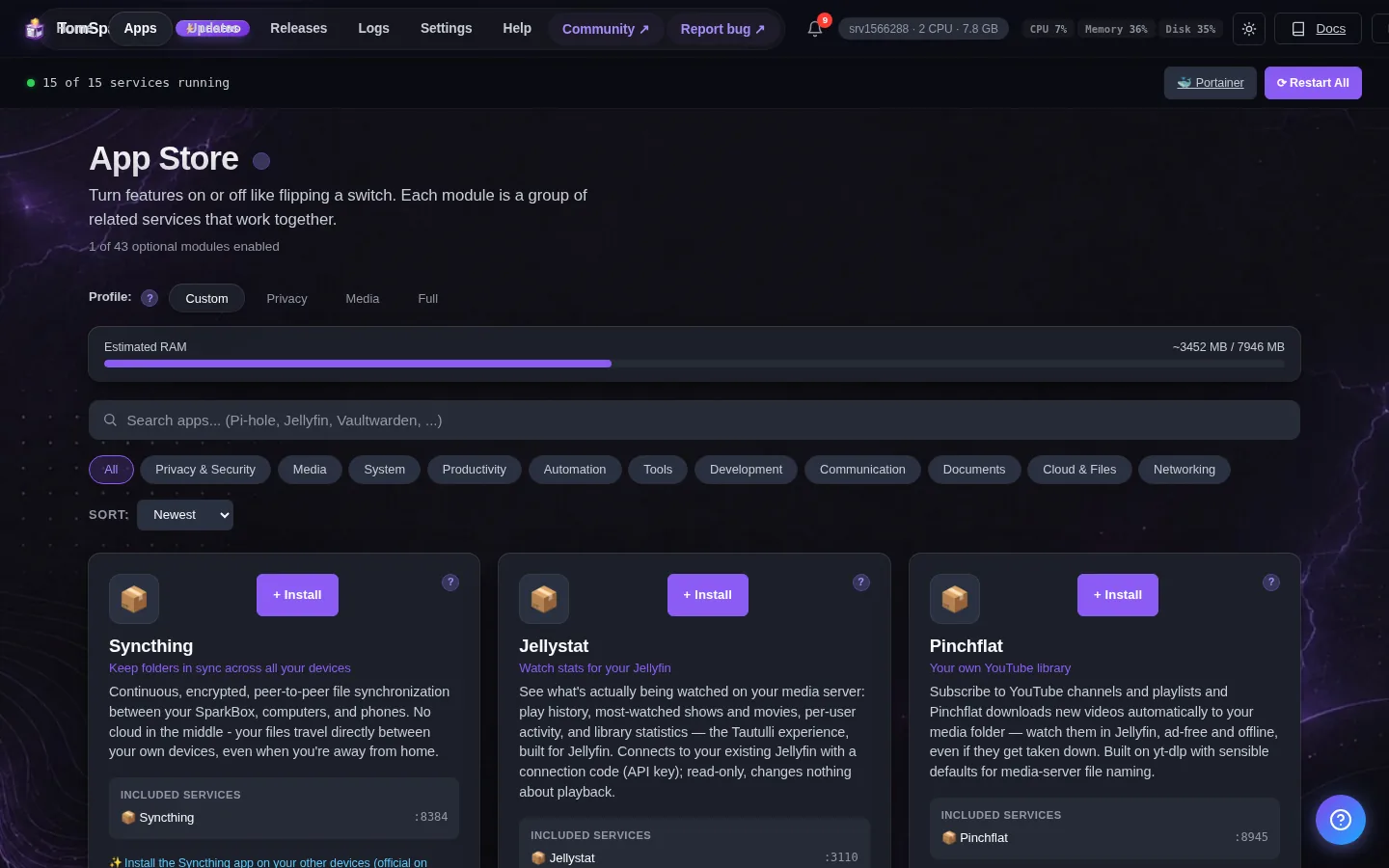
- Find the Photos app (it may be listed as Immich) and turn it on.
- Give it a few minutes the first time — it's setting up its database and search engine. This only happens once.
- Open it, and create your admin account (the first one you make is the one in charge).
4. Step 2: Install the app on both phones
This is the part that makes iPhone-and-Android painless: the same app exists on both stores.
- iPhone: install Immich from the App Store.
- Android: install Immich from the Play Store.
On each phone, open the app and log in to your server:
- Choose to connect to a server.
- Enter your Photos app's web address (the same one you open it at) and the account login for that person.
- That's it — the phone is now talking to your home library.
5. Step 3: Turn on automatic backup
Now make each phone back itself up so you never think about it again.
- In the app on each phone, open the backup settings.
- Turn on automatic backup for the camera roll.
- Optionally allow it to back up over mobile data, or leave it Wi-Fi-only to save your data plan.
From here on, every photo either of you takes flows up to your server on its own. The first backup of an existing camera roll can take a while (years of photos is a lot), so leave both phones on Wi-Fi and charging overnight for the initial run. After that it's just the new photos, which is quick.
6. Step 4: Share one library between the two phones
With both phones backing up, each person sees their own photos. The last step is making a shared space so you both see the family pictures.
The simplest approach is a shared album:
- In the app, create an album (call it something like Us or Family).
- Add the photos you want both of you to have.
- Open the album's share options and invite the other person's account.
Now that album shows up for both of you, on both phones, and either person can add to it. New holiday photos from the iPhone and the Android both land in the same place automatically once you drop them in.
If you'd rather genuinely merge everything into one big shared pool rather than curated albums, you can — but shared albums are the friendliest way to start, and you can always go bigger later.
7. The honest list of what to expect
This setup is great, and it's the cleanest answer to the mixed-phone problem. Here's the straight talk so nothing surprises you.
- It needs a bit of horsepower. The face recognition and search run on your server, so a very low-end box will feel slow on the first big import. Once your library is processed, day-to-day use is snappy.
- Back it up. The whole point is your photos living in your home — which means a dead drive could take them with it. Turn on SparkBox's backup feature, and ideally keep a second copy off-site. Photos are the one thing people truly can't replace, so don't skip this.
- The first import is the slow part. Uploading years of two camera rolls takes time and space. After the initial catch-up it's effortless.
- Out-and-about access takes one extra step. At home both phones connect with no setup. To browse and back up while away, you'll want a safe way in from the internet — the SparkBox docs and our beginner guide cover doing that without opening risky holes in your router. You can start home-only and add it later.
None of these are dealbreakers — they're the trade for never paying a photo subscription again and keeping your family's pictures out of a company's hands.
8. Next steps
Once both phones are syncing, the same box can do more of the same job for the household — a shared family files folder, ad-blocking for the whole house, and more. One server, lots of "stuff you used to rent," now owned by you.
Want this without the fiddly parts?
SparkBox is free and sets up the Photos app (and a lot more) on your own server without the command line. Point it at a UGREEN NAS, an old PC, or a cheap cloud server and it handles the heavy lifting.
Get SparkBox free Read: replace iCloud photos the easy way →