How to Set Up a Self-Hosted Server in One Command
You can go from a blank server to your own private photo library, movie server, password manager, and network-wide ad blocker by pasting a single line and waiting about ten minutes. That sounds too good — or too sketchy — to be true, so this guide does two things. First, it shows you the one command and walks through exactly what happens while it runs. Second, it answers the question every careful person should ask before pasting a command they found online: is this actually safe? The honest answer is yes, and you'll see precisely why.
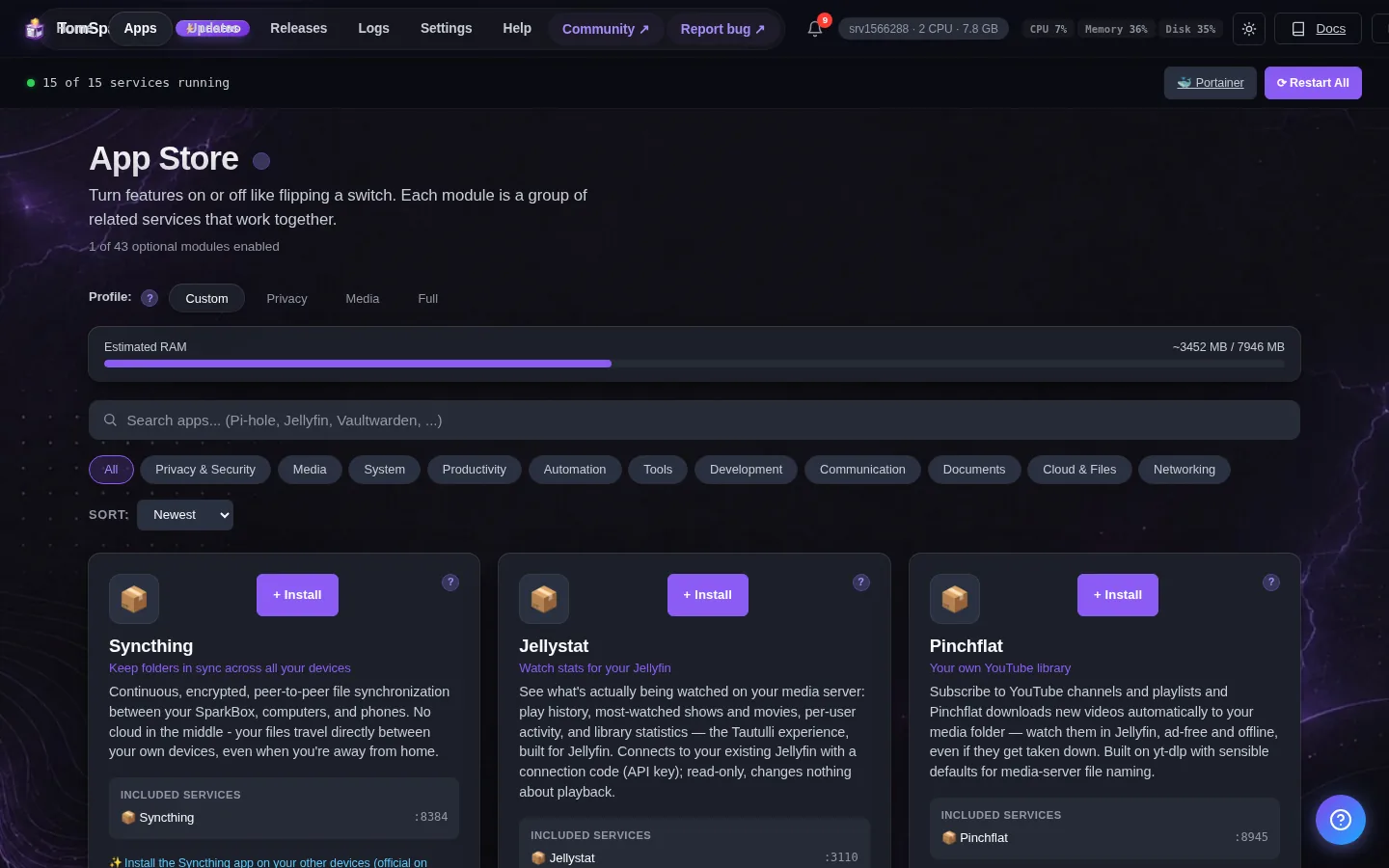
Tested on: a UGREEN DXP4800 Plus running SparkBox v1.6.155, with the same install verified on a $7/month Hostinger VPS. The safety details below come straight from the real installer script, not a summary of it.
1. The one command
Here it is, in full:
curl https://get.tomsparkbox.com/install.sh | sudo bashThat's the entire setup. There's no account to create first, no list of software to choose, no config files to write. You paste that line, type your server's password when it asks, and roughly 5–10 minutes later it prints a web address you open in your browser. From there, everything is point-and-click.
Before you paste anything, though, it's worth understanding the two halves of that line and what they set in motion — both so you know what you're getting, and so "paste a random command" turns into "run a thing I understand."
2. Where you actually type it
You don't need a special program. The command goes into a plain text window called a terminal, and the machine you're installing onto already has one:
- On a UGREEN NAS: open the built-in terminal from App Center or Control Panel → Terminal (the exact spot depends on your UGOS version).
- On a rented server (VPS): your provider's control panel has an "open terminal" or "console" button right in the browser. Hostinger's, for example, is one click from the server's dashboard.
- On an old laptop running Linux: just open the app called Terminal.
Paste the line into that window, press enter, and enter your password if prompted. The password won't show as you type — that's normal, not a frozen screen. After that you can mostly ignore the window; it scrolls through its progress and tells you when it's done.
3. What happens in those ten minutes
The first half of the command, curl https://get.tomsparkbox.com/install.sh, downloads a setup script. The second half, sudo bash, runs that script with administrator rights so it's allowed to install software. Once it's running, the script works through a clear sequence:
- Figures out your machine. It detects whether you're on a UGREEN NAS, a Synology, a VPS, or a plain Linux box, because each needs slightly different setup.
- Installs Docker if needed. Docker is the underlying tool that runs each app in its own tidy box. If it's not already there, the script installs it for you.
- Downloads the SparkBox release as a single packaged file from the SparkBox download server.
- Checks that download is genuine before trusting it — this is the safety step we'll come back to in detail.
- Unpacks everything into a folder at
/opt/sparkbox/, where your settings and data will live. - Starts the dashboard and prints its web address — something like
http://<your-server-ip>:8443.
Notice what it does not do: it doesn't install all 35 apps and leave them running. It sets up the platform and the dashboard, and then you pick which apps to turn on later, one click each. So the one command gets you a working control panel, not a pile of services you didn't ask for.
4. "Is pasting a curl command into bash safe?"
This is the right question to ask, and a lot of advice online answers it badly in both directions — either "never do it, ever" or "just run it, it's fine." The honest version is more useful than either.
The real risk with any curl … | bash command is that you're running code you haven't read, from a server you're trusting. If that server were hacked and served you a malicious script, it would run with administrator rights on your machine. That's a genuine concern, and it's why blindly pasting commands from forums is a bad habit.
SparkBox handles that concern in two ways, and you can use either or both:
- You can read the script before you run it. It's a plain text file at get.tomsparkbox.com/install.sh — open that link in a browser and you can read every line it will run. Nothing is hidden.
- The installer refuses to install anything it can't verify. When the script downloads the actual SparkBox software, it runs two checks first and stops the whole install if either one fails. The second of those is the one that genuinely matters, so it gets its own section.
5. The part that makes it safe: the signature check
After the script downloads the SparkBox package, it does this before unpacking a single file:
- A fingerprint check. It compares the download against a published checksum — a fingerprint of the correct file. If they don't match, the file got corrupted or altered on the way down, and the install stops with a clear message. This catches accidental corruption and crude tampering.
- A cryptographic signature check. This is the important one. Every SparkBox release is signed with a private key that only the project holds. The installer carries the matching public key built into it, and it verifies that the download was signed by that key. If the signature is missing or doesn't check out, the install aborts — it will not run unsigned software.
Here's why that second check is the one that counts. A fingerprint alone isn't enough, because if someone broke into the download server they could swap both the file and its fingerprint to match. But they couldn't produce a valid signature without the private key, which never leaves the project's hands. So even in the worst case — a compromised download server — a tampered package fails the signature check and never gets installed. That's a real, mandatory step in the installer, not a marketing line: by default there is no way to install an unsigned or altered release.
So "is it safe?" comes down to this: you can read exactly what the script does, and the script itself won't install SparkBox unless it can prove the software is the genuine, untampered release. That's a stronger guarantee than most "download and double-click" installers give you.
6. If you'd rather read it before running it
If piping straight into bash still makes you uneasy — a perfectly reasonable instinct — you can split it into two steps so you read the script first and run it second:
curl https://get.tomsparkbox.com/install.sh -o install.shThat saves the script to a file called install.sh instead of running it. Open that file in any text editor and read through it. When you're satisfied, run it with sudo bash install.sh. Same result, but now you've seen every line before it does anything. There's no difference in what gets installed — only in whether you read first.
7. After it finishes
When the script is done it prints the dashboard address. Open it in your browser and you'll land on the SparkBox control panel — a grid of app tiles. From here you're finished with the terminal for normal use. Installing an app is a single click on its tile; launching it pops up its address and password for you. There are no more commands to memorize.
If you want to understand the bigger picture of why this works without you ever touching a config file, the no-Docker explainer and the no-terminal walkthrough cover it. And once you're in, the Pi-hole guide is a good first app to set up — network-wide ad blocking with a clear, screenshot-by-screenshot walk-through.
8. Where to start
The whole process, start to finish:
- Open the terminal on your NAS, VPS, or Linux laptop (section 2).
- Optionally read the script first (section 6) if you want to.
- Paste the one command and enter your password.
- Wait 5–10 minutes for it to finish and print the dashboard address.
- Open that address and click a tile to install your first app.
If you don't own a machine to install onto yet, the absolute-beginner guide covers the cheapest ways to get one — an existing NAS, a few-dollars-a-month rented server, or an old laptop. Any of them runs the exact same one command.
Next steps
One command, a verified install, then a dashboard.
SparkBox installs from a single line, refuses to run anything it can't cryptographically verify, and hands you 35+ self-hosted apps as one-click tiles. Free, open, and you can read every line before you run it.