How to Get AI Security-Camera Alerts (Without the Footage Leaving Your House)
Most "smart" cameras only feel smart because a company in the cloud is watching the video for you — and charging you every month to do it. The good news: the clever part, the bit that tells the difference between a person walking up and a tree branch moving, can run on a little box in your own home instead. Here's how to set that up on a SparkBox, in plain English, with every second of video staying inside your house.
Tested on: SparkBox 1.6.315, running on a UGREEN DXP4800 Plus and a $7/month Hostinger VPS. The camera software is Frigate NVR (version 0.17.1), which SparkBox installs and configures for you.
1. What "AI camera alerts" actually means
A normal camera records everything, all the time. If you want to find the moment someone walked up to your door, you scrub through hours of nothing. A motion-sensing camera is a bit better, but it pings you every time a shadow shifts, a car drives past, or a cat crosses the lawn — so you learn to ignore the alerts, which defeats the point.
An "AI" camera is just a camera with a piece of software that looks at each frame and answers a simple question: is there a person in this picture? A car? An animal? When the answer is yes, it saves that moment and can tell you about it. When it's just wind in the trees, it stays quiet. That's the whole trick. It's genuinely useful — and there's no reason the part doing the looking has to live in someone else's data center.
With a cloud camera, that software runs on the company's servers, which means your video has to be uploaded to them for it to work. With Frigate on a SparkBox, the software runs on your own hardware, so the video never leaves your network. You get the smart alerts; you skip the subscription and the privacy cost.
2. How a computer tells a person from a branch
You don't need to understand the math, but the plain version is worth a paragraph because it explains why hardware matters. Frigate looks at the video a few frames per second and runs each frame through a small "object detection" model — a piece of trained software that has seen millions of pictures and learned what a person, a car, or a dog tends to look like. When it's confident it sees one, it draws a box around it and logs an event.
That checking takes some computing muscle. SparkBox handles this for you in two ways: by default the work runs on the regular processor, and on Intel mini-PCs and NAS units with an N100 or N150 chip it can also lean on the built-in Intel graphics to do the heavy lifting more efficiently.
Good to know: a chip like the Intel N100 (in the UGREEN DXP2800) is the sweet spot here — it's cheap, sips power, and is fast enough to watch a couple of cameras for people and cars without breaking a sweat. On other hardware it still works; it just uses a bit more of the regular processor.
3. What you need before you start
Two things, and the first one trips people up, so read it before you buy anything.
A camera that gives you an "RTSP stream." RTSP is just the plain, open way a camera hands out its video feed — an address that any recorder can connect to. Most wired security cameras and a lot of Wi-Fi ones support it, but some cheap "cloud-only" cameras deliberately don't, because they want you locked into their app. Before you buy, search "[camera model] RTSP" and make sure the answer is yes. If a camera only works through the maker's phone app, it won't work here.
A SparkBox to run it on. If you don't have one yet, SparkBox turns a mini PC or a UGREEN NAS into a home server with one command — Frigate is one of the apps you can switch on. If you're brand new to all this, our guide on running a home server without the terminal is a gentler starting point, and the companion guide on recording cameras without a monthly fee covers the recording side in more depth.
4. Turn on Frigate
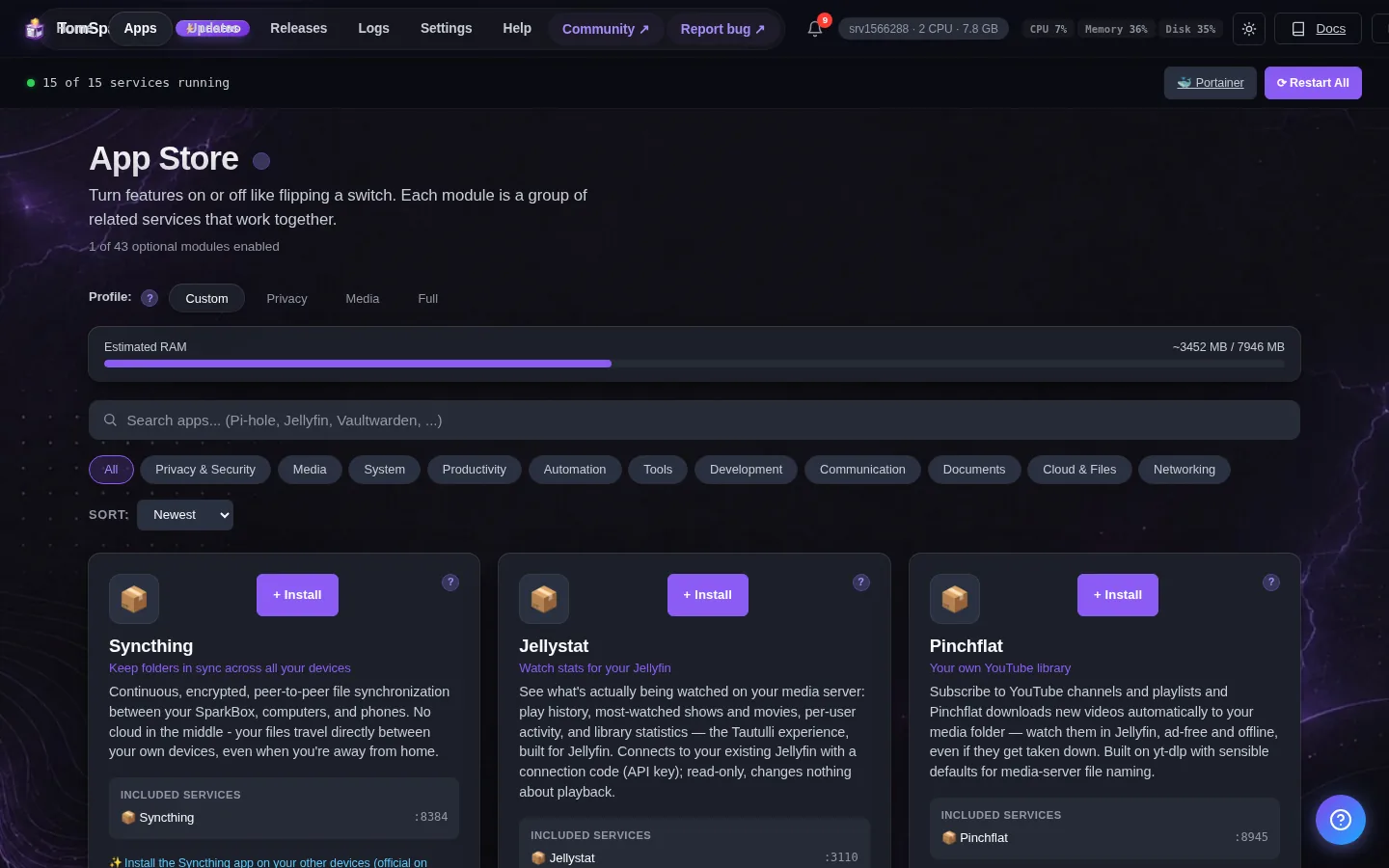
In your SparkBox dashboard, find Frigate NVR in the list of apps and switch it on. SparkBox does the fiddly parts for you: it sets aside memory (Frigate uses roughly 800 MB), installs a starter configuration so the app boots cleanly, and creates a login for you.
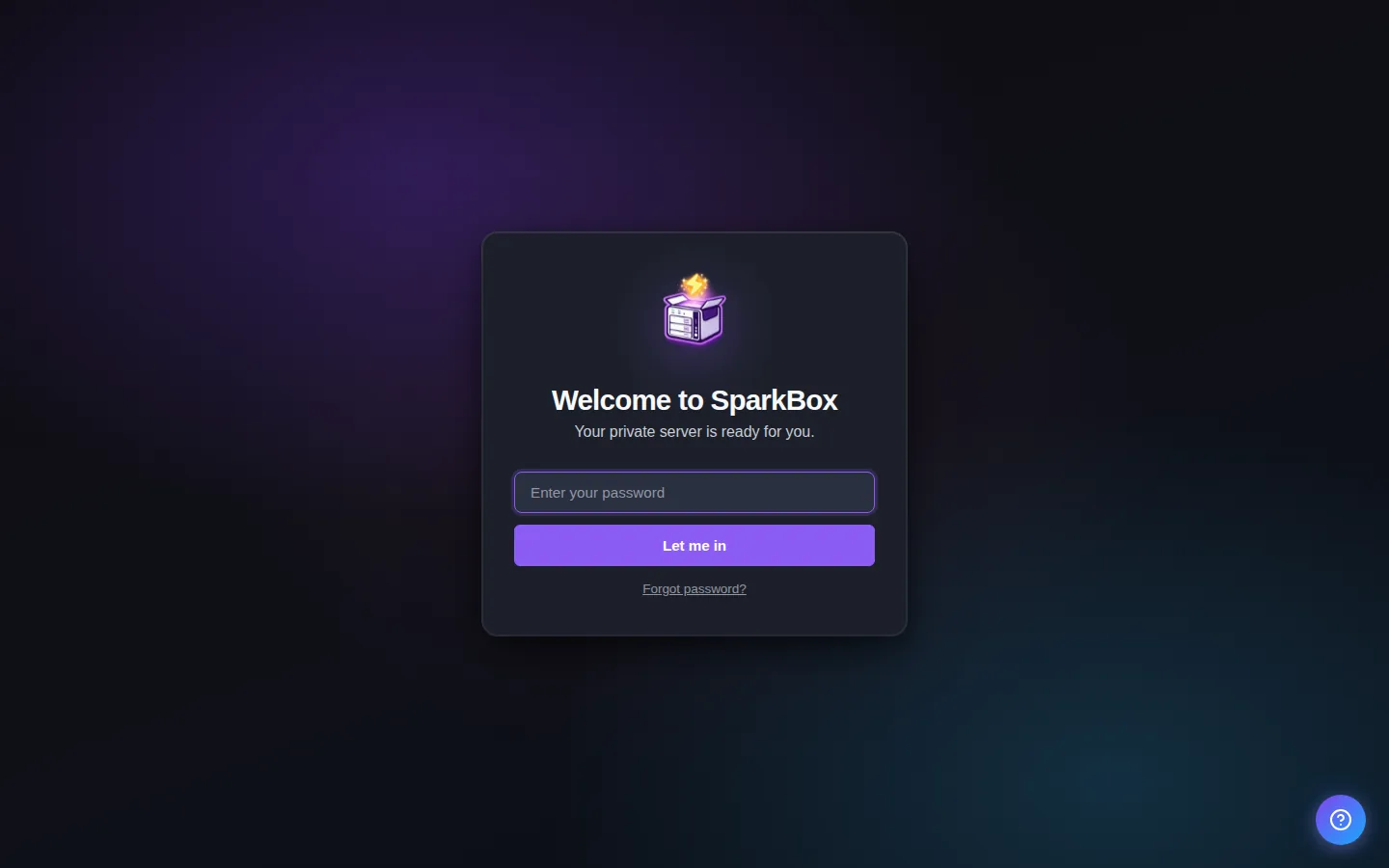
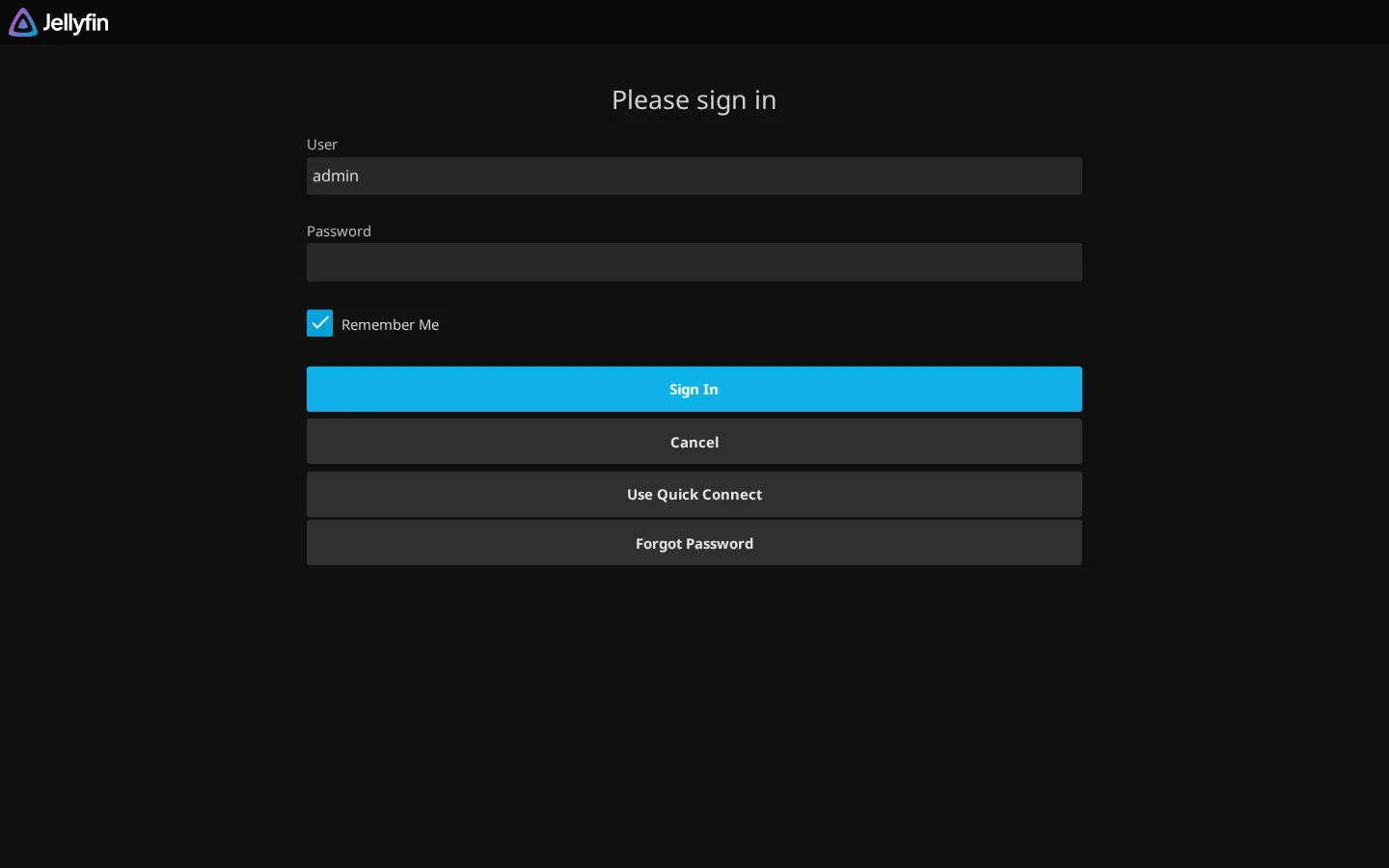
That last part matters: the first time Frigate starts, it makes its own random admin password. You don't have to go hunting for it — SparkBox reads it out of the app's logs and shows it to you on the dashboard. The username is admin. Once you're in, you can change the password inside Frigate under Settings → Users.
To open Frigate, go to its address on your own network. It looks like this:
https://<your-NAS-IP>:5001The first time you open it, your browser will warn you about the site's security certificate. That's expected — you're connecting to your own box on your own network with a self-signed certificate, not a public website. Click "Advanced" and then continue.
5. Give it a camera to watch
Out of the box, Frigate starts with a placeholder camera that's switched off — that's just so the app boots without errors. To make it useful, you point it at your real camera's RTSP address, which looks something like this:
rtsp://username:[email protected]:554/streamYou get that exact address from your camera's own app or settings page (look for "RTSP", "stream URL", or "ONVIF"). On the SparkBox host, Frigate's settings file lives here:
modules/frigate/config/config.ymlThis is the one part that involves editing a text file rather than clicking buttons, so don't rush it. The exact lines to add for a camera — and how to swap the placeholder for your real feed — are spelled out step by step in our Frigate setup guide. Make your edit there, save, and restart Frigate from the dashboard. When the feed appears in the Frigate web page, you're connected.
6. Tell it what to care about
This is where the "smart" part earns its keep. In the same settings file, you tell Frigate which objects should trigger a saved clip. The detection that works reliably out of the box covers the common, useful ones — people and vehicles (cars, trucks). For most front-door and driveway setups, "tell me when a person shows up, and when a car pulls in" is exactly what you want, and that's available with no extra work.
An honest note on "package" alerts: you'll see cloud cameras advertise "package detected" notifications. Frigate can do specialty detections like that too, but it isn't part of the default setup — it needs a different detection model added on, which is a more advanced step. If catching deliveries is your main goal, start with person detection (you'll see the delivery person every time) and add package detection later once you're comfortable.
You also choose how aggressive to be. Frigate lets you set a confidence level so it only flags something when it's reasonably sure, and you can draw "zones" — for example, only alert me about a person on the porch, not someone walking by on the public sidewalk. That zone feature is the single biggest cure for alert fatigue, and it's worth setting up once you have the basics running.
7. Seeing the alerts on your phone
Every time Frigate spots something you asked it to watch for, it saves a short clip and a snapshot and lists it under the Events tab. Open the Frigate page on your phone's browser and you've got a tidy, scrollable timeline of "here's every person and car since yesterday" — no scrubbing through empty footage. To reach it while you're away from home, use a private remote-access tunnel rather than opening your box to the whole internet; our guide on reaching your home server from anywhere walks through the safe way to do that.
The honest tradeoff: a cloud camera will buzz your phone with a push notification the second it sees someone — that instant ping is the one thing it does that's genuinely simpler than rolling your own. Frigate saves and organizes everything locally and shows it the moment you open the page, but true push-to-your-lock-screen alerts need an extra piece wired in (most people use Frigate together with a home-automation app for that). If a real-time buzz is non-negotiable for you, know that going in — it's a setup step, not a checkbox. For a lot of people, "open the app and instantly see what happened" is enough, and the privacy and no-fee parts more than make up for it.
8. Where the clips live and how much space they use
Recorded video adds up fast — keeping continuous recordings can mean tens of gigabytes a week per camera. SparkBox plans for this: instead of filling up your system drive, it stores Frigate's recordings on your main storage pool (the big drives), and if you had footage on the wrong drive it moves it over for you automatically the next time Frigate starts.
You also control how much it keeps. Frigate's starter settings lean conservative — it holds recordings for a number of days and can be set to only keep video around motion rather than every single second, which saves a lot of room. Start modest (say, a week of clips), see how much space that actually uses on your hardware, and turn it up if you have the room. There's no cloud meter charging you by the gigabyte, so the only limit is your own drives.
Next steps
You now have the picture: a camera you already own, a small box in your house doing the smart watching, and clips that never touch anyone else's servers. The setup is a one-time effort — switch Frigate on, point it at your camera, tell it to watch for people, and you're done paying monthly to access your own video.
Smart cameras, none of the subscription.
SparkBox is a free, one-command way to turn a mini PC or UGREEN NAS into a home server — with Frigate's local AI camera detection, private photos, media, and more, all on hardware you own. The footage stays home, and nobody charges you to look at it.