How to Watch Your Own Movies on Any Device in the House
You have a pile of movies and TV shows — maybe on an old hard drive, maybe ripped from your own discs — and you want to watch them on your TV, your phone, and your tablet without copying files around or paying yet another monthly subscription. The good news: you can have your own private "Netflix" running at home in an afternoon, and once it's set up, everyone in the house just opens an app and presses play. This guide walks you through it in plain English, no terminal experience assumed.
Tested on: SparkBox v1.6.157 on a UGREEN DXP4800 Plus and a Hostinger VPS, running Jellyfin 10.11.
1. What you actually end up with
Picture the Netflix app, but every movie and show in it is one you already own, and there's no monthly bill. You open an app on your TV, see your collection laid out with posters and descriptions, pick something, and it plays. On your phone in the kitchen, same thing. Your partner on a tablet in another room, same thing — all at once, all from one box sitting in your house.
That box is a small server running a free program called Jellyfin. It scans the folder where your movies live, fetches the posters and summaries automatically, and streams whatever you pick to whatever screen you're holding. You don't move files to each device, and nothing leaves your home unless you decide to let it. No account with a streaming company, no "this title is no longer available," no ads.
2. What you need before you start
Three things:
- A box to run it on. This can be a home NAS (a UGREEN or similar), an old laptop, a cheap mini PC, or a small server. It doesn't need to be powerful — anything from the last several years that can stay on is fine for a couple of screens at a time.
- Your movie and TV files. Whatever you've already got — files on a drive, a folder of ripped discs, downloads. Jellyfin plays the common formats (MP4, MKV, and so on) without you converting anything.
- About an afternoon, once. After the first setup, you basically never touch it again — new files you drop in just appear.
You do not need to know Linux, Docker, or anything about networking to follow this. The hard part — wiring up the server software — is what we're going to skip past with one command.
3. Meet Jellyfin, your own movie app
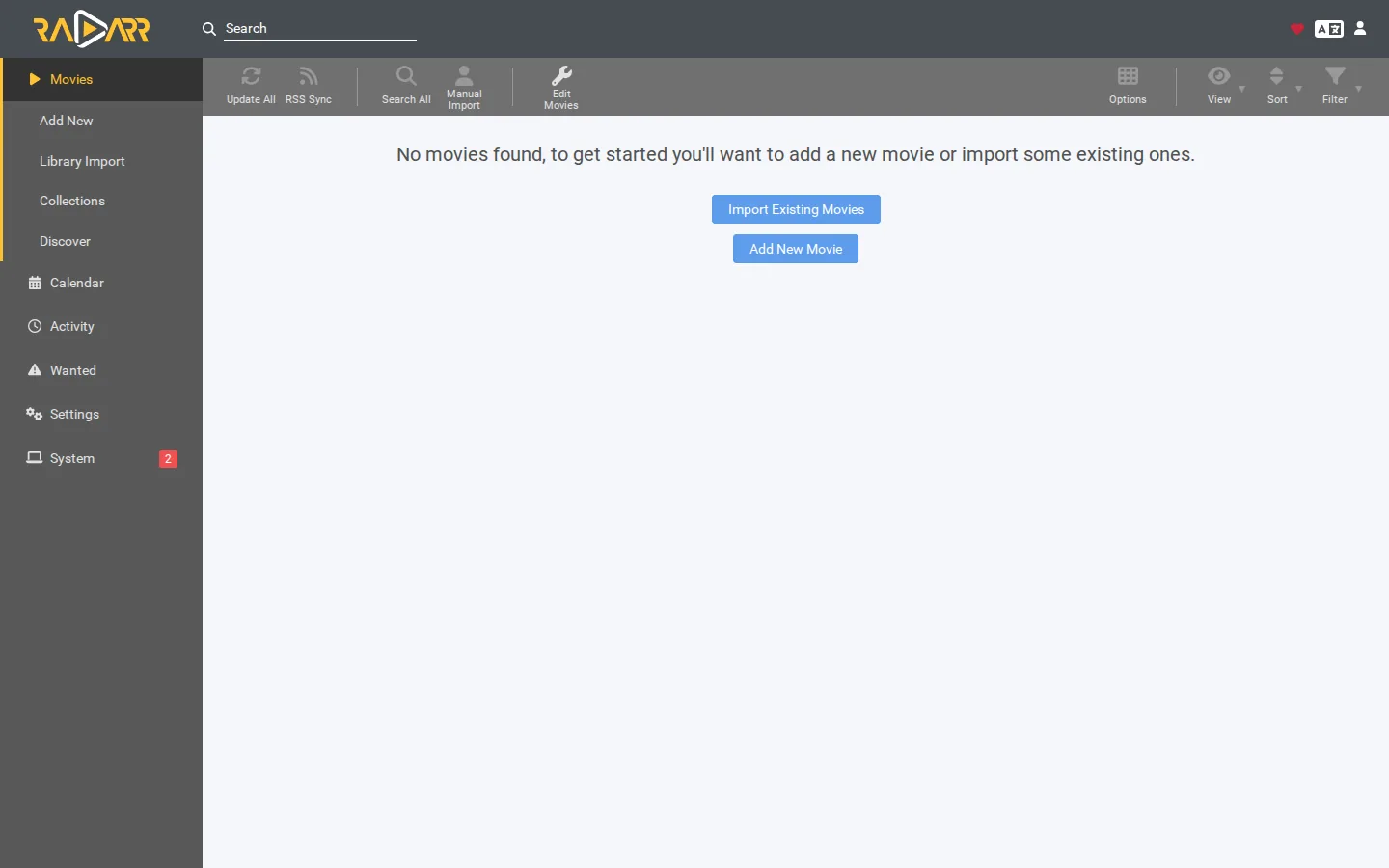
Jellyfin is a free and open-source media server. In plain terms: it's the program that turns your folder of files into a tidy app with posters, seasons, episodes, "resume where you left off," and apps for every screen. It's free in the real sense — no subscription, no paid tier to unlock features, and no company tracking what you watch. Your library and your viewing history stay on your own box.
It's also the most "yours" option out there: there's no parent company that can change the rules, lock a feature behind a fee, or decide your device isn't supported anymore. If you'd rather use Plex instead — which is a little more polished but more tied to an outside account — there's a separate guide to running Plex without paying for Plex Pass. For most people who just want their own movies on their own screens, Jellyfin is the simplest place to start.
4. Getting it running the easy way
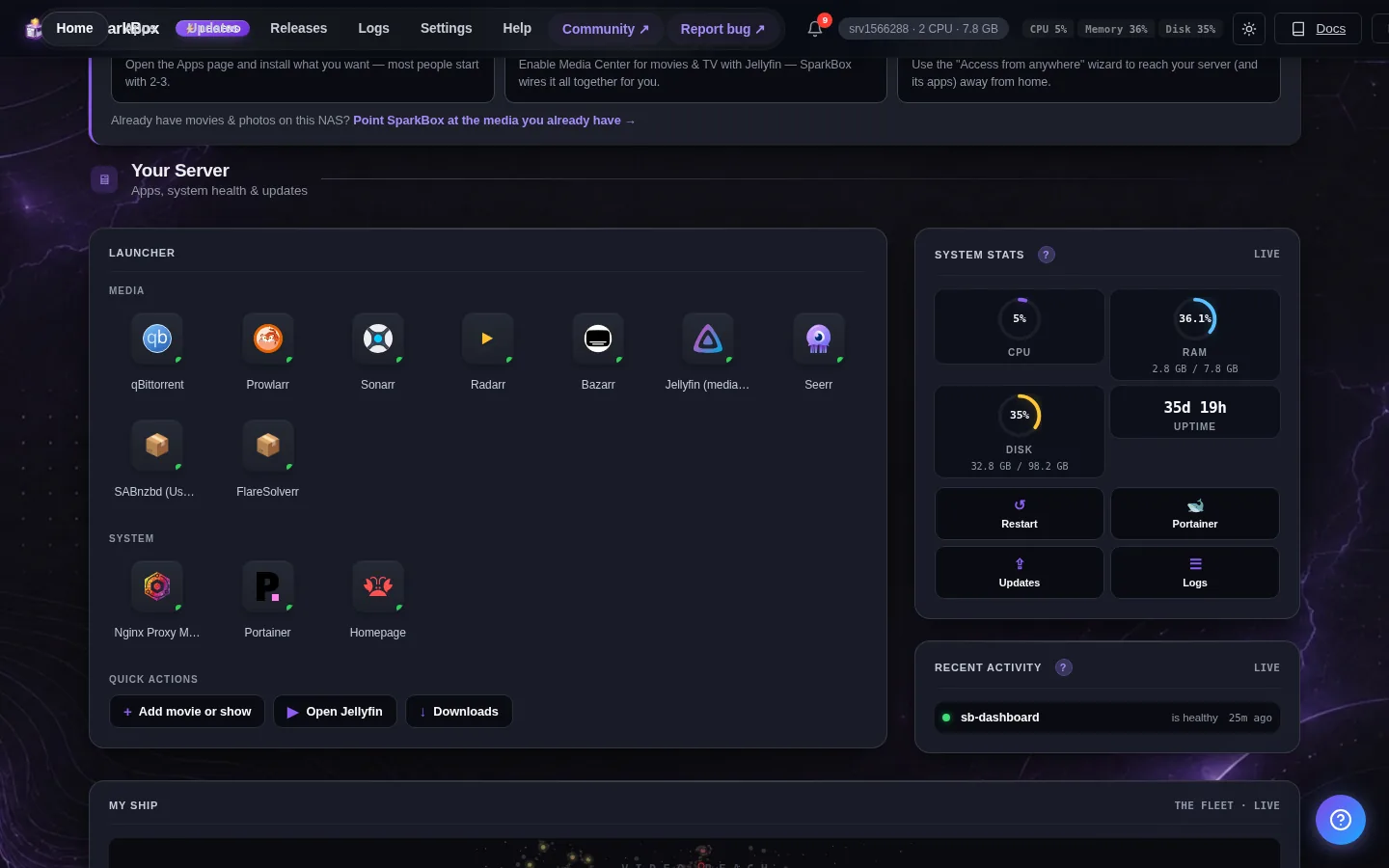
Setting up a media server by hand normally means installing Docker, writing config files, and lining up folder permissions — the stuff that sends people back to a paid service. SparkBox does all of that for you. It's a free tool that installs Jellyfin (and a stack of other self-hosted apps) with a single command and a friendly dashboard, so you never open a config file.
On your server, you run one line:
curl -fsSL https://get.tomsparkbox.com/install.sh | sudo bashThat downloads SparkBox, sets everything up, and prints a web address for your dashboard plus a one-time login code. Open that address in any browser on your home network, pick a password, and you're in. From the dashboard's Apps page, you turn on Jellyfin with a click — SparkBox runs it for you behind the scenes (it lives at sb-jellyfin internally, on port 8097, but you'll just click "Open" rather than ever typing that).
If you've never installed anything from a terminal before and that command looks scary, that's normal — it's literally the one and only command in this whole process, and our guide to self-hosting without the terminal walks through what each part does.
5. Putting your movies where it can see them
Jellyfin can only show movies it can find, so the one thing you do need to get right is where the files go. SparkBox keeps all your media in one place:
/opt/sparkbox/data/mediaInside that folder, make a Movies folder and a TV folder, and drop your files in (the capital letters matter — these are the exact folder names SparkBox and Jellyfin already look for). So a film ends up at something like /opt/sparkbox/data/media/Movies/The Matrix (1999).mkv. You can copy files in over your home network (the box shows up as a shared drive), with a USB stick, or however you normally move files around.
A naming tip that saves headaches: name movie files with the title and year, like Title (Year).mkv, and put TV shows in folders by show and season. That's how Jellyfin knows which poster and description to pull, so your library looks like the real thing instead of a list of filenames. You don't have to be perfect — you can fix matches later — but a little tidiness up front goes a long way.
6. The first-run setup
The first time you open Jellyfin, it runs a short setup wizard. Two things to know:
- The first user you create becomes the admin. Pick a username and password you'll remember — this is the account that controls the server, so don't lose it.
- You point it at your folders. When it asks you to add a library, choose "Movies" and point it at your movies folder, then add another for "Shows" pointed at your TV folder.
Once you finish, Jellyfin scans those folders, downloads the artwork and summaries in the background, and a few minutes later your library is sitting there looking like a streaming app. New files you add later get picked up automatically. For the deeper options — multiple users, subtitles, cleaning up wrong matches — the full Jellyfin setup guide covers them step by step.
7. Watching on your TV, phone, and tablet
This is the part that makes it feel real. Jellyfin has apps for the screens you already use:
- Phones and tablets — there's a Jellyfin app for both Android and iPhone/iPad. Install it, type in your server's address, sign in, and your whole library is in your pocket.
- TVs — there are apps for Android TV and Amazon Fire TV (the little stick you plug into the HDMI port). Install it the same way you'd install any app on those, point it at your server, and you're watching on the big screen.
- Any computer — you don't even need an app on a laptop or desktop. Just open the Jellyfin web page in a browser and play from there.
Everyone in the house can have their own login, so the kids get their own profile and "continue watching" doesn't get mixed up with yours. Several people can watch different things at the same time, as long as your box can keep up (more on that below).
8. Watching when you're not home
Everything above works the moment you're on your home Wi-Fi. The honest answer about watching from outside the house — at work, on a trip, at a friend's place — is that it takes one extra step, and there's a right way and a risky way to do it.
The risky way is opening your server straight up to the internet so anyone with the address can reach the login screen. We don't recommend it for a home box. The safe, beginner-friendly way is a tool called Tailscale: it creates a private link between your devices and your server, so your phone can reach your movies from anywhere, but nothing is exposed to the public internet. It's free for personal use and there's nothing to expose, no ports to open, and no certificates to wrangle. Our Tailscale setup guide walks through it — it's the route we point people to when they ask "how do I watch from my phone when I'm out?"
So: in the house, it just works. Out of the house, add Tailscale once and it just works there too.
9. The honest list of what to expect
A few things are worth knowing up front so nothing catches you out:
- Old or cheap hardware can struggle with 4K. If a device can play your file as-is, your server barely lifts a finger. But if it has to convert a big 4K file on the fly for a phone, a weaker box can stutter. For most people watching regular HD, anything from the last few years is fine; if you're heavy into 4K, a box with decent video hardware helps.
- Naming matters more than anything else. Ninety percent of "why is the wrong poster showing" comes down to messy filenames. Title and year for movies, show-and-season folders for TV, and you'll rarely have a problem.
- It plays your files; it doesn't find them for you. Jellyfin organizes and streams what you already have — it isn't a place to download movies. What you put in the folder is what you get.
- Updates are handled for you. Because SparkBox runs Jellyfin, keeping it current is a one-click update in the dashboard rather than something you babysit.
None of these are dealbreakers — they're just the difference between "I set it up and it works" and "I set it up, hit one of these, and wondered why." Now you won't wonder.
Next steps
Want your movies on every screen without the hassle?
SparkBox installs Jellyfin — plus phone-photo backups, ad-blocking, and more — with one command and a dashboard you actually understand. It's free, it runs on hardware you already own, and there's no subscription. Set up your own private movie library in an afternoon.