How to Use Plex Without Paying for Plex Pass (And the Free Alternative That Just Works)
If you have just hit the Plex Pass screen and you are wondering what is actually behind the paywall, here is the honest answer. You can keep using Plex without paying. The library still works. The apps still work. Watching your own movies on your own TV does not cost money. There is exactly one feature that turns into a real wall for most home users, and once you understand which one it is, the decision gets a lot simpler.
Tested on: a UGREEN DXP4800 Plus running SparkBox v1.6.155, with Plex Media Server 1.43.2 and Jellyfin 10.11.10 both installed against the same media folder. The Plex Pass behaviour described below was checked against a live install on the day this was written.
- 1. What Plex Pass actually unlocks
- 2. What you can keep doing for free
- 3. The one wall most people hit: hardware transcoding
- 4. Ways to dodge the wall without paying
- 5. The free alternative: Jellyfin (same hardware, no paywall)
- 6. Installing Jellyfin alongside Plex in one command
- 7. Switching from Plex to Jellyfin without losing your library
- 8. Which one should you actually pick?
1. What Plex Pass actually unlocks
Plex Pass is the paid subscription that Plex Inc offers on top of the free Plex Media Server. As of writing, it costs roughly $5 per month, $40 per year, or $120 as a one-time lifetime payment. Those prices change occasionally; the lifetime tier is the one most heavy users pick because it does not climb forever.
The list of features Pass unlocks is long, but most of them are either niche or have free workarounds. The ones that change real day-to-day use are:
- Hardware transcoding — letting Plex use your NAS's GPU to re-encode video on the fly, instead of your CPU. This is the big one. We will spend a whole section on it.
- Mobile sync and offline downloads — saving episodes to your phone for a flight or a long drive.
- DVR and live TV — recording over-the-air TV through a tuner. Only matters if you have a tuner.
- Multiple users with managed access — full home-user accounts with their own watch history, instead of one shared login.
- Mobile apps without the unlock fee — the iOS and Android Plex apps used to require a separate one-time unlock; that nag is gone if you have Pass.
Everything else — library scanning, watching on the web, watching on a Roku or Apple TV or smart TV, having Plex sort your movies by year and director — does not require Pass at all. That part of the product is free forever.
2. What you can keep doing for free
This is worth spelling out because the Plex onboarding nags hard and it is easy to think the whole product is behind a paywall. It is not. On a free Plex account you can:
- Run your own Plex Media Server on your NAS or VPS.
- Add unlimited movies, TV shows, music, and photos to your libraries.
- Watch them on every official Plex app — Roku, Apple TV, Fire TV, Samsung Tizen, LG WebOS, Xbox, PlayStation, iOS, Android, Chromecast, the web.
- Share your library with friends and family (they sign in with their own free Plex account).
- Get nice posters, trailers, and metadata for everything in your library.
- Use the Plex "Discover" row of streaming-service recommendations if you want it on (and turn it off if you do not).
The catch the onboarding does not tell you about is that the iOS and Android player apps have, historically, charged a small one-time "activation" fee per device on accounts without Pass. That fee is a few dollars and it is per platform — it is the only piece of "free Plex" that has a paywall on it that is not Pass itself. If you watch only on a TV box (Roku, Fire TV, Apple TV) or in a browser, even that is irrelevant.
3. The one wall most people hit: hardware transcoding
Transcoding is the word for what your server does when an app asks for a video your hardware cannot play natively — re-encoding it on the fly into a format the app can play. A common example: your movie file is in HEVC (H.265), but your Chromecast can only handle H.264, so Plex has to convert it. Or your file is 4K but the device asking is a phone on cellular that cannot pull that bitrate, so Plex shrinks it.
There are two ways to do that conversion:
- CPU transcoding — the server uses its main processor. Slow, hot, pegs all your cores, and on a low-power NAS it can struggle to keep up with a single 4K stream.
- Hardware transcoding — the server uses the integrated GPU on the chip (Intel Quick Sync on most NAS hardware). Roughly five to ten times faster while drawing about a tenth of the power. Smooth 4K transcodes to a phone are routine.
Plex requires Plex Pass to use hardware transcoding. The hardware can be right there. The Intel GPU on a UGREEN N100 NAS is mapped into the Plex container. Plex sees it. Plex refuses to use it. You get CPU transcodes only until you pay.
If you almost never transcode — your apps natively play everything in your library, the only client that ever needs a re-encode is a phone on cellular once a month — you may genuinely not notice. But the moment you regularly stream to a Chromecast that cannot decode HEVC, or to a friend on a slow remote link, this single line item is what tips the cost equation for most people. CPU transcoding on a low-power NAS sounds like a high-end laptop fan and looks like a slideshow.
If you want to know whether your setup actually needs transcoding before deciding, watch a few different files from a few different devices first. Plex shows a small icon next to the play bar — a lightning bolt means it is transcoding, a play arrow means it is direct-playing. If you see direct-play on everything you watch, congratulations, you can stay on free Plex forever. If you see the lightning bolt every time, you have your answer.
4. Ways to dodge the wall without paying
There are three legitimate ways to avoid hardware transcoding without paying for Pass. None of them involve cracking anything; they are just choices about how you ingest media.
Option A: only keep formats your devices natively play
Most modern devices natively play H.264 (also called AVC) video in MP4 or MKV containers. If your library is mostly in that format already, Plex will direct-play it and no transcoding happens. The catch is that H.264 4K files are large — a 4K movie in H.264 might be 40 GB, while the same movie in H.265 might be 12 GB. Storage gets expensive fast.
For most people, "stick to 1080p H.264" is the sweet spot — small enough files, plays on every device, no transcoding ever needed.
Option B: pre-convert files in advance, not on the fly
Tools like HandBrake let you re-encode video files on your desktop machine, once, into a format your devices natively play. The conversion runs on your faster desktop GPU instead of your NAS, and the result is a file Plex never needs to transcode again. The downside is the time cost — you have to remember to do it, and the first time you set up a library this means a long batch job.
Option C: cap the bitrate Plex serves to remote viewers
The reason "watching from outside the house" hits the transcoder so hard is usually bandwidth, not codec. Plex sees the remote app's slow link and re-encodes the video down to a lower bitrate. If you set Settings → Remote Streaming → Internet streaming quality to a number your upload speed can comfortably handle (8 Mbps is usually fine for 1080p), the server stops trying to ship the original high-bitrate file and the transcoding pressure drops. Combined with Option A, this gets you a lot of the way.
None of these options give you the convenience of "drop any file in, watch it on any device, the server figures it out." That convenience is exactly what Plex Pass sells. They are workarounds, not free upgrades.
5. The free alternative: Jellyfin (same hardware, no paywall)
There is one other option that solves the transcoding problem entirely: switch media servers. Jellyfin is a free, open-source media server that does the same job as Plex Media Server. It scans the same media folders, makes the same nice library with posters and metadata, streams to the same devices over apps you install on them.
Jellyfin's hardware transcoding has always been free. Map the same Intel GPU into the Jellyfin container, set Intel QSV (or VAAPI) in the dashboard, and you have full hardware acceleration with no subscription. On an Intel N100 NAS, that is the difference between smooth 4K HEVC playback to a Roku and a CPU pegged at 100 percent transcoding a single stream.
The honest tradeoff is the apps. Plex has first-class, pre-installed apps on more smart TVs than Jellyfin does. Samsung Tizen and LG WebOS TVs do not have official Jellyfin apps in their stores — you typically either cast from a phone, sideload a community fork, or plug a $30 Chromecast or Fire Stick into the TV and use the official Jellyfin app there. That works fine, but it is not the "open the smart TV, the app is on the home screen" experience Plex gives you.
For the apps that exist on both platforms — Roku, Fire TV, Apple TV (via the AppleTV app store, with caveats), Android TV, iOS, Android, web — Jellyfin has closed the polish gap a lot in 2025 and 2026. Trickplay scrubbing previews, much better intro detection, smoother resume-where-you-left-off. It is good software now, not just "free Plex."
For a longer side-by-side that covers privacy, account ownership, and a five-year cost comparison, see our terminal-free self-hosting overview and the Jellyfin and Plex setup guides linked at the end.
6. Installing Jellyfin alongside Plex in one command
You do not have to pick. SparkBox installs both Jellyfin and Plex as one-click modules from the same dashboard. They coexist happily because they read the same data/media folder, just on different ports — Jellyfin on :8097, Plex on :32400. Running both for a week is the fastest way to decide which one you actually like.
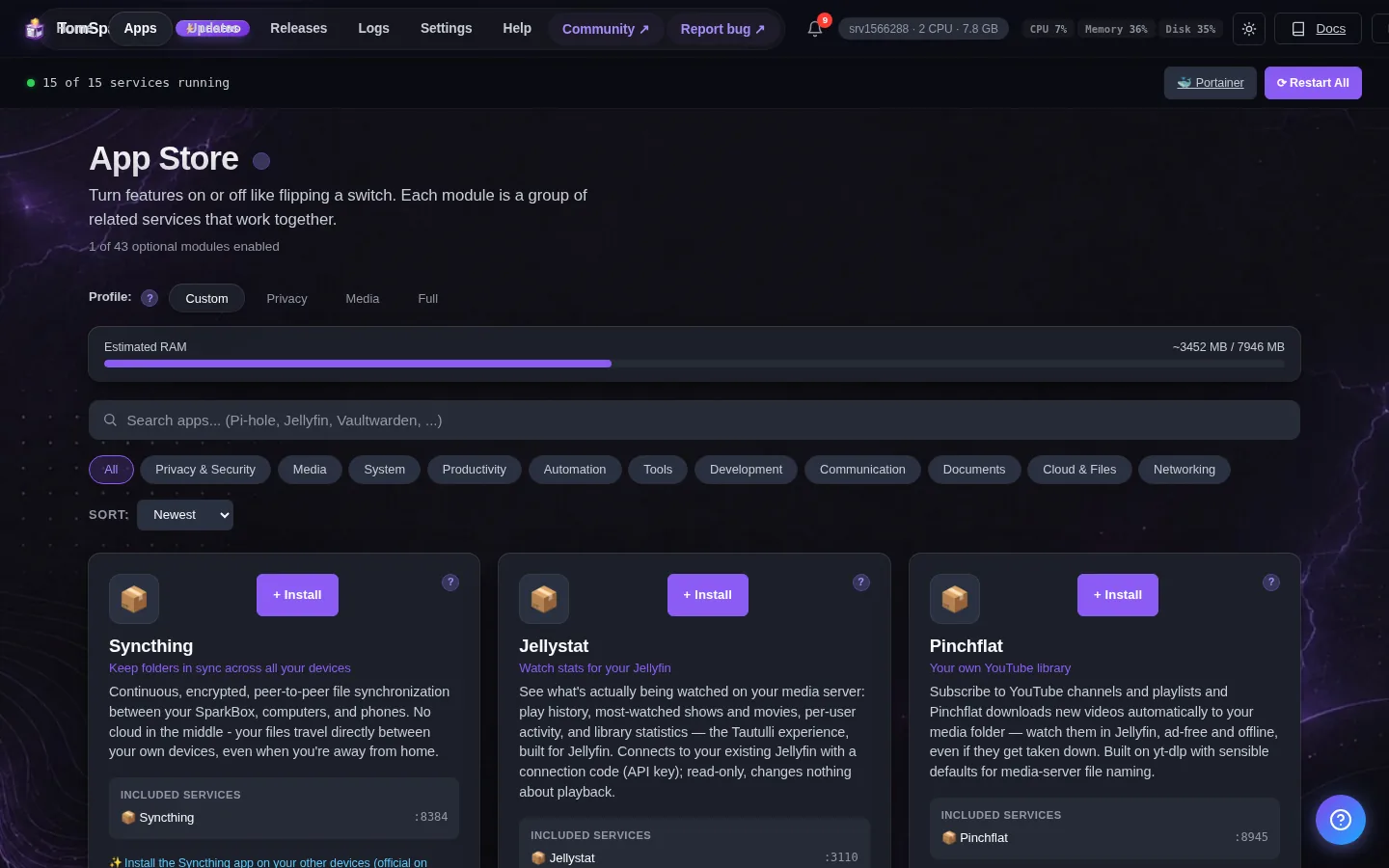
If you do not already have SparkBox installed, the entire install is a single command pasted into a fresh Ubuntu or Debian machine — a NAS, a mini PC, a $7-a-month Hostinger VPS, whatever you have. There is a beginner-friendly walkthrough of the whole install in how to start self-hosting if you have never used a terminal.
Once SparkBox is up, you enable Jellyfin from the dashboard:
# From the dashboard: click the Jellyfin tile and switch it on.
# Or from the terminal if you prefer:
sudo sparkbox enable jellyfin
sudo sparkbox up
Open http://your-box-ip:8097 in a browser. Jellyfin runs a setup wizard on first launch — pick a username and password (the first user you create becomes the admin), point it at /media inside the container (which is your data/media folder on the host), and let it scan. There is no Jellyfin company account to sign up for; everything stays on your box.
For hardware transcoding, set JELLYFIN_HW_ACCEL=intel in your SparkBox .env file (the dashboard has a button for this) and bring the stack back up. Then in Jellyfin, go to Dashboard → Playback, set Hardware acceleration to Intel QuickSync (QSV), save, and play a 4K file. The CPU should sit near idle while a transcode is running. That is the feature Plex charges $120 for.
7. Switching from Plex to Jellyfin without losing your library
If you already have a Plex library set up and you want to try Jellyfin without breaking what works, the good news is that your media files are not locked to Plex. Plex stores its metadata in its own database, but the actual movies, shows, music, and photos sit on your disk in normal folders — the same way you put them there.
Here is the safe migration path:
- Do not delete your Plex install yet. Leave it running. Jellyfin and Plex can read the same folder at the same time without conflict.
- Install Jellyfin using the steps in the previous section.
- Point Jellyfin at the same folder you gave Plex. On SparkBox the answer is
/mediainside the container, which is yourdata/mediafolder on the host — same volume both servers mount. - Let Jellyfin do its own library scan. It will not see Plex's watched-status, ratings, or play history — that data lives inside Plex's database, not on the files. The library itself appears identical.
- Run both for a week. Watch on Jellyfin most nights. See whether the apps feel good enough on the devices you actually use.
- If you decide to stay on Jellyfin, you can shut down the Plex module from the dashboard (or just leave it off — disk space is the only thing it costs idle). If you decide Plex was still better, you have lost nothing; Jellyfin sits idle.
One gotcha worth calling out: the standalone Jellyfin module conflicts with SparkBox's VPN-tunneled media bundle, which already includes its own Jellyfin instance. The dashboard will warn you if you try to enable both. Pick one or the other — running two Jellyfins on different ports is the fast way to confuse yourself about which library is which.
8. Which one should you actually pick?
Stay on free Plex (no Pass) if:
- You watch mostly H.264 files on apps that play them natively. No transcoding pressure means no Pass pressure.
- Family members in other houses use the library, and they need it to "just work" on whatever TV they own. Plex's app coverage is genuinely the best on the market for that case.
- You are happy doing pre-conversion in HandBrake the rare time a file needs it.
Buy the Plex Pass lifetime ($120) if:
- You transcode regularly — multiple Chromecasts in the house, friends watching remotely, lots of 4K HEVC content with phones in the mix.
- You also want the mobile sync and DVR features.
- You are fine with the Plex account model and the company having the door key to your apps.
Switch to Jellyfin (free) if:
- You are the primary user, and you are comfortable putting a $30 Chromecast or Fire Stick on a TV that needs one.
- You self-hosted specifically to get away from cloud accounts and tracking, and an external company holding your watch history bothers you.
- You want hardware transcoding for free, today, on the hardware you already own.
- You would rather use software whose business model cannot change out from under you.
And honestly: install both for a week. SparkBox makes that a one-toggle decision. By the end of the week you will know.
Next steps
The fastest way to know if Jellyfin replaces Plex for you is to run both for a week.
SparkBox installs Jellyfin and Plex side-by-side on one machine in a single command — no Docker config to write, no GPU plumbing to debug, no separate Plex account workflow to remember. Pick a NAS you already own or spin up a $7-a-month Hostinger VPS, paste the one-line install, then flip each one on from the dashboard and watch the same movie on both.