Put SparkBox on Your Phone (and Turn On Notifications)
Your SparkBox dashboard can live on your phone's home screen like any other app — and it can tap you on the shoulder when something needs attention, or when a movie or show you requested has finished downloading and is ready to watch. There's no App Store download and no account to create. This guide walks you through it, click by click, on both iPhone and Android.
1. What "the phone app" actually is
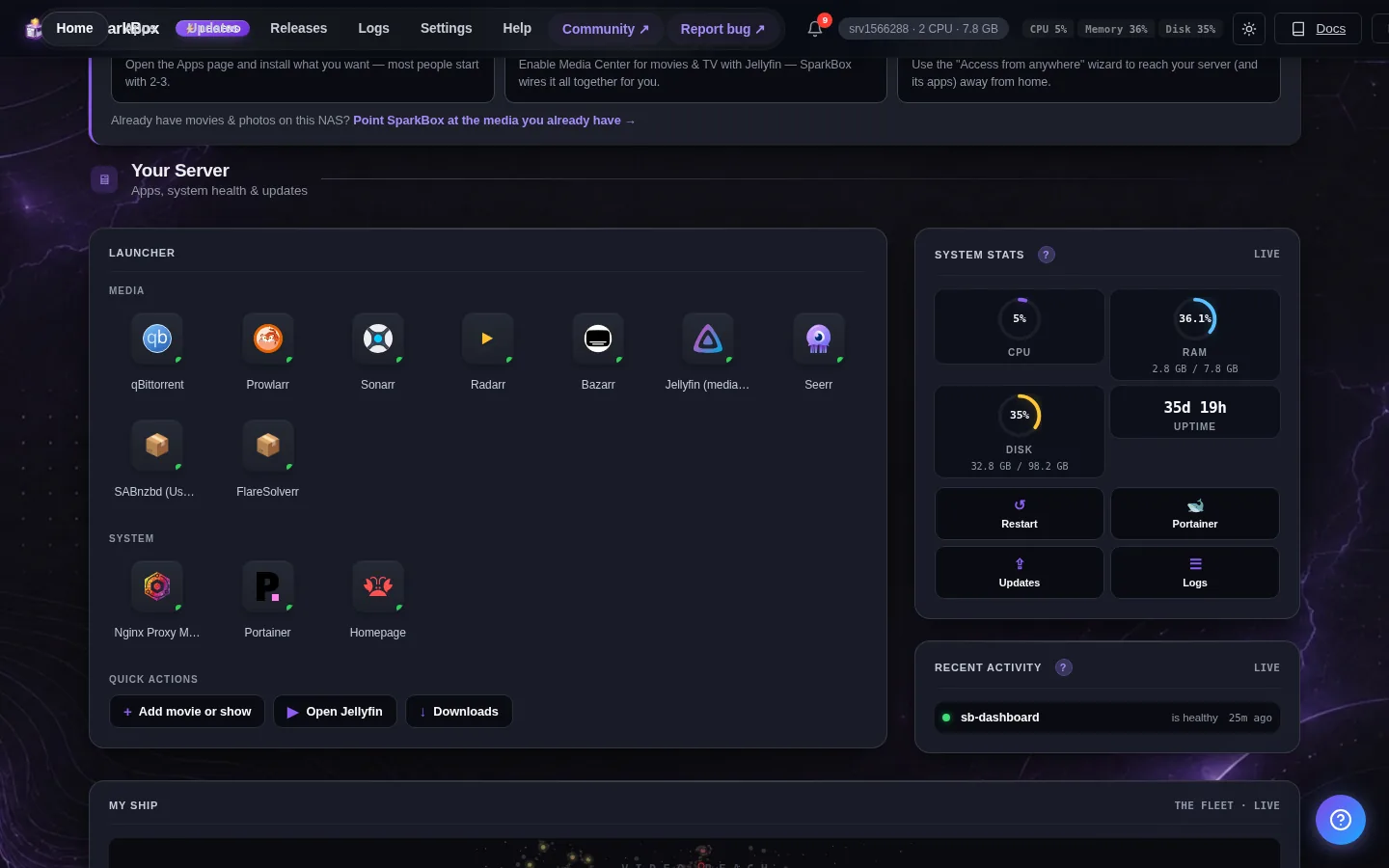
SparkBox doesn't ship a separate app you download from Apple or Google. Instead, your dashboard is the app: modern phones let a website add itself to your home screen and run full-screen with its own icon, exactly like a normal app. Tap the icon and you're straight into your box — no browser bar, no typing an address. It's the same dashboard you already use, just one tap away.
The bonus is notifications. Once it's on your home screen, SparkBox can send you a real push notification — the kind that lights up your lock screen — even when the app is closed.
2. What you need first
- A Legend license. The phone app and its notifications are a Legend feature. If you're on the free tier or the Backer tier, you'll be prompted to upgrade in Settings → License.
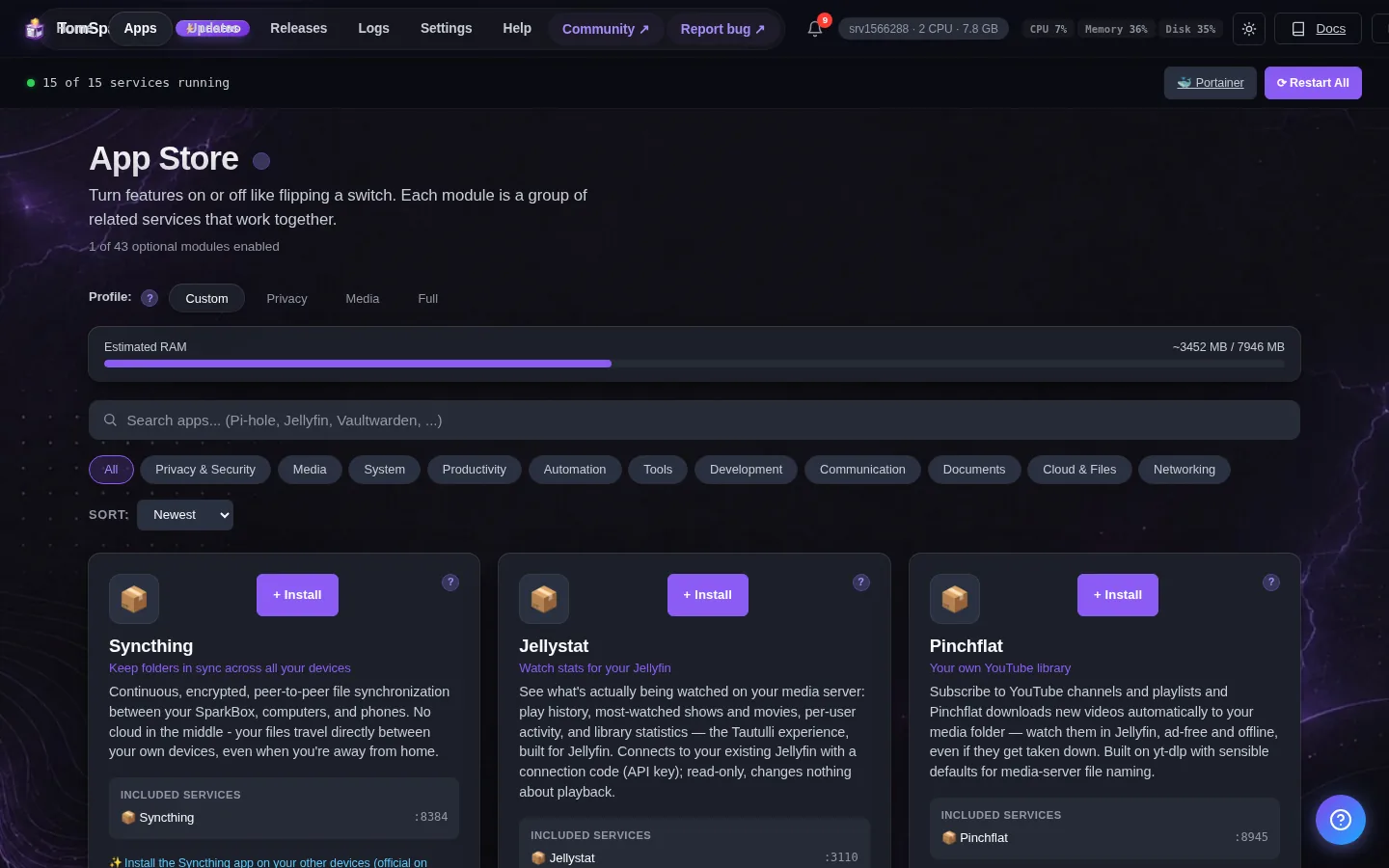
- A secure (https) way to reach your box. Phones only allow home-screen apps and notifications over a secure connection. SparkBox already gives you one through Tailscale or a custom domain — set either up once and you're covered, at home and away. A plain
http://192.168.x.xLAN address won't offer the install option; that's a phone rule, not a SparkBox limitation. - Your phone. iPhone on iOS 16.4 or newer, or any modern Android. That's it.
3. Install it on iPhone
Open your SparkBox dashboard in Safari (this only works in Safari on iPhone — not Chrome). Then:
- Tap the Share button — the square with an arrow pointing up, at the bottom of the screen.
- Scroll down the list and tap Add to Home Screen.
- Tap Add in the top-right corner.
The SparkBox icon is now on your home screen. Open it from there (not from Safari) — that's what unlocks notifications on iPhone.
4. Install it on Android
Open your SparkBox dashboard in Chrome. Most phones will pop up an "Install SparkBox" banner on their own — tap it and confirm. If you don't see the banner:
- Tap the three-dot menu in the top-right of Chrome.
- Tap Install app (older phones call it Add to Home screen).
- Confirm.
The icon lands on your home screen and in your app drawer.
5. Turn on notifications
Open SparkBox from the home-screen icon, then:
- Look for the notifications / bell prompt on the dashboard (it appears near the top the first time). Tap Enable.
- Your phone will ask "Allow notifications?" — tap Allow.
That's the whole setup. You can send yourself a test from the same spot to confirm it lands on your lock screen. If you ever want them off, revoke notifications for SparkBox in your phone's settings — nothing to uninstall.
6. What SparkBox will notify you about
These are chosen to be genuinely worth a buzz — SparkBox is deliberately quiet, not chatty:
- Something went unhealthy — e.g. "Immich went unhealthy." In most cases Tom AI is already looking at it, and you'll get a follow-up when it's fixed. It's a heads-up, not a chore.
- 🍿 Ready to watch — request a movie or show in Jellyseerr, and the moment it finishes downloading and lands in your library, your phone tells you: "Dune: Part Two is now available on your SparkBox." Tap it to open your box. No more checking back to see if it's ready yet.
- Updates & important events — when a new SparkBox version is ready, or something needs your attention that the box can't fix on its own.
Tapping any notification opens SparkBox straight to the right place.
7. The privacy part (this matters)
Here's the bit most "companion apps" quietly skip: SparkBox's notifications go straight from your box to Apple's or Google's delivery service and onto your phone. They don't pass through our servers. We're not a middleman that sees your alerts, your requests, or when you're home. That's the same principle as the rest of SparkBox — your box talks to your phone, and we stay out of it. It's also why this is a Legend feature: we built the secure, direct path rather than the cheap route of funneling everything through us.
8. If it won't install or notify
- No "Add to Home Screen" option? You're almost certainly on a plain
http://LAN address. Reach your box through Tailscale or your custom domain (both give you https) and the option appears. - iPhone shows no bell / no notifications? You must open SparkBox from the home-screen icon, not from within Safari — iPhone only allows notifications for the installed version. Re-open it from the icon and enable again.
- "Legend required" message? The phone app is a Legend perk. Upgrade in Settings → License and it unlocks immediately.
- Still stuck? Post in d/sparkbox with your phone model — we'll walk you through it and fix the guide if a step was unclear.
Next steps
That's SparkBox living on your phone.
Requesting movies is half of the phone experience — pair this with requesting movies & shows so a tap on your phone turns into a "ready to watch" buzz a while later.