Self-Hosting When Your Spouse Isn't Technical (How to Make It Painless for Them)
You set up the home server. You're thrilled. Then your partner tries to find a photo from last summer, can't, and quietly goes back to Google Photos — and now your big privacy project is "that thing only you use." This is the most common way a home server fails, and it has nothing to do with the technology. It's a setup problem. The trick is to arrange everything so the non-technical person in your house just uses it, the same way they use any app on their phone, and never has to know there's a server, a dashboard, or a "you" behind it. This guide is the playbook for that.
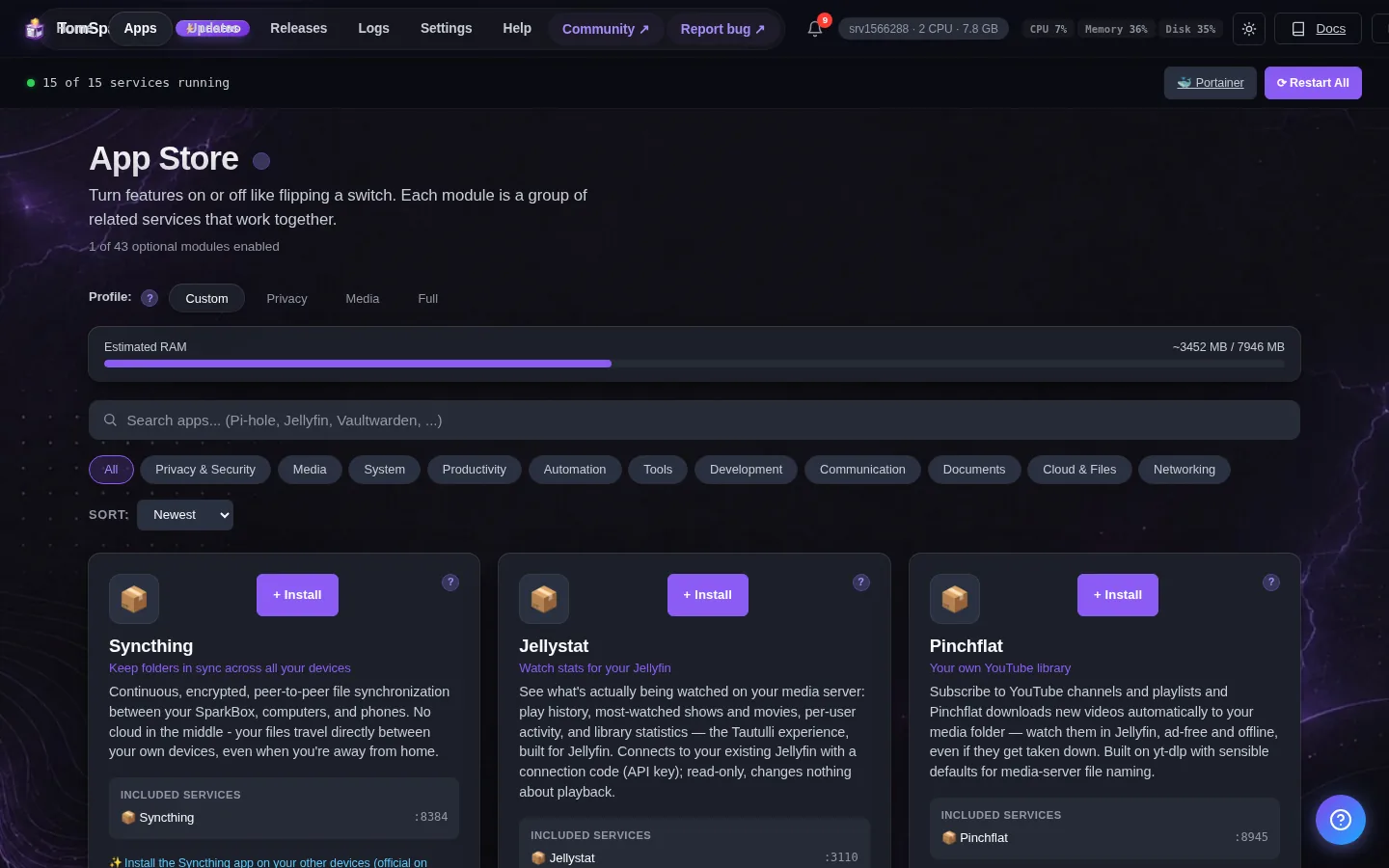
Tested on: a UGREEN DXP4800 Plus running SparkBox v1.6.201, with the same flow verified on a $7/month Hostinger VPS. The advice assumes you (the technical one) have a server running already; everything here is about how you hand it to someone who doesn't care how it works.
- The real goal: they never think about the tech
- Give them one front door, not a pile of links
- Give them their own account on everything
- Replace what they already use, keep the muscle memory
- Make it work the same when they're not home
- Start with the wins they never have to touch
- Keep it boring: updates without the "it's broken" call
- The honest part: what still lands on you
- Where to start this weekend
1. The real goal: they never think about the tech
There's a half-joke in the home-server world called the "spouse acceptance factor" — whether the people you live with will actually put up with the thing you built. It sounds dismissive, but it points at something true: a tool that only the person who built it can operate isn't really finished. If your partner has to remember an IP address, log in twice, or text you "the movie thing is down again," the project has a leak.
So set a different bar for yourself. The goal isn't "I can explain how it works." The goal is "they can use it without me in the room, and without knowing there's anything to understand." Everything below is in service of that one sentence. The good news is that most of the work is decisions you make once, during setup — not ongoing hand-holding.
2. Give them one front door, not a pile of links
The fastest way to lose a non-technical person is to hand them five web addresses with different port numbers. Nobody is going to remember :8096 for movies and :2283 for photos. Instead, give them exactly one link: the dashboard.
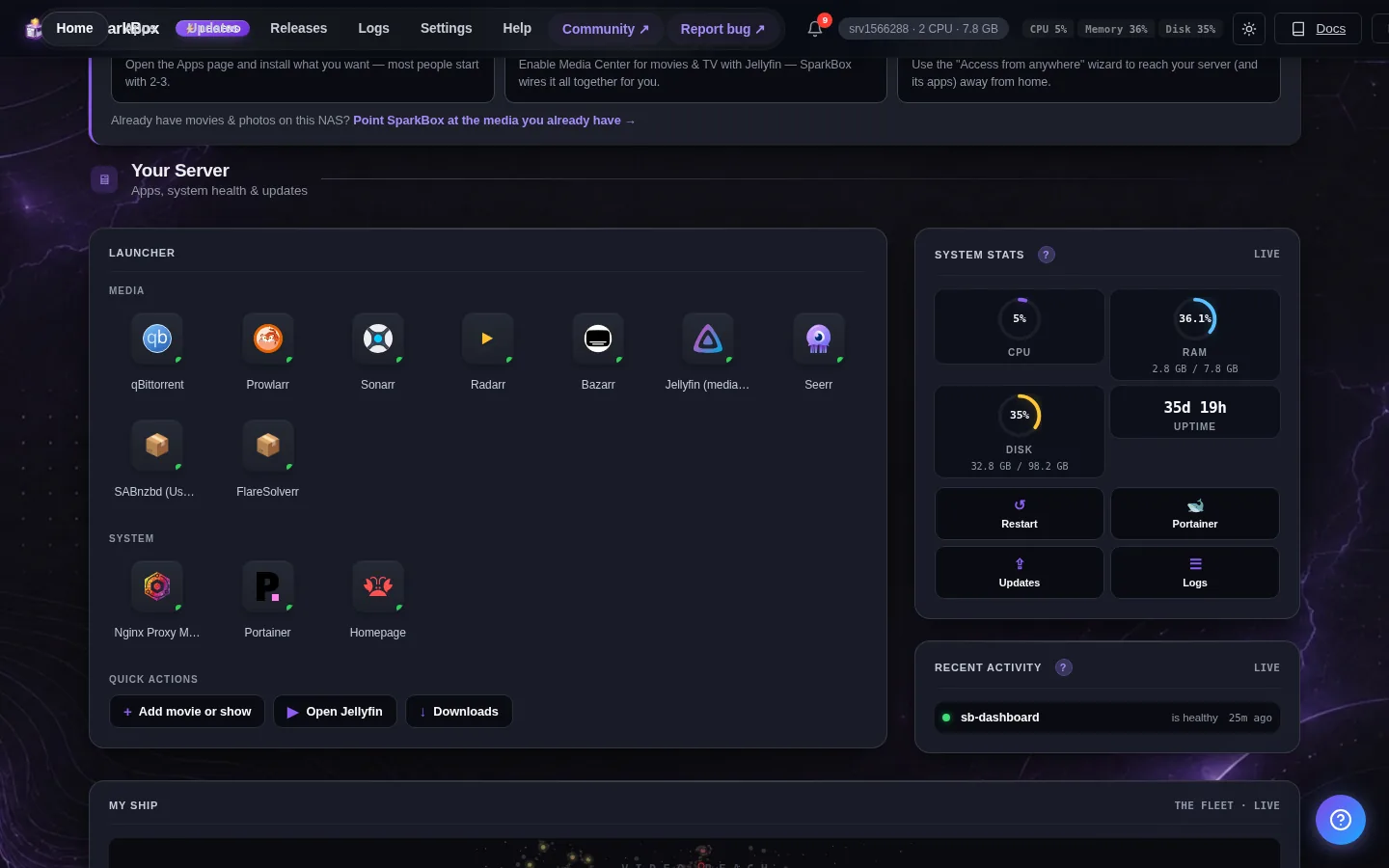
When you install SparkBox, it sets up a single dashboard in the browser — a grid of tiles, one per app — that lives at your server's address followed by :8443 (something like http://192.168.1.10:8443). That's the only address anyone in the house ever needs. From there, photos, movies, the password vault, and everything else are just tiles they click. If you want the full tour of what that dashboard looks like and does, the dashboard-for-beginners guide walks through it.
Now make that one link effortless to reach. Don't tell them to type it — set it up for them, on the device they actually use:
- On their phone: open the dashboard link in their browser, then use "Add to Home Screen" (Safari on iPhone, the menu in Chrome on Android). It drops an icon on their home screen that opens straight to the dashboard, looking and feeling like a regular app.
- On their laptop: add a bookmark to the bookmarks bar, or set it as a pinned tab so it's always one click away.
- Give it a name they'll recognize — "Home" or "Our Stuff," not "SparkBox 192.168." The label is for them, so use their words.
The whole point: they tap one familiar icon and they're in. There is nothing to remember, nothing to type, and no moment where they're staring at an address bar wondering what goes there.
3. Give them their own account on everything
This is the step people skip, and it's the one that decides whether the server feels like "ours" or "yours." Sharing your own login with your partner is a recipe for friction — your watch history bleeds into theirs, your photo uploads land in your library, and any setting one of you changes affects the other. The fix is simple: most of these apps are built for households, so give each person their own account.
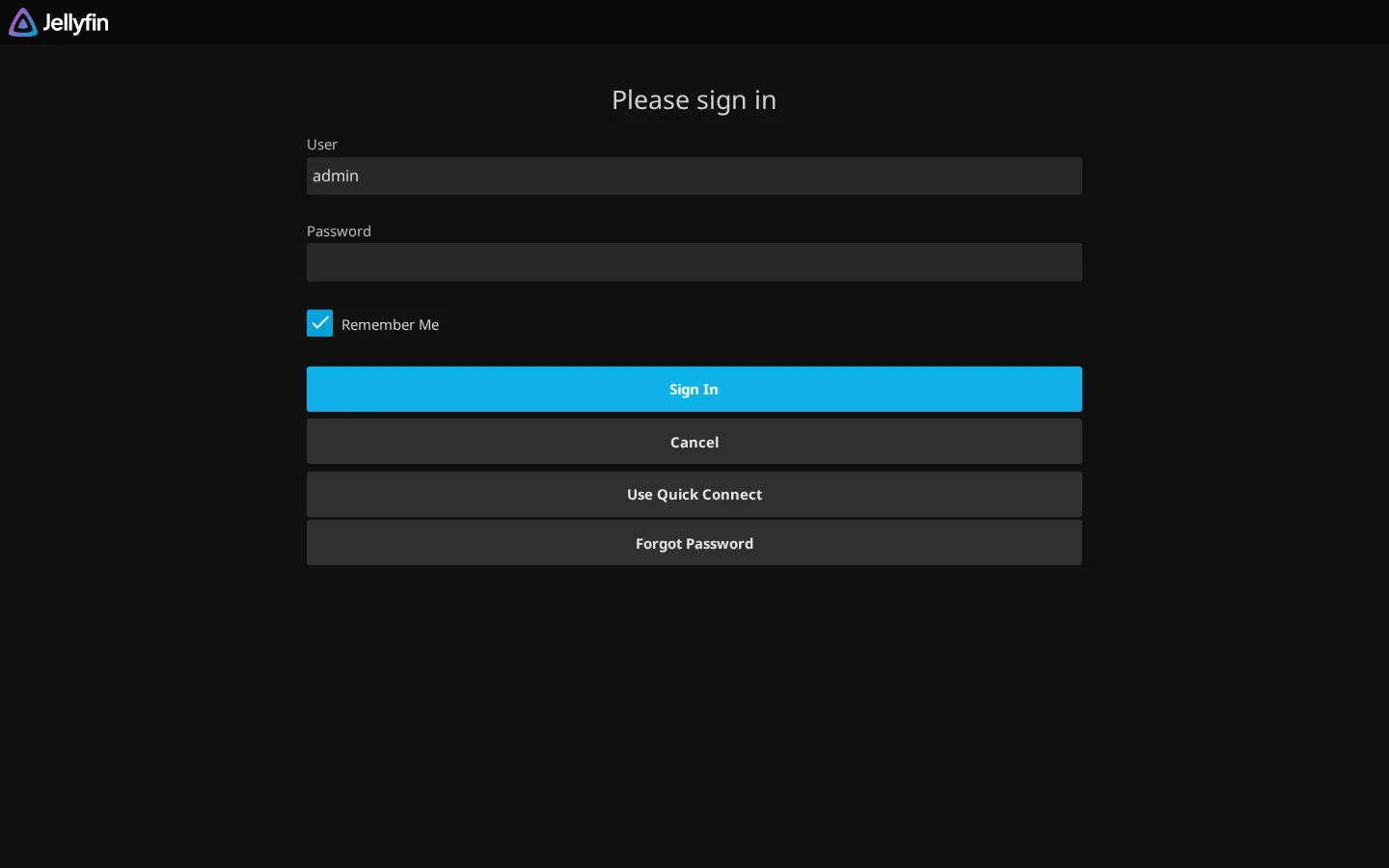
- Movies and shows (Jellyfin): create a separate user for each person. Everyone gets their own "Continue Watching" row, their own resume points, and their own profile — exactly like separate profiles on a streaming service. The Jellyfin setup guide covers adding users.
- Photos (Immich): give your partner their own account so their phone backs up into their own space. You can still share albums with each other when you want to, but day to day, their photos are theirs. The Immich setup guide shows account creation.
- Files and documents (Nextcloud): a personal account each, plus a shared folder for the things you both need — receipts, the house paperwork, holiday plans. The cloud storage setup guide walks through users and shared folders.
Set the password to something they choose (or something simple they'll remember for the home network), write it in the shared password vault, and you're done. Once their account exists, the app stops being your account that they're borrowing and starts being their own thing.
4. Replace what they already use, keep the muscle memory
Nobody adopts a new app because it's private. They adopt it because it does the job they already do, with as little relearning as possible. So don't introduce the server as "a privacy stack." Introduce each app as a direct, one-to-one swap for something they already know — and pick apps whose habits match.
- "It's our Google Photos." Immich looks and works like Google Photos — a scrolling timeline, search, albums, automatic phone backup. Most people are at home in it within a minute because the layout is familiar.
- "It's our Netflix." Jellyfin gives a poster wall, profiles, and a play button. If they can use a streaming app, they can use this.
- "It's our Dropbox / Drive." Nextcloud has a phone app and a desktop folder that syncs, so saving a file works the way they already expect.
- "It's the thing that fills in passwords." A password manager (Vaultwarden) plus its browser extension autofills logins just like the one built into Chrome — but it's yours. The Vaultwarden setup guide covers the extension.
A practical tip that saves a lot of grief: don't migrate everything in one weekend and announce a switch. Pick the one app that solves a real annoyance for them specifically — running out of iCloud space, say — and set just that one up well. When it quietly works, the next one is an easy yes. A pile of half-set-up apps is how a server becomes "too complicated"; one app that genuinely helps is how it becomes "wait, can we do the photos one too?"
5. Make it work the same when they're not home
Here's a trap that quietly kills adoption: the apps work on the couch but not at the coffee shop, because by default they're only reachable on your home Wi-Fi. To a non-technical person that just reads as "it's broken when I leave," and they'll drift back to the cloud app that works everywhere.
The clean fix is a tool called Tailscale. It creates a private connection between their phone and your server so the apps work the same whether they're home or not — and crucially, it does this without you opening ports on your router or doing anything risky to your network. You install it once on the server and once on their phone, sign both into the same account, and after that the home-screen icon just works from anywhere. The Tailscale setup guide has the steps.
Why this matters more than it sounds: the difference between "works at home only" and "works everywhere" is the difference between a tool your partner relies on and a toy they use occasionally. Set up remote access early, before they form the habit of "this only works on the couch."
Once Tailscale is on their phone, the address behind that home-screen icon keeps working on mobile data, hotel Wi-Fi, a parent's house — anywhere. They never see the plumbing. They just notice it always works, which is exactly the impression you want.
6. Start with the wins they never have to touch
The best first impression is a benefit that needs zero ongoing effort from them. Two stand out because they run in the background and quietly prove their worth.
Phone photo backup. Install the Immich app on their phone, sign into their account, and turn on automatic backup once. From then on, every photo they take copies itself to your server in the background — no taps, no "did I save that," no monthly storage warning. Months later they'll go looking for an old picture, find it instantly, and that's the moment the server earns their trust. They never had to do anything for it.
Network-wide ad blocking. If you set up Pi-hole (a tile in the dashboard) and point your router's DNS at it, every device in the house gets fewer ads and trackers — including their phone, their laptop, and the smart TV — with nothing installed on any of those devices. Your partner doesn't configure anything or even know it's there; the web is just a bit cleaner, and that's a benefit they feel without a single click.
These "invisible win" apps are worth setting up first precisely because they ask nothing of the non-technical person. The benefit shows up on its own, which is the most persuasive form of "this was a good idea."
7. Keep it boring: updates without the "it's broken" call
The fastest way to lose hard-won trust is for an app to break right when your partner needs it, while you're at work and can't fix it. A home server only stays adopted if it's boring — dependably the same every day. Two habits keep it that way.
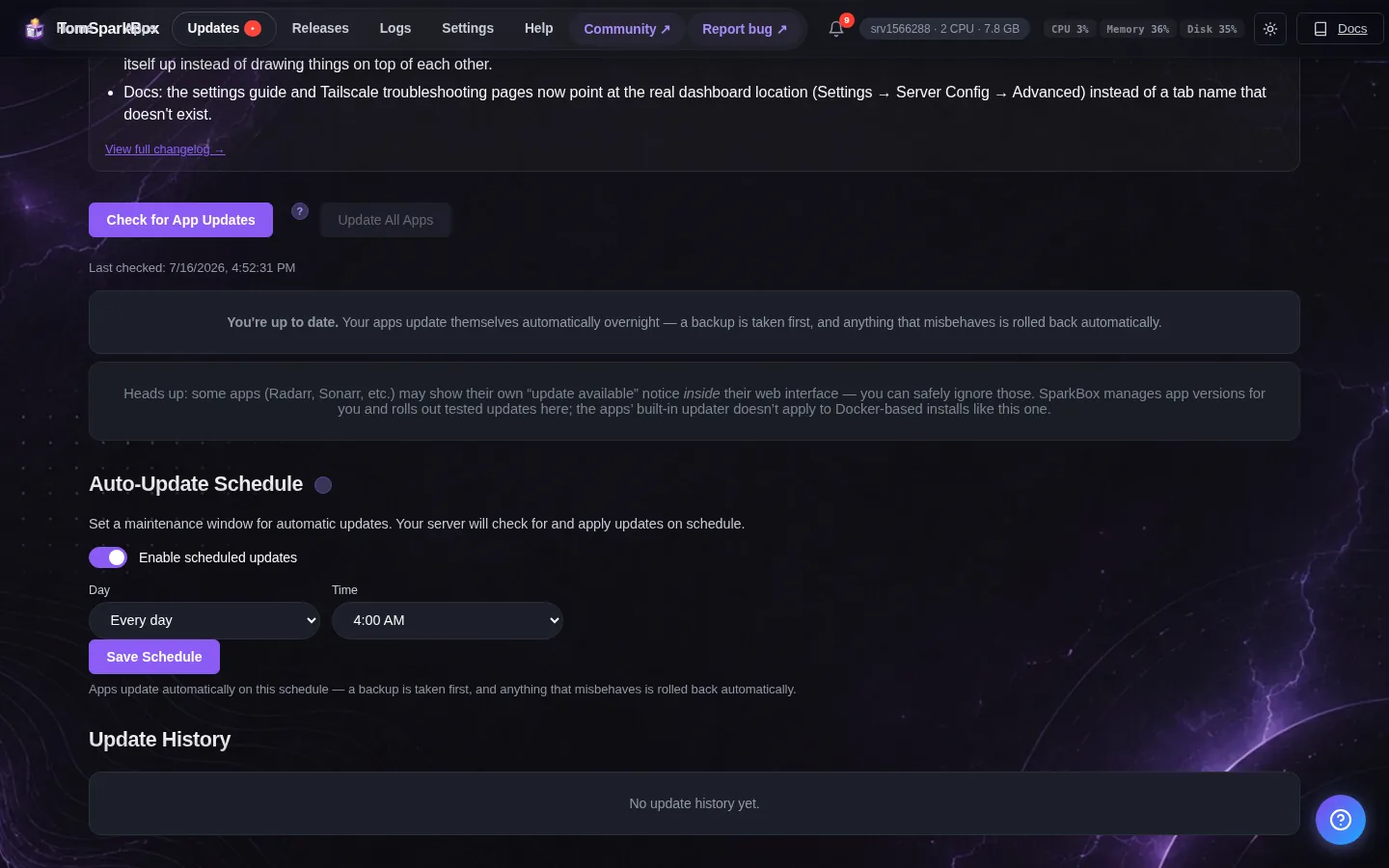
First, lean on the safety nets that already exist. SparkBox updates apps from the dashboard with one click, and if an update doesn't come up cleanly, it automatically rolls back to the version that was working — so a bad update doesn't leave the house without its photos. That means you can keep things current without gambling that an update breaks something while you're unavailable.
Second, do your tinkering when nobody's relying on it. If you want to try a new app, change a setting, or run updates, do it in the morning or while your partner's out — not at 9 p.m. when they're about to watch something. The technology can handle changes fine; what can't handle them is your partner's patience if "the movie thing" is down two evenings in a row. Treat the running server a little like a production system: experiment on the edges, keep the core they use steady.
A small move that prevents a lot of calls: put one screenshot in your shared notes showing where the dashboard link is and what their logins are. Most "it's not working" moments are really "I forgot how to get in." A single reference card they can find on their own heads those off before they reach you.
8. The honest part: what still lands on you
It would be a lie to say a self-hosted setup is exactly as hands-off for the household as a paid cloud account. There are a few things that stay your job, and you should go in knowing them rather than feel ambushed later:
- You're the admin. Creating accounts, adding a new app, the occasional update — that's you. The win isn't "zero maintenance," it's that the maintenance is yours and invisible to them, instead of being shared friction.
- Backups are on you, and they matter more here. When the family's only copy of the baby photos lives on your server, you need a real backup of that server somewhere else. Cloud services do this silently; here, you have to set it up. It's worth doing before you move anyone's only copy of anything onto the box.
- The rare deep problem needs you. Once in a while something needs a real look — a log to read, a setting to change. That's normal for any server. The honest framing for your partner is "if something looks wrong, just tell me," not "here's how to troubleshoot it."
None of this is a reason not to do it. It's the deal: a bit more responsibility on the technical person, in exchange for a household that's off the big cloud services and on hardware you control. As long as the day-to-day is genuinely effortless for everyone else, that's a trade most homes are happy with. The failure mode to avoid isn't "the admin does some work" — it's "everyone does some work." Keep all the work on your side of the line and the rest of the house just gets the benefits.
9. Where to start this weekend
If you already have a server running, here's the order that gets the smoothest adoption:
- Set up remote access with Tailscale first, so everything you do next works at home and away.
- Pick the one app that solves a real annoyance for your partner — usually photos. Install it and create their own account.
- Put the app on their phone, turn on auto-backup, and add the dashboard to their home screen with a friendly name.
- Drop a one-line reference (link + login) in your shared notes so they can always get in without you.
- Wait. Let that one app prove itself for a couple of weeks before adding the next. Adoption compounds; pressure backfires.
If you don't have a server set up yet, start there — the no-terminal walkthrough gets you from nothing to a working dashboard with a single command, and then this guide is how you hand it to the rest of the house.
Next steps
Build it once, so the whole house just uses it.
SparkBox runs 30+ self-hosted apps behind one browser dashboard — separate accounts per person, one link to remember, one-click updates with an automatic rollback safety net. It writes every config file and generates every password for you, so the only person who has to think about the tech is you.