Build Your Own Private RSS Reader (15 Years After Google Reader)
Google Reader was the way a lot of people followed the web — one tidy list of every blog, news site, and webcomic you cared about, in the order they posted. Google shut it down in 2013, and a piece of the open web never quite came back. The good news: the thing Google Reader did is just RSS, an open standard that never went anywhere, and you can run your own version of Reader on hardware you own. This guide shows you how, using a free app called FreshRSS that comes built into SparkBox. By the end you'll have your own reader, logged in, with your old feeds imported — and nobody deciding to shut it down on you.
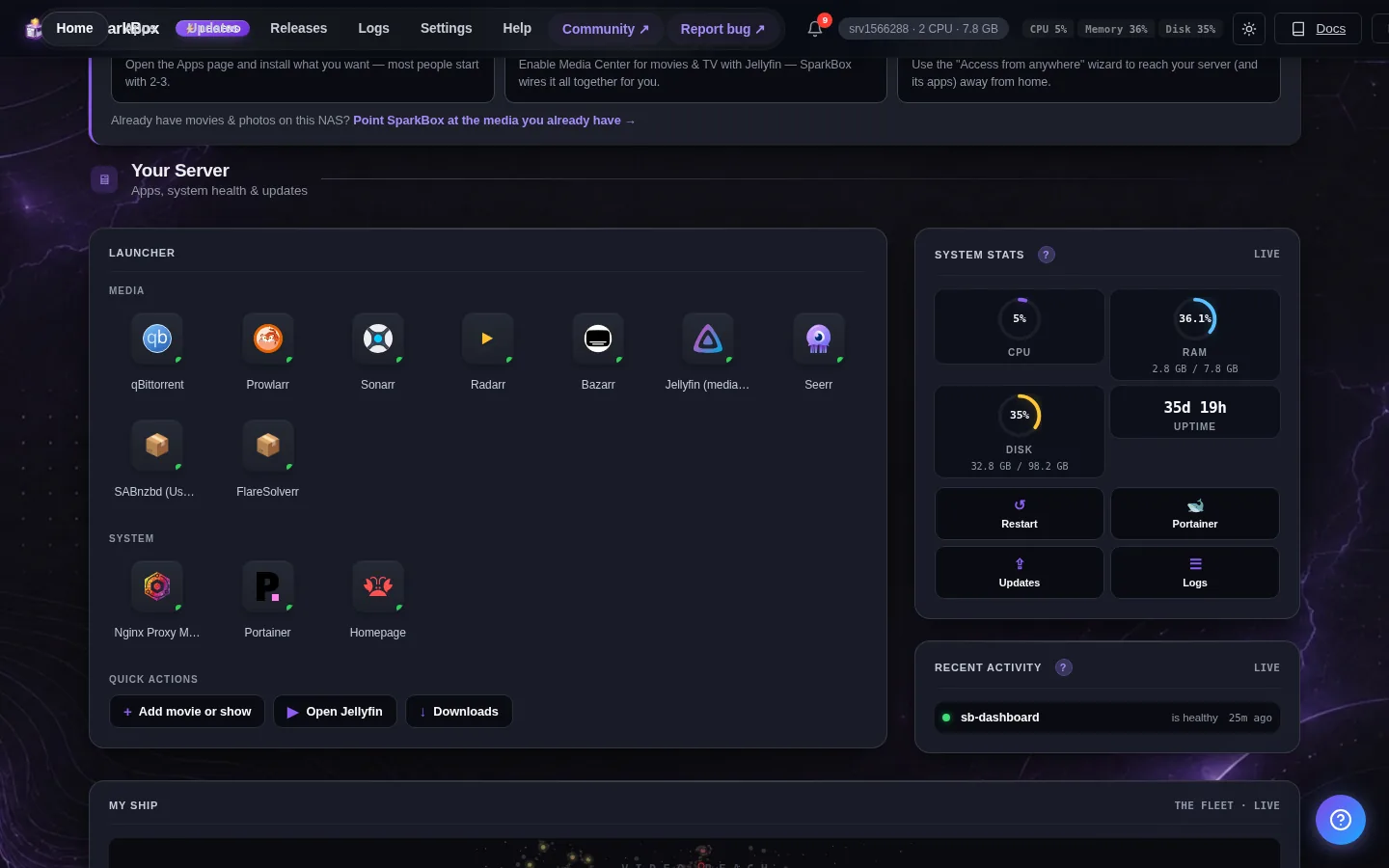
Tested on: a UGREEN DXP4800 Plus and a $7/month Hostinger VPS, both running SparkBox v1.6.262 with FreshRSS 1.29.1 on port 8070. The same steps work on any SparkBox install — NAS, mini-PC, or VPS.
1. Why you'd want your own reader again
If you've been getting your news from an algorithm — a social feed, a "for you" page, a homepage that reshuffles itself every time you refresh — you've probably noticed it decides what you see. An RSS reader flips that around. You pick the sites. Every new post from every site you follow shows up in one list, newest first, with nothing injected and nothing hidden. No ads in the feed, no "people you may know," no engagement bait.
That's exactly what Google Reader did, and it's why people still miss it years later. The catch back then was that you depended on Google to keep it running, and one day they didn't. Running the reader yourself fixes that: it lives on your own server, your reading history is yours, and no company can sunset it out from under you.
2. What FreshRSS actually is (in plain terms)
FreshRSS is a free, self-hosted RSS reader. Let's unpack those words, because two of them are jargon:
- RSS is just a standard way for a website to publish a machine-readable list of its latest posts. Most blogs, news sites, and podcasts quietly offer one whether they advertise it or not. A reader checks those lists for you and collects new items in one place.
- Self-hosted means the app runs on a computer you control instead of on someone else's service. In this case, that's your SparkBox — a small server you own.
So FreshRSS is a website that lives on your own box. You open it in a browser, subscribe to the sites you like by giving it their web addresses, and it shows you everything new in a clean, single list. It's tiny — it uses roughly 50MB of memory — so it sits comfortably alongside whatever else you're running. And because it's a normal web app, you can reach it from your laptop, your phone, or a tablet.
3. Turn FreshRSS on
FreshRSS is an optional SparkBox module, which means it's there but switched off until you ask for it. (This keeps a fresh install lean — you only run the apps you actually want.) Turning it on is two short lines you copy and paste. You're not writing code; you're copying two commands. If even that feels intimidating, that's normal — there's a gentle walkthrough of how little terminal you really need in our no-terminal beginner guide.
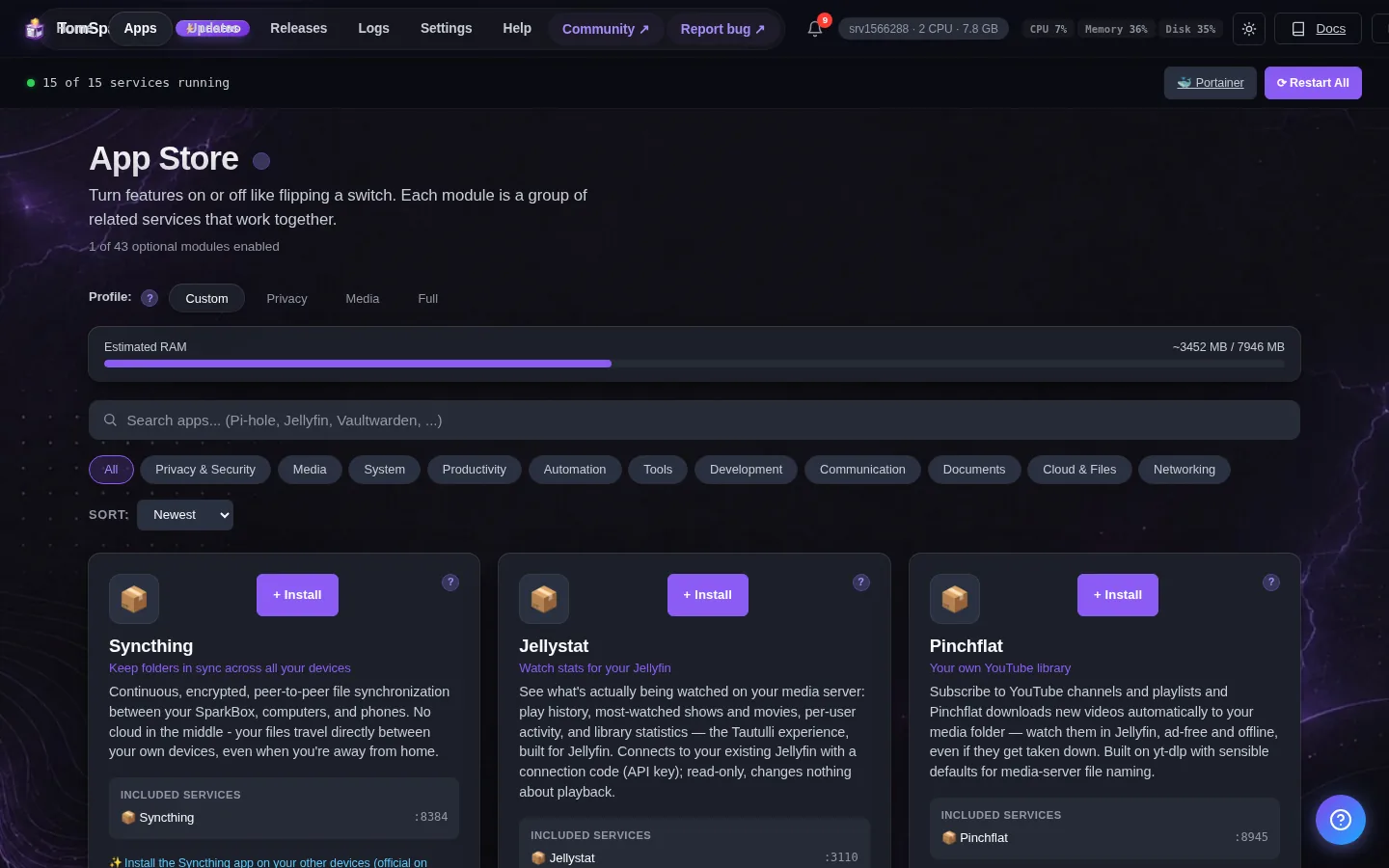
# Tell SparkBox you want FreshRSS, then bring it online:
sudo sparkbox enable freshrss
sudo sparkbox up
The first line adds FreshRSS to your list of apps; the second starts it up alongside everything else. Give it about half a minute. When it's ready, you can open it straight from the SparkBox dashboard — click the FreshRSS tile — or go directly in your browser:
http://<your-NAS-IP>:8070Replace <your-NAS-IP> with the same address you use to reach the SparkBox dashboard. Port 8070 is where FreshRSS answers.
4. First login — create your account
The very first time you open FreshRSS, it shows a short setup wizard. This is where you create your own account: pick a username and a password, and that becomes your admin login. There's no FreshRSS company to sign up with and no email to verify — the account lives entirely on your box. Write the password down somewhere safe (a password manager is ideal) because it's yours to keep, not something you can "reset by email" from a vendor.
The wizard may also ask which database to use. The default option works fine for a personal reader, so unless you have a reason to change it, accept the default and continue. Once you're through the wizard, you land in the reader itself — empty for now, because you haven't added any sites yet. That's the next step.
5. Add your first few feeds by hand
The simplest way to start is to add a couple of sites you read often, so you can see how it feels before importing a big list. In FreshRSS, look for the + (plus) icon and paste in a website's address or its RSS feed URL.
Here's the part that trips people up the first time: you can usually paste the normal web address of a site and FreshRSS will find its feed for you. Try pasting something like https://news.ycombinator.com or the homepage of a blog you like. If the site has a feed, FreshRSS detects it and offers to subscribe. If it doesn't find one automatically, look on the site for an "RSS" or "Subscribe" link and paste that address instead.
Add three or four sites this way. Within a minute you'll see their latest posts collected in your reader — newest at the top, exactly like Reader did.
6. Import a whole list from an old reader (OPML)
Adding feeds one at a time is fine for a handful, but if you're coming from another reader — Feedly, Inoreader, NewsBlur, The Old Reader, or even an export you saved from Google Reader years ago — you almost certainly have a longer list. You don't have to retype it. There's a standard file format for "here is my whole list of feeds" called OPML, and FreshRSS reads it.
The move is the same regardless of which reader you're leaving:
- Export from your old reader. Almost every RSS app has an "Export OPML" or "Export subscriptions" button, usually under Settings. It hands you a single file ending in
.opml(sometimes.xml). Save it somewhere you can find it, like your Downloads folder. - Import into FreshRSS. In FreshRSS, open the settings (the gear or wrench icon), find the Import / Export section, choose your
.opmlfile, and upload it. - Wait a moment. FreshRSS reads the file, recreates every subscription — including the folders/categories you had — and starts fetching their latest posts. A big list can take a minute or two to fill in.
When it's done, your reader looks like your old one did: same sites, same folders, your reading life intact — just running on your own hardware now.
Already left a reader years ago and have nothing to export? No problem — just build the list fresh using the by-hand method above. Half the fun of starting over is rediscovering which sites you actually still want.
7. Read on your phone and desktop
On a computer, you just open FreshRSS in any browser at http://<your-NAS-IP>:8070 — it works like any website. The interface is keyboard-friendly and clean, and it remembers what you've read.
For your phone, you have two options. The first is to open that same address in your phone's browser and bookmark it (or "Add to Home Screen") — FreshRSS works on a small screen out of the box. The second, and the nicer one, is to use a dedicated mobile RSS app and point it at your FreshRSS server. FreshRSS speaks the common syncing protocols that mobile readers use, so apps designed for the old Google Reader-style services can connect to it. You give the app your server address, your FreshRSS username, and your password, and it syncs your feeds and read-state to your phone. Now what you read on the couch shows as read on your laptop, and vice versa.
One thing to know about phone access: the http://<your-NAS-IP>:8070 address only works while your phone is on your home Wi-Fi. To read on mobile data or away from home, you'll want a private way to reach your server from anywhere — the beginner-friendly path for that is in our guide on accessing your home server from anywhere without port forwarding.
8. The honest tradeoffs
Running your own reader is genuinely great, but it's only fair to tell you where it asks a little more of you than a hosted service:
- You're the admin now. There's no support desk. If something breaks, you fix it (or ask in the community). The flip side is nobody can shut it down or change the terms on you.
- Reading away from home needs one extra step. A hosted reader is reachable from anywhere by default. Yours lives on your network, so off-home access means setting up private remote access once (linked above). It's a one-time setup, not a daily chore.
- It only follows what publishes a feed. Most blogs, news sites, and podcasts do. Some sites — especially ones that want you locked into their app — make it harder to find their feed, and a few don't offer one at all. FreshRSS can't conjure a feed that doesn't exist.
- Backups are on you — but SparkBox makes that easy. Your feeds and read history live on the box, so a backup is what protects them. SparkBox's Backup tile already includes the FreshRSS data folder, so a single restore brings your reader back exactly as it was.
For the curious: FreshRSS's data lives on your SparkBox host under /opt/sparkbox/modules/freshrss/config/. You don't need to touch that folder — it's just where your subscriptions and read-state are kept, and it's the thing backups protect.
Next steps
That's your own Google Reader, running on hardware you own.
You picked the sites, the list is yours, and no company gets to retire it. If you want the full setup details for FreshRSS specifically, the FreshRSS setup guide covers the basics in one page. And if you don't have SparkBox yet, the whole thing installs from a single command — there's a no-jargon walkthrough in how to run your own server without coding.