My Vault — Your SparkBox Passwords in One Safe Place
SparkBox sets up a lot of apps, and each one has its own login. My Vault is the little locker built into your dashboard that keeps all of them in one place — protected by a PIN, encrypted on your box, and stored nowhere else. No cloud account, no browser extension, no "sign in to see your passwords." This guide covers setting it up and using it day to day.
1. What My Vault is for
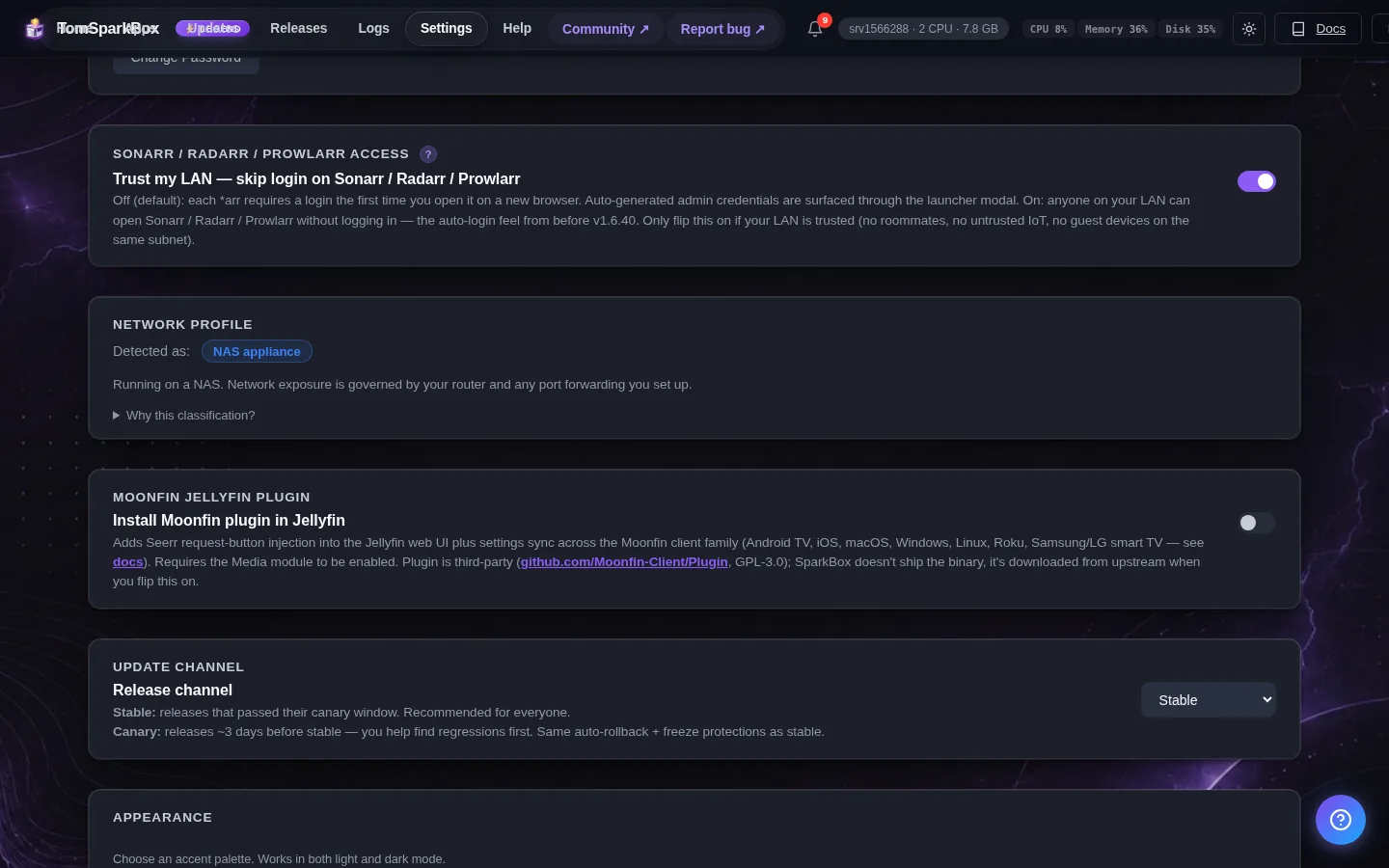
SparkBox already shows you every password it generates under Settings → Passwords. My Vault is the next step up: a proper, locked locker where you can keep those alongside anything else you want to remember — a router login, a Wi-Fi key, a note to future-you. One PIN opens it; without the PIN it's just scrambled data, even to someone holding your box.
Think of it as a small safe bolted inside your SparkBox, rather than a separate password-manager app you have to run and maintain.
2. Setting it up (your PIN)
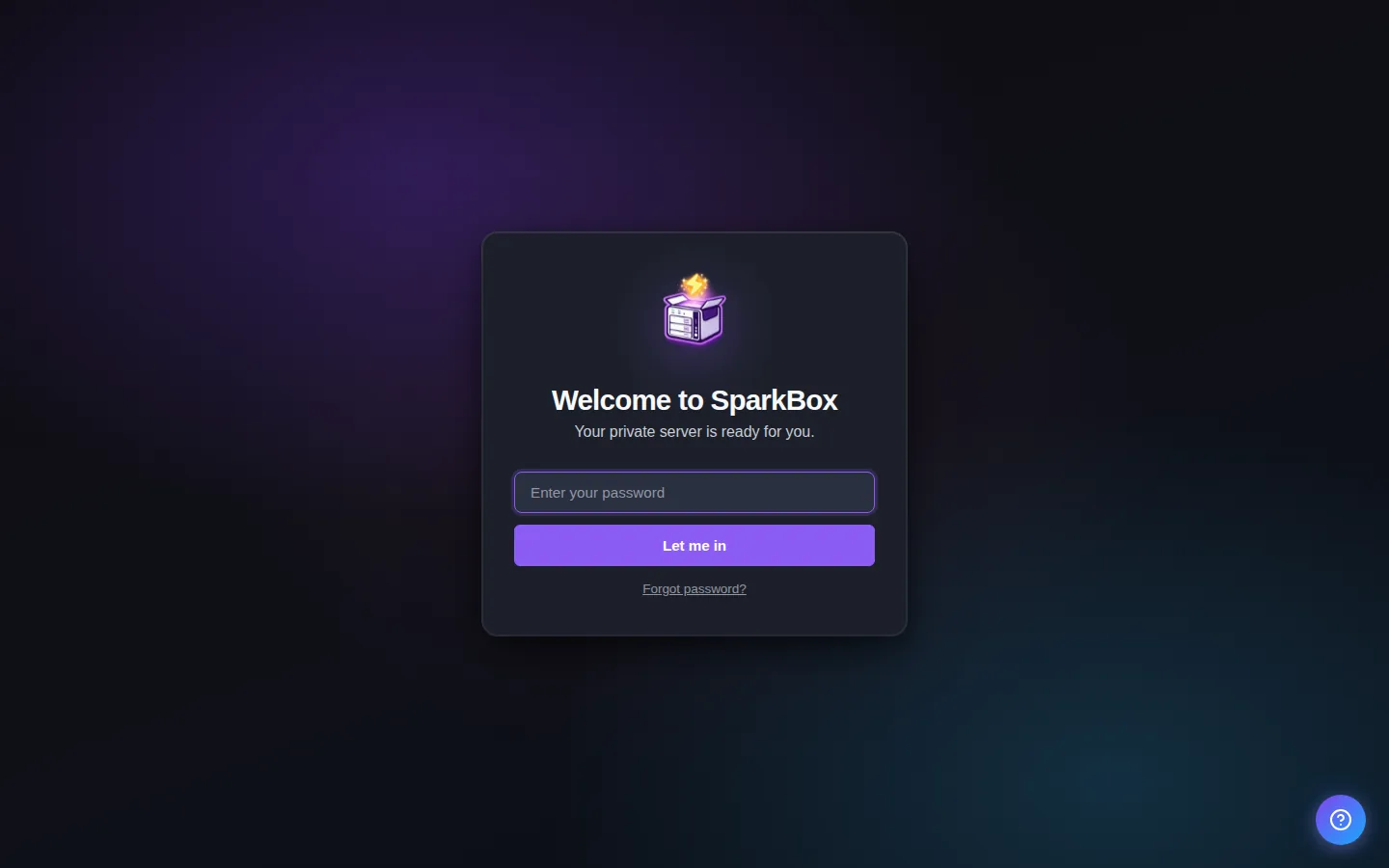
Open My Vault from your dashboard. The first time, it asks you to choose a 4-digit PIN. That PIN is what encrypts everything inside — so:
- Pick something you'll remember but others can't guess. Not 1234, not your PIN for anything else.
- Write it down somewhere safe, off the box. There's no "forgot PIN" email — that's the point. If you lose it, the only option is to reset the vault and start over (your entries can't be recovered without the PIN, by design).
Once set, the vault locks itself when you're away and asks for the PIN to open again.
3. Pulling in your app passwords
You don't have to type your app logins in by hand. My Vault can import the credentials SparkBox already generated for your apps, so they're all in the locker in one move. It's tidy about it: it matches by name and won't overwrite anything you've already edited, so importing again later just fills in what's new.
4. Adding and using entries
Day to day it works exactly like you'd expect a password locker to:
- Add an entry — a label, a username, a password (and a note if you like).
- Copy a password when you need it, instead of squinting at it.
- Update or delete entries as your setup changes.
Every change is written back into the encrypted locker immediately.
5. Changing your PIN & the lockout
You can change your PIN any time from inside the vault — it re-locks everything under the new one, and the old PIN stops working straight away.
To stop someone guessing their way in, the vault locks out after 5 wrong PIN attempts. That count is enforced by your box and sticks even across restarts, so it can't be dodged. After a short cooldown it lets you try again. It's the same idea as a phone that makes you wait after too many wrong passcodes.
6. Why it's safe (in plain English)
Two things worth knowing:
- It's encrypted with your PIN. The stored vault file is unreadable on its own. Even a copy of it, lifted off your box, is useless without your PIN — so a stray backup or a nosy hand on the drive doesn't spill your passwords.
- It never leaves your box. There's no SparkBox cloud holding your vault, because there's no SparkBox cloud. Your passwords sit on your hardware, under your PIN, full stop.
That's the whole pitch: the convenience of a password manager, without handing the passwords to anyone — including us.
7. Who gets My Vault
My Vault is part of the supporter experience — it's included with Backer and Legend licenses. Check or upgrade your license any time under Settings → License.
Next steps
One PIN, all your logins, none of it in the cloud.
While you're tightening things up, it's worth putting SparkBox on your phone and reading how backups keep the rest of your box safe too.