How to set up Backups
Encrypted, versioned backups to the cloud. This guide covers how to access it, log in for the first time, configure the basics, and where its data lives so you can back it up.
1. What is Backups?
Back up your SparkBox data and media to cloud providers (S3, Backblaze B2, Google Drive, Dropbox, WebDAV) or local storage. Incremental, versioned, and AES-256 encrypted by default.
2. Before you start
Set up your first backup job via the web UI. Supports dozens of cloud providers out of the box.
3. How to access it
Once it's enabled, Backups runs on your SparkBox at:
http://<your-NAS-IP>:8200Create a new backup job, point it at /source (your SparkBox state) and choose a cloud destination
4. First login
Duplicati asks for the Web UI password you set when enabling the module - it's also listed in your SparkBox dashboard under Settings. There's no username, just the password.
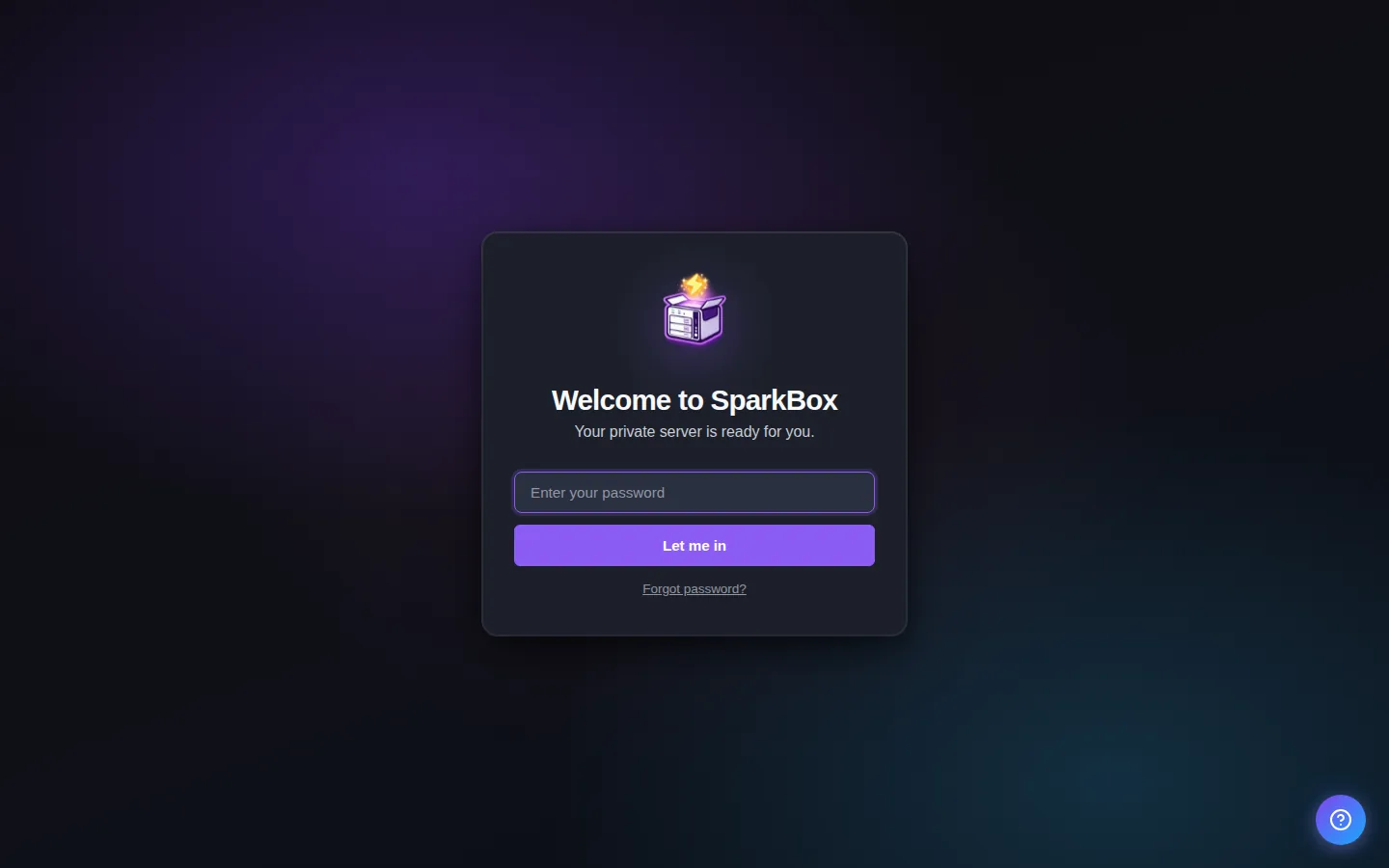
If it instead asks for a password you didn't set, check Settings → Passwords in your SparkBox dashboard — every auto-generated credential is listed there.
5. Settings you can change
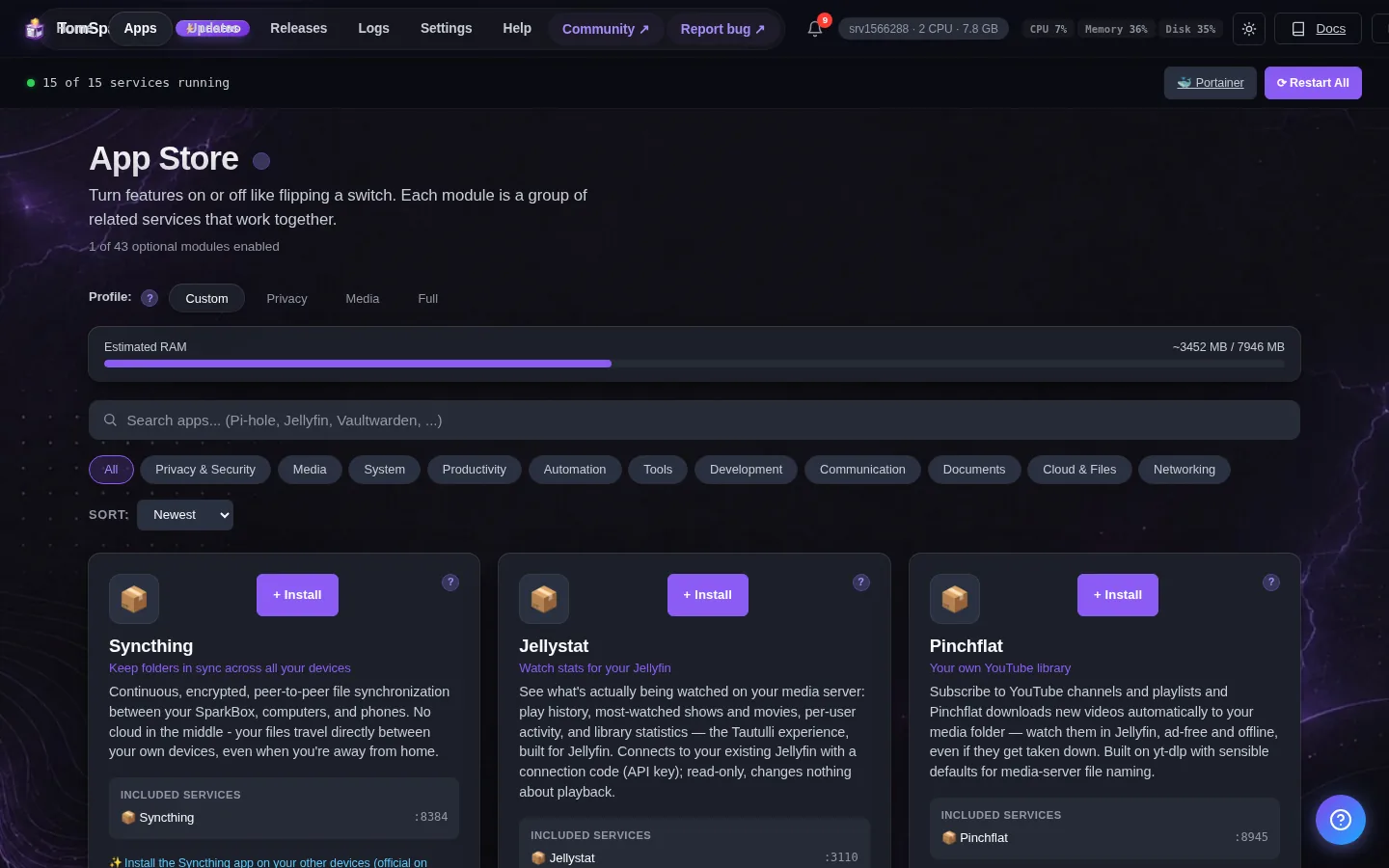
You can set these when you enable the module, or later from Apps → Backups in the dashboard:
- Duplicati Web UI Password — Password for the Duplicati web UI (required)
6. Where your data lives
Backups's config and persistent data are stored on the SparkBox host under:
/opt/sparkbox/modules/backup/config/Backups via the SparkBox dashboard's Backup tile include this directory by default, so a single restore brings Backups back to its current state on a fresh install.
7. How this fits with SparkBox's built-in backups
SparkBox's dashboard already makes scheduled backups of your app settings and databases ONTO the box itself - that protects you from a bad update, not from the box dying. This module (Duplicati) is the off-site half: it copies your data somewhere that isn't your SparkBox - a cloud bucket, another machine, or a USB drive. The honest rule of backups: until a copy exists off the box, you don't have a backup, you have one disk full of hope.
8. Create your first backup job
In Duplicati click Add backup, then Configure a new backup. Give it a name and a strong encryption passphrase - WRITE THE PASSPHRASE DOWN SOMEWHERE SAFE; without it the backup is unreadable by design, and nobody can recover it for you. For Destination pick your provider (Backblaze B2 is cheap and works well; S3, Google Drive, Dropbox, WebDAV and a plain local folder all work). For Source data, tick folders under /source - that's your SparkBox, mounted read-only: /source/data is your app data and media libraries, /source/sparkbox-state and /source/sparkbox-env hold the settings and passwords a rebuild would need. Start small: sparkbox-state plus sparkbox-env is tiny and rebuild-critical. Add /source/data later once you've watched a run succeed - a first run over hundreds of GB can take days on a home upload connection, and that's normal.
9. Test a restore before you trust it
A backup you've never restored from is a guess. After your first job finishes, click Restore, pick one small file, and restore it to a scratch folder. If that works, your passphrase is right and the destination is real. Do this once - it takes two minutes and turns 'I think I have backups' into 'I know I do'.
Next steps
That's Backups live on SparkBox.
If something doesn't match what you see, post in d/sparkbox or hit us up on YouTube. Every SparkBox bug gets patched; every UX-stumble in this guide gets rewritten.