How Much Does Self-Hosting Actually Cost? (For Someone Just Starting)
If you've been circling the idea of running your own apps at home — a photo library instead of Google Photos, a movie server, an ad blocker for the whole house — the first honest question is "what's this going to cost me?" The good news is the answer is probably smaller than you think, and a lot of the scary-sounding parts are optional. This guide gives you real numbers, not a spec sheet, and it's written for someone deciding whether to bother — not someone already shopping for parts.
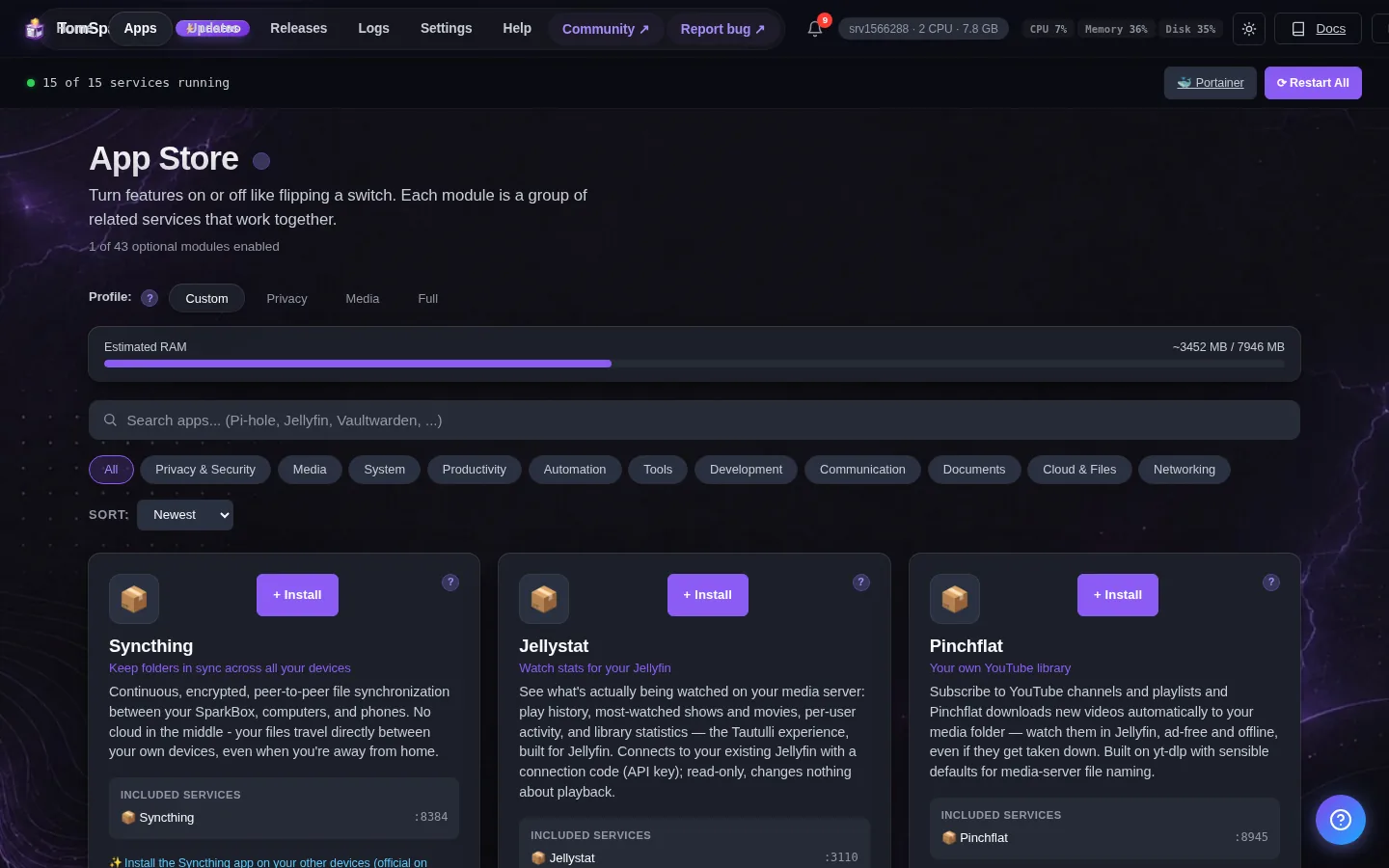
Tested on: a UGREEN DXP4800 Plus and a $7/month Hostinger VPS, both running SparkBox v1.6.235. No prior Linux, Docker, or terminal experience assumed.
1. There are only three real costs
People imagine self-hosting as this expensive, ongoing thing — like swapping one subscription for another, plus a server bill. It isn't. Strip it down and there are only three places your money can go:
- The software — the apps themselves and the thing that runs them.
- The hardware — the computer the apps live on.
- The running cost — mostly electricity, plus one optional subscription if you go down the movie route.
That's the whole list. We'll take them one at a time, with numbers. By the end you'll be able to add up a budget for your situation in about a minute.
2. The software: free
This is the part that surprises people most. The apps you'd run — a photo backup tool, a movie server, an ad blocker, a password manager — are nearly all open-source and free. There's no per-app license, no monthly fee, no "pro tier to unlock the good features." You install them and they're yours.
SparkBox, which is the tool that installs and manages all of those apps for you from a single dashboard, is free for the core experience too. You can download it, run the whole stack of around 35 apps, and never pay a cent. There's a one-time optional $49 supporter tier (we call it Legend) that adds some extra polish and a few enhanced features, but it's a one-time payment, not a subscription, and the free version is a real, complete product — not a crippled demo.
Software cost: $0, with one optional $49-one-time upgrade if you want it later.
3. The hardware: from $0 to a few hundred
Your apps have to live on some computer that stays on. This is where the actual money is, and your bill depends entirely on which path you pick. There are three sensible ones for a beginner.
Path A: an old laptop or desktop you already own — $0
If you have a laptop gathering dust in a drawer, that's a server. It really is. A machine from the last seven or eight years has plenty of power to run a photo library, an ad blocker, and a movie server for your household. You wipe it, install a free version of Linux (Ubuntu is the friendly one), and you're done. Total spent: nothing. This is genuinely the cheapest way to start, and it's the one we'd suggest if you're not sure you'll stick with it — there's no purchase to regret.
The one catch: a laptop isn't built to run 24/7 for years, and its battery slowly degrades while plugged in. It's a perfect way to try the hobby for free, less ideal as a forever home.
Path B: a rented server (VPS) — about $5 to $10 a month
A VPS is just a computer you rent in a data center, reached through your browser. You never see it; you just use it. The appeal is you don't buy anything up front and someone else handles the hardware. A small one runs around $7 a month — that's the size we test SparkBox on, and it comfortably runs the lighter apps (ad blocker, password manager, dashboard, notes).
The honest tradeoff: a rented server in a data center is great for apps, but it's a poor fit for a big movie or photo library, because storing hundreds of gigabytes there gets expensive fast, and your media now lives on someone else's machine rather than in your home. For "I want privacy apps reachable from anywhere," a VPS is excellent. For "I want to store my family's whole photo and movie collection," it's the wrong tool.
Path C: a NAS — a one-time purchase of a few hundred dollars
A NAS (Network Attached Storage) is a small box that sits in your house, holds a stack of hard drives, and stays on quietly. This is the proper home for the storage-heavy stuff: your photos, your movies, your backups. It's the most expensive way to start because you buy the box and the drives — but it's a one-time cost, not a subscription, and it's the path that actually replaces Google Photos and a streaming subscription rather than just dabbling.
Prices vary a lot by how much storage you want, but a capable beginner NAS plus a couple of drives lands in the few-hundred-dollar range as a one-off. The machines we test on are UGREEN models, and if you own one already, you've effectively done Path C for free.
4. Electricity: a few dollars a month
This is the cost everyone forgets and then over-worries about. A small home server or NAS sips power — far less than a desktop gaming PC, much closer to a couple of LED light bulbs left on. In practical terms, leaving a typical NAS or low-power mini-PC running around the clock costs roughly the price of a coffee or two per month on most home electricity rates.
An old laptop pressed into server duty is similarly cheap, and often more efficient than a desktop because laptop parts are built to save battery. A rented VPS (Path B) folds electricity into the monthly rental price, so you don't see it separately at all.
The exact figure depends on your local electricity price and the machine, so we won't pretend to a precise number — but "a few dollars a month" is the honest ballpark, and it's small enough that it rarely changes anyone's decision.
5. The one optional subscription
Here's the one recurring cost that can show up, and it only applies to one specific use case: running a movie/TV download stack (the apps that find and grab media for your server). That setup sends its traffic through a VPN on purpose, for privacy. A VPN is a paid subscription — but it's the only ongoing subscription in this whole picture, and you only need it if you go down the media-downloading route.
If all you want is a photo library, an ad blocker, a password manager, or a notes app, you need no VPN at all and this cost is simply zero. It's genuinely optional.
For the people who do want the media stack: the one we recommend is Surfshark, partly because it allows the download traffic on every server (some cheaper VPNs quietly block it, which is maddening to debug). There's a strong starter deal — Surfshark (87% off + 4 months free): https://get.surfshark.net/aff_c?offer_id=1126&aff_id=9447&aff_sub=hr52es — which brings the effective monthly cost right down. If you want the reasoning behind the recommendation in plain English, we wrote it up in how to choose a VPN for SparkBox.
VPN cost: $0 if you skip the media stack; a few dollars a month if you want it (and there's a heavy first-term discount).
6. Three real starting budgets
Let's add it up for three real people, so you can find the one closest to you.
The free starter
You have an old laptop, and you want an ad blocker for the house and a private photo backup off your phone. Software: free. Hardware: the laptop you already own, $0. Electricity: a couple of dollars a month. VPN: not needed. Total to start: $0. Ongoing: a few dollars of electricity. This is a completely real setup, not a stripped-down one.
The apps-from-anywhere person
You don't have spare hardware and you want privacy apps (password manager, ad blocker, notes) reachable wherever you are, without storing a media library. Software: free. Hardware: a $7/month VPS. VPN: not needed for this use case. Total to start: about $7. Ongoing: about $7 a month, electricity included.
The "replace Google Photos and streaming" household
You want the whole thing — photos, movies, the lot — living in your home. Software: free. Hardware: a NAS plus drives, a one-time few-hundred-dollar purchase (or $0 if you already own one). Electricity: a few dollars a month. VPN: a few dollars a month for the media stack, with the discount above. Total to start: the one-time NAS cost. Ongoing: roughly the price of a single streaming subscription — except now you own everything and there's no rising bill.
7. The honest list of "hidden" costs
We'd be doing you a disservice if we pretended it was purely free dollars-and-cents with no asterisks. Here's the honest list of things that aren't on a price tag but are still real:
- Your time, mostly up front. The setup is a one-line install and then clicking in a browser, so it's not the weekend-long ordeal it used to be — but you will spend an hour or two learning where things are. After that it largely runs itself.
- Backups. If you put your only copy of your family photos on one box, you need a backup, the same as you would anywhere. That can be free (a second drive you already own) or a few dollars a month (cheap cloud storage for the encrypted copy). Our phone-photo backup guide covers the simple version.
- The occasional fiddle. Once in a while an app wants a nudge. It's rare, and the dashboard handles most of it with a button, but it's not zero. We're upfront about that.
- Drives don't last forever. Hard drives are consumable; over years one might need replacing. Budget a small "someday" sum for that if you go the NAS route. It's the same as any storage you own.
None of these are large, and most are optional, but you deserve to see them before you start rather than after.
8. So is it worth it?
The money question really resolves into a simpler one: are you replacing subscriptions, or just adding a hobby? If you currently pay for cloud photo storage and a streaming service, a home setup can replace both with a one-time hardware cost and your electricity bill — and after a year or two it's cheaper, with the bonus that nobody raises the price on you or mines your library.
If you don't pay for those things today, then the honest framing is: this is a low-cost hobby with a genuinely useful payoff (privacy, control, no more "this service is shutting down" emails), and you can try the whole thing for $0 on an old laptop before spending anything. That's the part that makes the decision easy — the cheapest version of self-hosting is also a complete one. You're not buying a trial.
Next steps
If the numbers add up for you, the next move is to actually try it — and the good news is the trying part is free. Pick whichever you have lying around (an old laptop is ideal for a no-cost first run) and follow the beginner path.
Ready to start for $0? Read self-hosting for complete beginners for the no-code, no-Linux walkthrough, then come back and install SparkBox. You'll have your first app running in about ten minutes, and you won't have spent anything to find out if you like it.