How to add two-factor authentication to your self-hosted apps
You've started running your own apps at home — maybe a photo library, a movie server, a password manager. Each one has a login. And right now, the only thing standing between a stranger and all of it is a single password. Two-factor authentication adds a second lock: a short code from your phone that changes every 30 seconds. Even if someone learns your password, they still can't get in without your phone in their hand. This guide explains what that really means in plain terms, and shows you the one tool — Authelia — that puts a single code-gate in front of all your apps at once, instead of fiddling with each one separately.
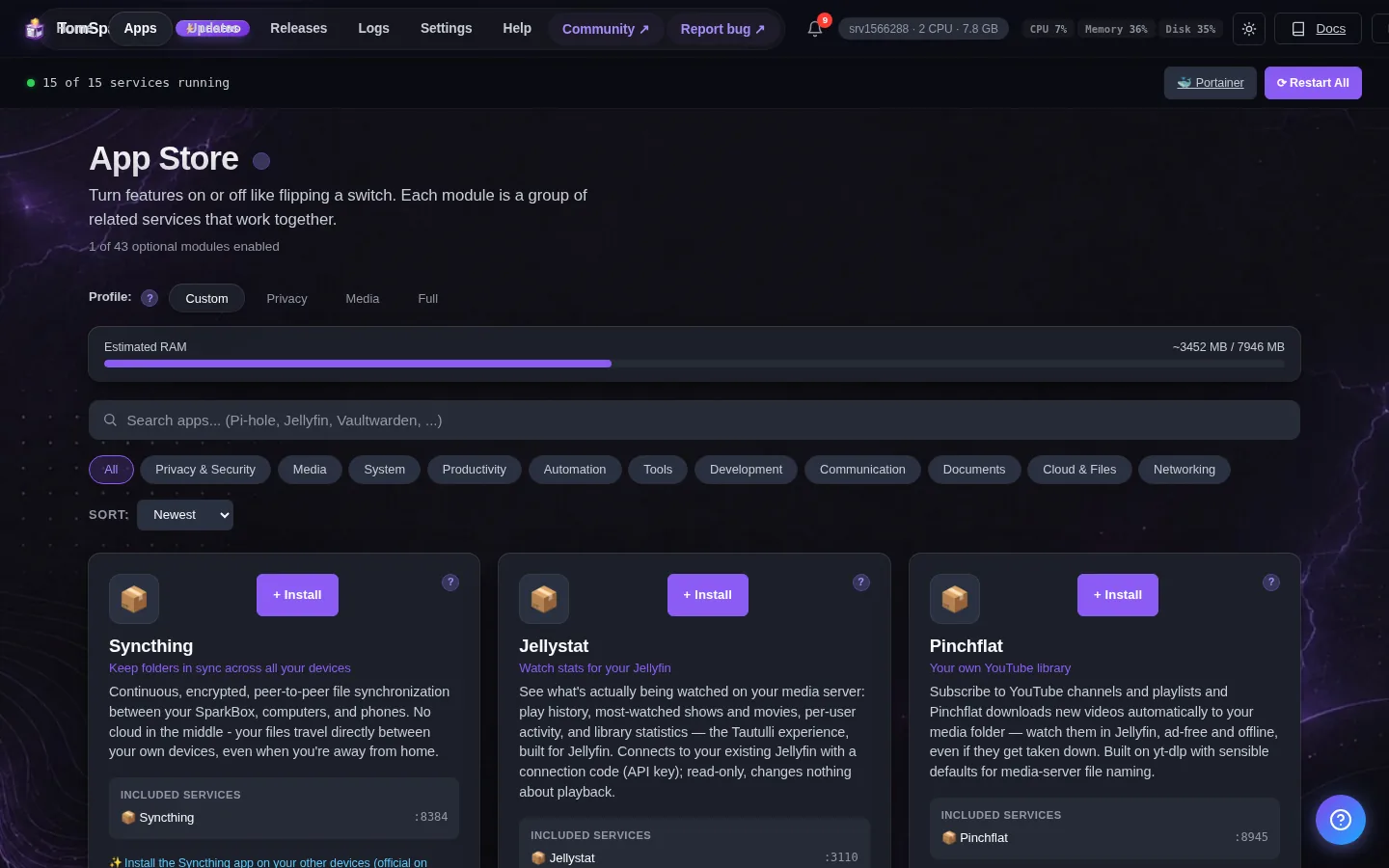
Tested on: a UGREEN DXP4800 Plus running SparkBox v1.6.240, with the same flow checked on a $7/month Hostinger VPS. Authelia version 4.39.20. No prior security, Linux, or terminal experience assumed.
- What "two-factor" actually means
- Why a password by itself isn't enough
- One gate for everything: meet Authelia
- What Authelia does not do (the honest part)
- Turning it on in SparkBox
- Setting up the code app on your phone
- What happens if you lose your phone
- Is this overkill for a home server?
- Where to start
1. What "two-factor" actually means
The name sounds technical, but the idea is something you already use. A "factor" is just a way of proving you're you. There are three classic kinds:
- Something you know — your password.
- Something you have — your phone, which can show a code only you can see.
- Something you are — a fingerprint or face scan.
A normal login uses just one factor: the password you know. Two-factor authentication (often shortened to 2FA) asks for two of them — your password and the code on your phone. You've almost certainly done this already: when your bank texts you a number to type in, that's 2FA. The version we'll use for your home apps works the same way, except the code comes from a free app on your phone instead of a text message, which is both faster and harder for anyone to intercept.
Those phone codes have a proper name: TOTP, short for "time-based one-time password." All it means is a six-digit number that refreshes every 30 seconds. You'll see that term in a few places, so now it won't look scary — it's just "the changing code on your phone."
2. Why a password by itself isn't enough
Passwords leak. Not because you did anything wrong, but because the internet is full of old data breaches, and most people reuse passwords across sites. If one website you signed up for years ago got hacked, your email-and-password combo may already be floating around on a list somewhere. The honest reality is you usually have no way of knowing.
When your apps live only inside your home network, that risk is small — an attacker would need to already be on your Wi-Fi. But the moment you make an app reachable from outside the house (so you can check your photos from work, or stream a movie at a friend's place), a leaked password becomes a real key to your front door. 2FA is what makes that key useless on its own. The stranger has your password; they still don't have your phone.
When you actually need this: if every app you run stays on your home network and you only ever open it from your couch, 2FA is a nice-to-have. The day you expose anything to the wider internet — even just one dashboard — it moves to "do this first." We'll be honest about that line throughout.
3. One gate for everything: meet Authelia
Here's the part that saves you a lot of pain. You could turn on 2FA inside each app one by one — but every app does it differently, some don't support it at all, and you'd be repeating yourself a dozen times. Authelia takes a different approach: it sits in front of your apps like a doorman in a lobby. You log in to the doorman once — password plus phone code — and from then on it quietly waves you through to whichever apps you've put behind it.
On SparkBox, Authelia is a one-click app like any other. It's small and light (about 64 MB of memory, so it won't slow your box down), and it runs its login portal at port 9091 on your machine:
http://<your-NAS-IP>:9091That portal is where you'll first set up your account's phone code. The big advantage of the doorman model is consistency: one login screen, one place to manage who gets in, and a single 2FA prompt that covers everything behind it — instead of a different experience for your photo app, your movie server, and your cloud drive.
4. What Authelia does not do (the honest part)
This is the most important section to read, because it's the thing people get wrong. Installing Authelia does not automatically lock anything. By itself, it's just a login portal sitting there — a doorman with no doors assigned to him yet. You have to tell each app, "from now on, make people clear the Authelia gate before you let them in." On SparkBox that wiring is done through Nginx Proxy Manager (the tool that already routes web traffic to your apps), using a feature called forward-auth — which is a fancy way of saying "check with the doorman first."
So the mental model is two steps, not one:
- Turn on Authelia and set up your phone code (covered below).
- Point the specific apps you care about at it, one at a time.
If you skip step two, you'll have Authelia running and still wonder why your apps open without asking for a code. That's not a bug — it's just a doorman waiting for his assignments. The step-by-step wiring lives in our dedicated Authelia setup guide, which walks the exact clicks once your portal is live.
5. Turning it on in SparkBox
Getting the portal itself running is the easy half, and it's the same four-click rhythm as any other SparkBox app:
- Open your SparkBox dashboard in your browser.
- Find the Authelia tile (it's in the privacy group, with a little lock icon) and click Install.
- Wait a few seconds while the tile shows it's working.
- Click Launch, and the login portal opens at port 9091.
You don't invent any secret keys or fill in cryptic settings — SparkBox generates the three security keys Authelia needs (a session secret, a JWT secret, and an encryption key) for you behind the scenes and writes them into the config. You'll see those listed under Apps → Authelia in the dashboard, but you almost never need to touch them. Everything Authelia stores lives on your box at /opt/sparkbox/modules/authelia/config/, and the dashboard's Backup tile already includes that folder — so if you ever restore onto a fresh box, your login setup comes back with it.
6. Setting up the code app on your phone
This is the one piece that involves your phone, and it takes about a minute. First, install a free authenticator app if you don't have one — popular choices are Google Authenticator, Microsoft Authenticator, or an open one like Aegis (Android) or Raivo (iPhone). Any of them work; they all just generate those six-digit codes.
Then:
- Open the Authelia portal at
http://<your-NAS-IP>:9091and log in with your admin account. - It will offer to set up two-factor — choose the one-time-code (TOTP) option.
- A QR code square appears on screen. Open your phone's authenticator app, tap its "add" or "+" button, and point the camera at that square.
- Your phone now shows a six-digit code that ticks over every 30 seconds. Type the current one back into Authelia to confirm the link.
That's the handshake done. From now on, logging in to the portal means your password and whatever number your phone is showing at that moment. The QR code is only used once during this pairing — you don't need it again.
Do this now, while you're set up: when the authenticator app shows the QR code or a long "setup key," many apps also let you save a backup copy. Take a screenshot or write that key down and keep it somewhere safe and offline. It's your spare key — section 7 explains why it matters.
7. What happens if you lose your phone
This is the fear that stops people from turning on 2FA at all, so let's face it head-on. Yes — if your phone is your second factor and the phone is gone, you've lost that factor. But you are not locked out forever, because you own the machine. This is the quiet upside of self-hosting: there's no support line that can refuse to help you, because the keys are on hardware in your own home.
Two practical safety nets:
- The backup key from section 6. If you saved the setup key when you first paired your phone, you can add it to a new authenticator app and you're immediately back in. This is the easiest path, which is exactly why we nudged you to save it.
- Direct access on your own network. Because the box is yours, you can always reach an app directly on your home Wi-Fi without going through the public gate, and reset the 2FA configuration from there. The full reset steps are in the Authelia setup guide.
The takeaway: 2FA on your own server is far more forgiving than 2FA on someone else's website, because you're never at the mercy of a stranger's help desk.
8. Is this overkill for a home server?
Honestly, sometimes. We'd rather tell you that than oversell it. Here's a simple way to decide:
- Everything stays on your home network, opened only from home? A strong, unique password is genuinely fine. 2FA is a small bonus, not a must.
- You've opened even one app to the internet — for remote photos, sharing a movie library, reaching your dashboard on the go? Now it's worth the ten minutes. This is the scenario Authelia was built for.
- You're storing things that would really hurt to lose control of — a password manager like Vaultwarden, personal documents, family photos? Add the gate regardless. The downside of having it is a few extra seconds at login; the downside of not having it can be everything.
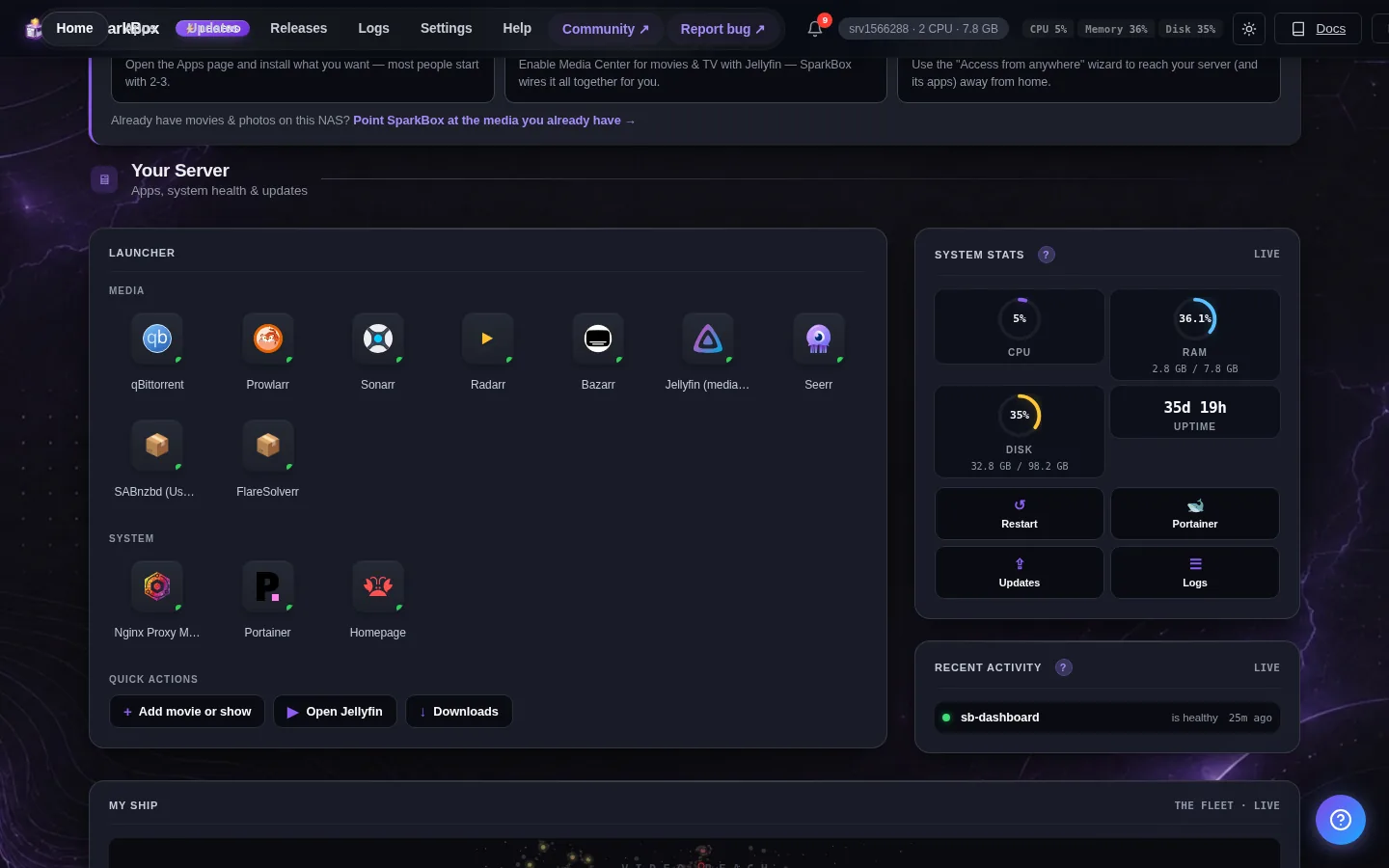
A reasonable middle path that lots of people land on: keep your apps on the home network, use one secure remote-access method to reach them from outside, and put Authelia in front of the handful of apps that hold anything sensitive. You don't have to gate all 35 apps to get the benefit — you gate the ones that matter.
9. Where to start
The whole path, start to finish:
- Install the Authelia tile from your SparkBox dashboard and click Launch.
- Open the portal at port 9091, log in, and pair your phone's authenticator app with the QR code. Save the backup key.
- Follow the Authelia setup guide to put the gate in front of the specific apps you want protected.
- Test it from your phone on mobile data (Wi-Fi off) to prove the code prompt really shows up before the app opens.
If you're earlier in the journey and the dashboard itself is still new to you, the running your own apps without the terminal guide is the gentlest place to begin, and blocking ads across your whole network with Pi-hole is the classic satisfying first win.
Two-factor is one piece of a private home server.
SparkBox installs Authelia, a password manager, a private photo library, your own movie server, and 30+ more apps as one-click tiles — it writes every config file, picks every port, and generates the security keys for you. The login gate you just read about is a tile, not a weekend project.
Free and open. The only line you type is the one that installs it.