Using Tom AI — Your SparkBox's Built-In Assistant
Most self-hosting help lives on forums, where you paste an error, wait, and hope someone answers. SparkBox puts the help inside your dashboard. Tom AI is an assistant that knows your specific box — which apps you're running and how they're doing right now — so you can ask it anything in plain English, and let it keep an eye on things and fix the common problems for you. Here's how to get the most out of it.
1. What Tom AI is (and isn't)
Tom AI is an assistant built into your SparkBox. It's openly an AI — it doesn't pretend to be a person. What makes it useful is that it isn't a generic chatbot guessing from the internet: it's grounded in your box. It can see which apps you have, whether they're healthy, and what your box is actually doing, so its answers are about your setup instead of a made-up average one.
It's named after Tom Spark, who directs what SparkBox does and prioritizes — but Tom AI itself is software, and it'll always tell you so.
2. Where to find it
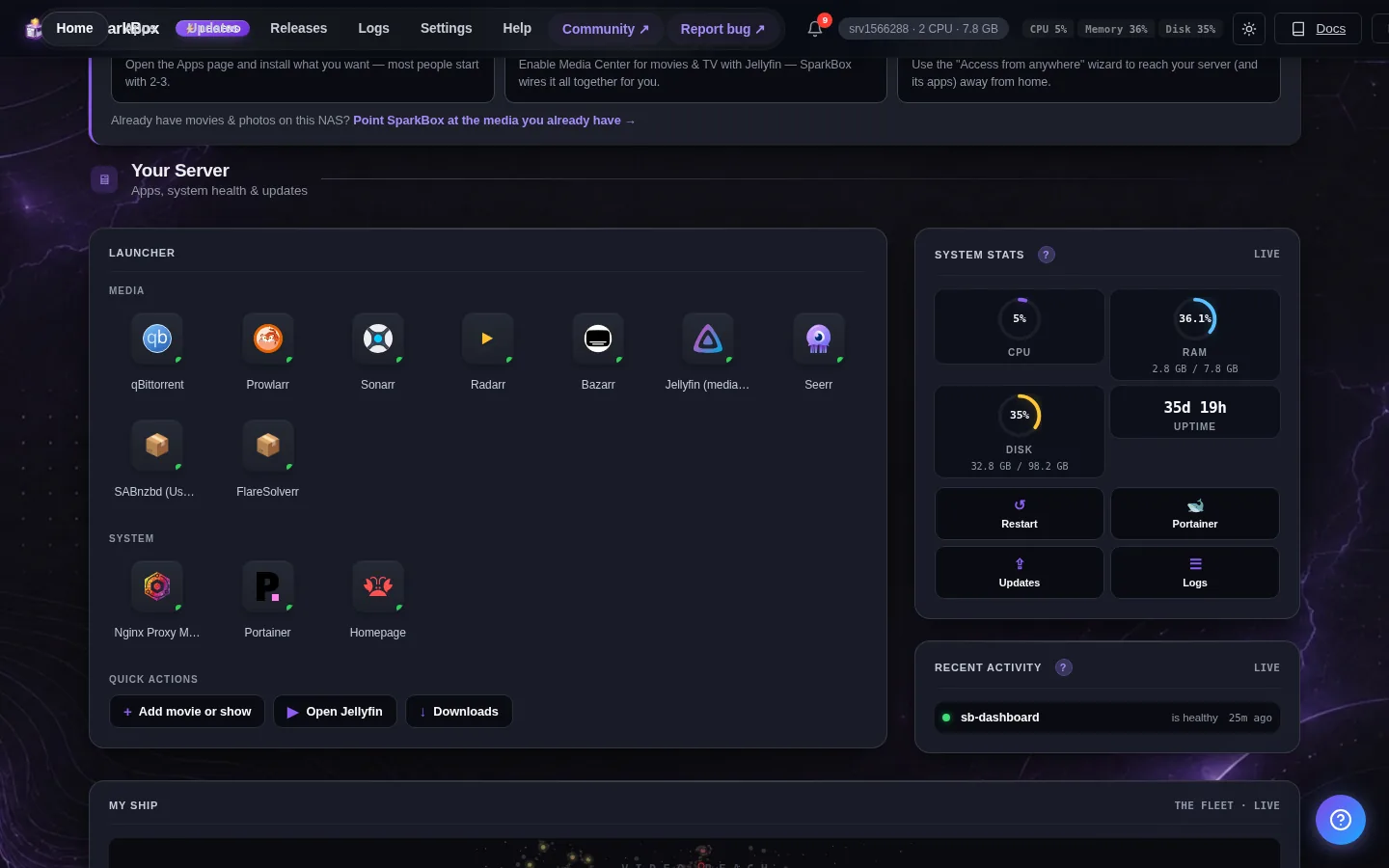
Open your SparkBox dashboard and look for the chat / assistant button (the speech-bubble). Click it and a chat panel opens right over your dashboard. There's nothing to install or connect — it's already wired into your box.
3. Asking good questions
Talk to it like you'd talk to a knowledgeable friend. You don't need the right jargon. Good things to ask:
- "Why isn't my movie downloading?" — it can look at your download queue and tell you what's actually stuck.
- "Is my VPN working?" — it checks the real tunnel status, not a guess.
- "What does this app do and should I turn it on?"
- "Jellyfin says permission denied — what's wrong?"
- "How do I back up my photos?"
Because it can read your box's current state, the more specific you are about what you're seeing, the more precise the answer.
4. Letting it fix things for you
Tom AI can do more than explain — for a range of common problems it can carry out the fix itself (restarting an app that's wedged, re-applying a setting, nudging a stuck download). When it wants to do something rather than just tell you, it shows you a clear confirmation first — what it's about to do and why — and waits for you to approve. You're always in the driver's seat; it never makes changes behind your back.
5. The part that works while you're away
Tom AI doesn't only answer when you ask. SparkBox quietly watches your box, and when something goes wrong that has a known, safe fix, it can sort it out on its own — often before you'd have noticed. Pair it with notifications on your phone and you'll typically get the story after the fact: "Immich went unhealthy" followed by the all-clear once it's handled. The goal is a box that mostly looks after itself.
6. What it won't do
A few honest limits, on purpose:
- It won't run risky, irreversible operations for you — anything that could wipe data or break your setup is off the table by design, no matter how it's asked.
- It won't invent an answer to sound helpful. If it isn't sure, it says so and points you to a real next step.
- It's an assistant, not a magician — genuinely novel or hardware-level problems still sometimes need a human. When that's the case, it'll say so and the community can help.
7. Who gets Tom AI
Tom AI is part of the supporter experience — Backer and Legend licenses include it. New to SparkBox? There's usually a free taste so you can see how it feels before deciding. You can check or upgrade your license any time in Settings → License.
Next steps
Let your box do the explaining.
Turn on phone notifications so Tom AI can reach you when it matters, and keep the guides handy for the bigger setups.