How to Stream Your Own Music Collection (Like Spotify, Without the Subscription)
If you already own a pile of music — albums you ripped years ago, MP3s you bought, FLAC files from Bandcamp — you can turn them into your own private streaming service. Same idea as Spotify: a clean app on your phone, search, playlists, album art, play anywhere. The difference is the music is yours, sitting on your own server, with no monthly fee and nothing handed to a company. This guide shows you how, start to finish, with no terminal commands.
Tested on: UGREEN DXP4800 Plus and a $7/month Hostinger VPS, both running SparkBox v1.6.265 with Navidrome 0.61.2. The same steps work on any SparkBox install.
1. What you actually get
The tool doing the work here is called Navidrome. It's a small, free music server — it reads a folder of your music files and turns them into a proper streaming library: organized by artist and album, with cover art, search, star ratings, and playlists. You open it in a web browser on your computer, or in a music app on your phone, and it streams just like a paid service would.
A few things worth knowing up front, so it's clear what you're signing up for:
- You bring the music. Navidrome doesn't have a catalog of its own. It plays the files you already own — it won't go fetch songs you don't have.
- It streams anywhere. At home over your Wi-Fi, and out of the house too once you've set up remote access (more on that at the end).
- It's light. Navidrome uses roughly 80 MB of memory, so it barely registers on your server even with a big library.
- Nothing leaves your control. Your music and your listening habits stay on your own machine.
2. First: get your music into one folder
Navidrome reads from one specific place on your SparkBox server: a folder called Music, inside your media library. Before you turn anything on, your job is to get your music files into that folder. The cleaner your files are organized, the nicer the result — but Navidrome is forgiving, so don't overthink it.
The folder structure Navidrome likes best is simple:
Music/
  Adele/
    25/
      01 Hello.mp3
      02 Send My Love.mp3
  Daft Punk/
    Discovery/
      01 One More Time.flac
That's "Artist, then Album, then the song files." If your collection is already laid out roughly like that, you're set. If it's a messier pile, Navidrome still does its best by reading the information baked into each file (the artist and album tags), so it'll usually sort things out anyway.
How do you actually move files into that folder if you've never used a terminal? Two easy ways:
- The Files app in your dashboard. SparkBox includes a built-in file browser — open it, find the Music folder, and drag your files in from your computer.
- As a network drive. You can also connect to the server's folders from your computer the same way you'd open a shared drive, then copy music across in bulk. This is the fastest route for a big library. The no-terminal guide walks through both of these in more detail.
If you already set up the media side of SparkBox and let it download music, your tracks are likely in that Music folder already — in which case you can skip straight ahead.
3. Turn on the music server
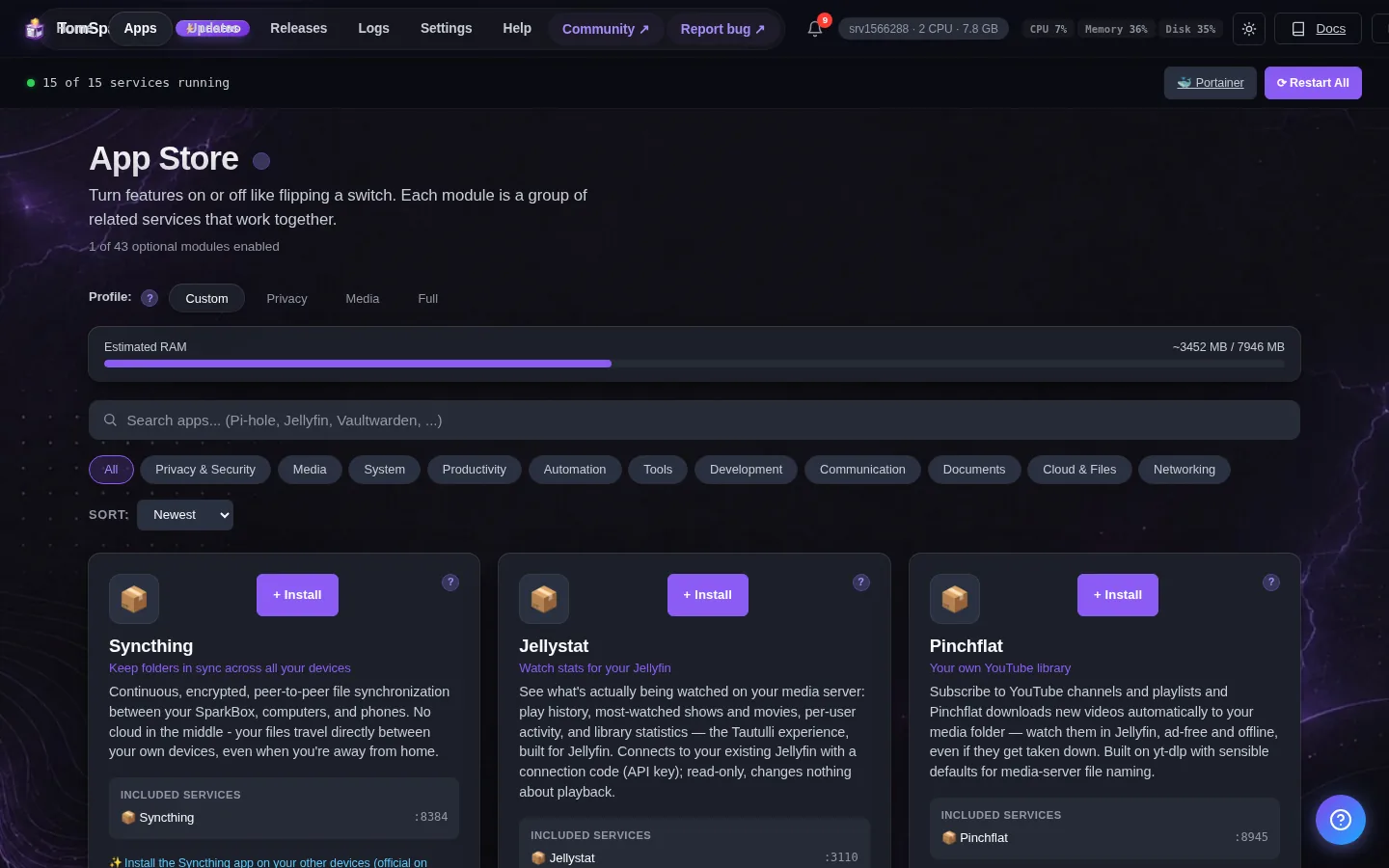
Navidrome is an optional app — it's included with SparkBox but switched off by default, so it doesn't use resources unless you want it. Turning it on is a single toggle:
- Open your SparkBox dashboard in a browser.
- Find the list of apps you can add (the app catalog / "add an app" area).
- Find Navidrome — its icon is a little music note — and switch it on.
SparkBox sets it up for you in the background. Give it a minute or two; when the Navidrome tile turns green and ready, you're good to move on.
4. Create your account and find your library
Click the Navidrome tile, or go straight to it in your browser at:
http://<your-server-IP>:4533(Your server's IP is the same address you use to reach the SparkBox dashboard.)
The very first time you open Navidrome, it shows a "Create admin account" screen. Whatever username and password you pick here becomes the main account — there's no default login to look up, you're making it right now. Choose something you'll remember and keep the password somewhere safe.
After that, Navidrome scans your Music folder and builds the library. If you dropped in a big collection, the first scan can take a little while — let it run. When it's done, you'll see your albums laid out with cover art, and you can search by artist, album, or song.
If the library looks empty at first, it usually just means the scan hasn't finished, or the music isn't in the Music folder yet. Double-check the folder, wait a minute, and refresh. There's also a "scan now" option in Navidrome's settings if you don't want to wait.
5. Get it on your phone
This is the part that makes it feel like a real streaming service. Navidrome speaks a common standard called Subsonic, which means a whole bunch of polished phone apps can connect to it. You don't use a "Navidrome app" — you use any Subsonic-compatible music app and point it at your server.
Good ones to try:
- Symfonium (Android) — a paid app, but widely considered the best music experience for this kind of server.
- DSub (Android) — free and reliable, a long-time favorite.
- play:Sub or substreamer (iPhone) — solid options on iOS.
Setting one up is the same in every app. It asks for three things:
- Server address:
http://your-server-IP:4533 - Username: the one you just created
- Password: the one you just created
Log in, and your whole library is on your phone — browse, search, make playlists, and download albums for offline listening on a flight. While you're on your home Wi-Fi this works right away. To use it on mobile data when you're out, you'll want remote access set up first (next section points you there).
6. Adding more music later
This part is refreshingly boring, which is the point. When you get new music, just drop the files into the same Music folder the same way you did at the start. You don't have to tell Navidrome anything — it automatically rescans the folder once an hour and adds whatever's new.
Don't want to wait up to an hour? Open Navidrome's settings and trigger a manual scan, and your new albums show up in a few seconds.
The same goes for fixing things. If an album has the wrong cover or a song's details look off, that's almost always the information stored inside the file itself (its "tags"). A free tag editor on your computer — MusicBrainz Picard is the popular one — cleans those up, and after the next scan Navidrome reflects the corrections.
7. Honest limits: what this isn't
Your own music server is a genuinely great thing to have, but it helps to be clear about what it does and doesn't do, so it matches your expectations:
- It's not music discovery. There's no "recommended for you," no Discover Weekly, no endless catalog to wander. It plays what you own. If you mostly rely on a streaming service to find new music, this is a complement to that, not a full replacement.
- It doesn't rip CDs or download songs for you. Getting the actual files is on you — ripping your CDs, buying downloads, or moving over a collection you already have.
- Sound quality is whatever your files are. Navidrome streams your files as they are. Low-quality MP3s stay low-quality; lossless FLAC stays lossless. The server doesn't magically improve them.
- Listening out of the house needs one more step. On your home network it just works. To stream on mobile data, you first need a safe way to reach your server from outside — which is its own short setup.
None of these are dealbreakers — they're just the honest shape of owning your music instead of renting it. For most people the trade is worth it: no subscription, no songs vanishing because of a licensing change, and a library that's genuinely yours.
Next steps
Your music is one piece. Here's the rest.
If you want the deeper Navidrome walkthrough — playlists, sharing, and tuning the library — see the full Navidrome setup guide. The natural next step is making it reachable from outside your house so you can stream on the go, and that same remote-access setup also covers your movies and the rest of your apps. On SparkBox all of this lives in one dashboard.
If you don't have SparkBox yet, it installs Navidrome and the rest with a single command — no wiring apps together by hand.