How to Get a Private Search Engine Instead of Using Google
Every time you search Google, it learns a little more about you — what you're worried about, what you're shopping for, where you are. A private search engine gives you the same answers without keeping any of that. This guide shows you how to run one at home in plain English, with no terminal and no monthly fee. Tested on: SparkBox v1.6.213, on a UGREEN DXP4800 Plus and a $7/month Hostinger VPS.
- Why your search engine is the biggest privacy leak
- What "private search engine" actually means
- The easy way: turn on SearXNG
- Open it for the first time
- Make it your browser's default search
- Choose which sources it searches
- The honest list: what it does and doesn't do
- Where your data lives
- Next steps
1. Why your search engine is the biggest privacy leak
People worry a lot about which apps track them, but the search box is usually the leakiest thing they touch all day. You type your actual questions into it — health symptoms, money problems, gift ideas, the name of someone you just met. Tied to your account and your location, that's a remarkably complete picture of your life, and it's the raw material behind the ads that follow you around.
It's not just ads, either. That stored history is a single list of everything you've ever wondered about, sitting on someone else's computer, attached to your name. It gets used to personalize what you see, it can be handed over if it's ever requested, and it's one more thing that can leak in a breach. Most people would never keep a paper diary of their searches — but that's effectively what a tracked search account is.
You don't have to give that up to get good search results. The trick is to put something in the middle: a small program that does the searching for you, so the big engines only ever see the request coming from your home server — not from you. You run that program yourself, on hardware you own, so there's no company in the loop to keep records in the first place.
2. What "private search engine" actually means
The tool we'll use is called SearXNG. It's what's known as a metasearch engine, which is a fancy way of saying it doesn't have its own giant index of the web. Instead, it forwards your query to dozens of real sources — Google, Bing, DuckDuckGo, Wikipedia, GitHub and more — and blends the results into one clean page.
The important part is what it leaves out. SearXNG sends along your search words but not your IP address, not your cookies, and not your search history. None of those engines get to tie the query back to you, and SearXNG itself doesn't build a profile either. You get the breadth of Google's results without being the product.
In short: you keep typing questions the same way you always have. The difference is that nobody on the other end gets to remember who asked.
3. The easy way: turn on SearXNG
SearXNG can be fiddly to set up by hand — it expects you to write a secret key, edit a configuration file, and wire up a web server. On SparkBox, all of that is already done. It ships as a one-click app, so you just switch it on.
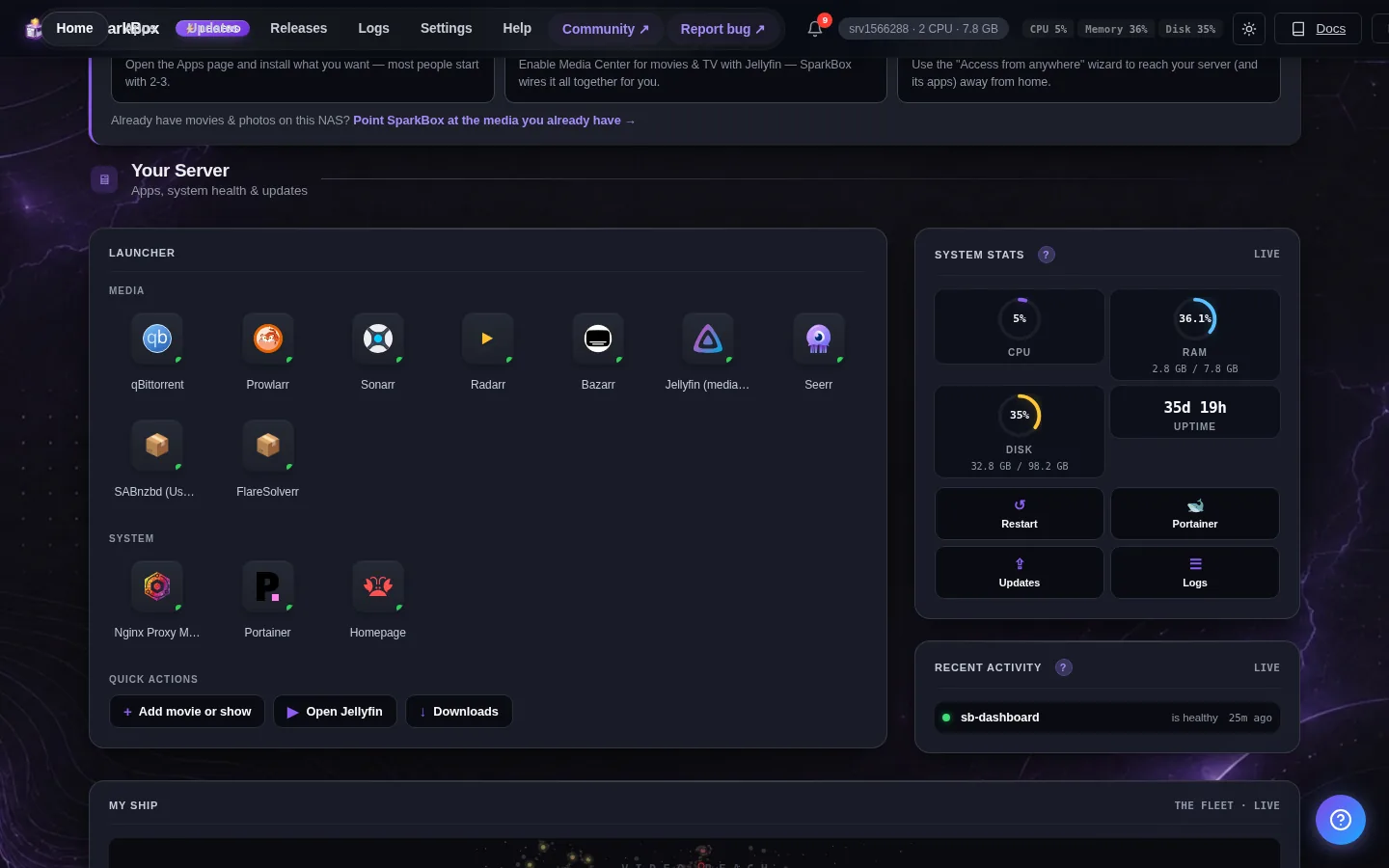
- Open your SparkBox dashboard in a browser (the same place you manage your other apps).
- Find the SearXNG tile. It lives with the privacy apps and has a small magnifying-glass icon.
- Click Enable. SparkBox pulls the app, creates a private session key for your box automatically, and starts it up.
It's a light app — it uses only about 150 MB of memory — so it's happy to run alongside everything else on a NAS or a cheap server.
4. Open it for the first time
Once it's enabled, SearXNG runs on your box at this address (swap in your server's own IP address):
http://<your-NAS-IP>:8088Open that in any browser on your home network and you'll see a plain search box. One thing that throws people: the very first page can say "No results" before you've searched anything. That's completely normal — it's just the empty starting screen. Type a question, press enter, and you'll get a blended results page pulled from all the engines at once.
Tip: if the page doesn't load, give it a minute after enabling. The app does a quick health check on startup, and the dashboard tile turns green once it's ready.
5. Make it your browser's default search
Searching from that page works, but you won't keep visiting a bookmark every time. The real win is making SearXNG the thing that runs when you type into your browser's normal address bar. Here's how, depending on what you use:
Chrome or Edge: Go to Settings → Search engine → Manage search engines → Add. Give it a name like "My Search," put your box's address (http://<your-NAS-IP>:8088) as the site, and for the query line use http://<your-NAS-IP>:8088/search?q=%s. Save it, then set it as your default.
Firefox: Visit your SearXNG page once, then right-click the address bar and choose "Add" (or open the page's search settings). Firefox picks it up and you can set it as default under Settings → Search.
From then on, typing into the address bar quietly runs your private engine. Nothing about your day-to-day changes except who's watching — which is now nobody.
One small habit makes this even nicer: most browsers let you give a search engine a short keyword. Assign SearXNG something like s, and you can type s then a space then your question to search privately on demand — handy if you ever want to keep a regular engine around for one specific thing and use your private one for everything else.
6. Choose which sources it searches
Out of the box, SearXNG pulls from a wide spread of engines, which is usually what you want. But you can narrow or widen that list. Maybe you want to drop one engine that's rate-limiting you, or lean harder on a few you trust. That lives in one settings file on your box:
modules/searxng/config/settings.ymlYou'd edit that file on the server (over a file manager or SSH), turn individual engines on or off, and restart the app from the dashboard. This is optional — most people never touch it — but it's there if you like to tinker. If you're not comfortable editing files yet, leave the defaults; they're well chosen.
7. The honest list: what it does and doesn't do
A private search engine is a real privacy upgrade, but it's worth being clear about its edges so you're not surprised.
- It does stop your searches from feeding an ad profile, and it does keep the big engines from tying queries to you.
- It does give you the same kind of results you're used to, since it's pulling from the same engines underneath.
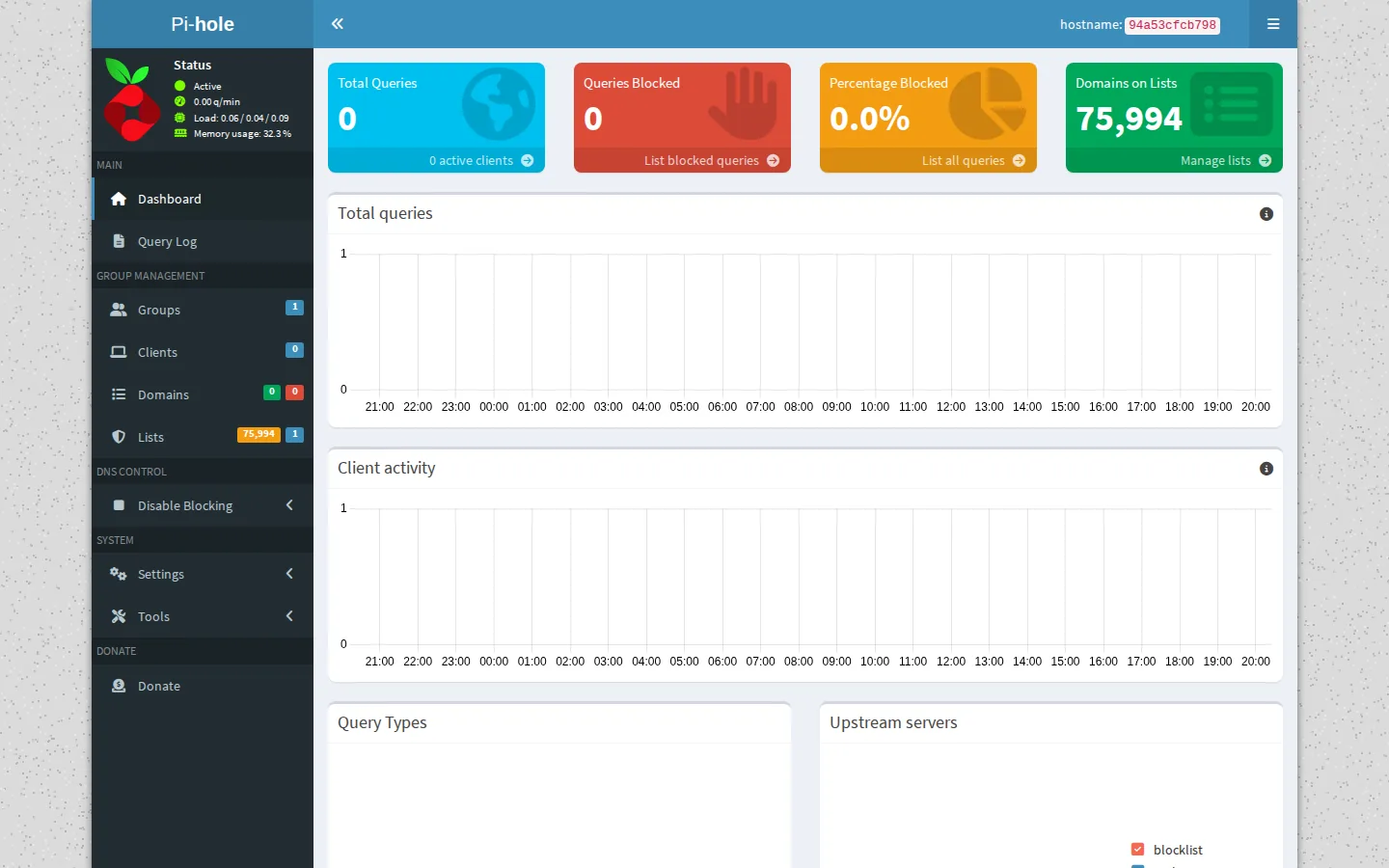
- It does not hide your browsing from your internet provider on its own. For that you'd pair it with a VPN or with private DNS — see the Pi-hole ad-and-tracker blocking guide.
- It does not make every result perfect. Occasionally an engine is slow or temporarily blocks automated requests, and a result page may be thinner than usual. Searching again usually clears it.
- It does not need to be reachable from outside your home to be useful. Running it just on your home network is the simplest and safest setup.
None of this is a dealbreaker. It's the normal trade for getting your searches out of the surveillance pipeline, and for most people it's an easy yes.
8. Where your data lives
SearXNG keeps its settings on your box, under this folder:
/opt/sparkbox/modules/searxng/config/That's the only thing worth saving, and the good news is you don't have to think about it. The Backup tile in the SparkBox dashboard already includes this folder, so a single restore brings your private search engine back exactly as it was on a fresh install. If you're new to all of this, the no-terminal guide to running your own apps walks through the dashboard end to end.
Next steps
That's a private search engine, running at home.
SearXNG is one of the easiest privacy wins on SparkBox — a few clicks and your searches stop building someone else's ad profile. If you want the step-by-step setup screen by screen, the SearXNG setup guide has it, and the make-your-NAS-private guide covers the bigger picture.