How to Save Your Bookmarks Without Letting Chrome Sync Them
Every time you star a page in Chrome, that bookmark quietly rides up to Google along with the rest of your sync data — your history, your open tabs, the lot. For a lot of people that's the last bit of their browsing they'd actually like to keep to themselves. The good news: you can keep your bookmarks in one tidy, searchable list that lives on a little app you run, save links to it with one click from any browser, and have them show up on your phone, your laptop, and your work machine — without Google in the middle. The app is called Linkding, and if you have a SparkBox, it's already one click away.
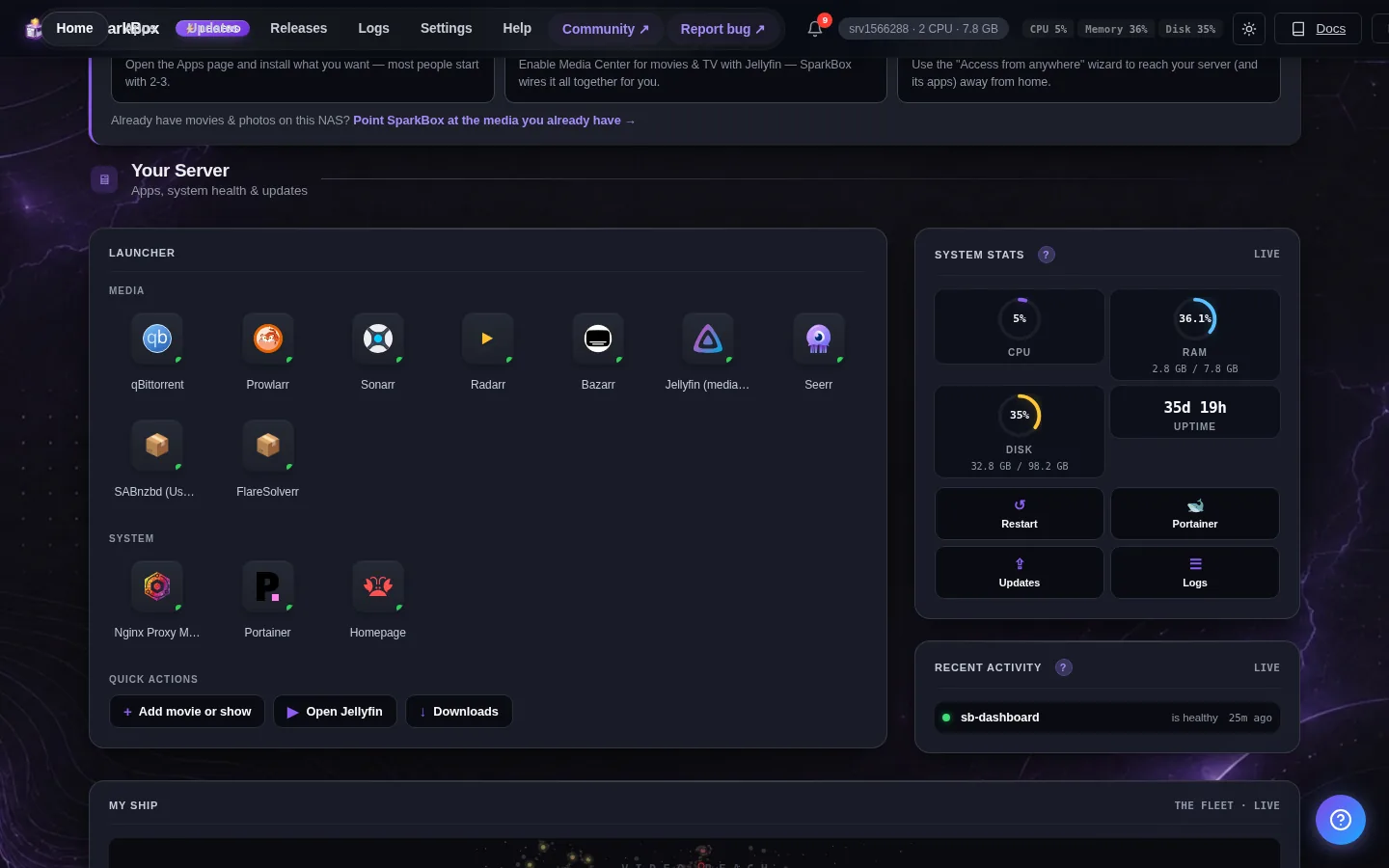
Tested on: a UGREEN DXP4800 Plus running SparkBox v1.6.259, with the same flow verified on a $7/month Hostinger VPS. No prior terminal, Linux, or Docker experience assumed.
1. Why Chrome sync isn't really "your" bookmarks
When you sign into Chrome and turn on sync, your bookmarks are copied to your Google account so they appear on your other devices. That part is genuinely useful — it's why the same bookmarks show up on your phone and your laptop. The catch is where they live: on Google's servers, tied to the same account that holds your search history, your email, and your location timeline.
None of that is a scandal. It's just that your reading list — the recipes, the half-finished articles, the gift ideas, the job postings — is a surprisingly personal map of what's on your mind. Self-hosting your bookmarks means that map stays on a machine in your house (or a small server you rent), not in a profile that also powers ad targeting. You still get the convenience of cross-device sync. You just move the storage to your side of the fence.
2. What Linkding is (in one paragraph)
Linkding is a small, no-frills bookmark manager you run yourself. In SparkBox's own words, it's "a minimal, self-hosted bookmark manager. Save links from any browser, tag and search them, and never lose a useful webpage again." "Self-hosted" just means the app runs on your hardware instead of someone else's cloud — you open it in a browser like any website, but the data sits on your box. It's deliberately plain: a list of saved links, tags to organize them, and a fast search bar. No feed, no ads, no algorithm deciding what you see. It's tiny, too — SparkBox lists it at around 50 MB of memory, so it runs happily alongside everything else.
3. Install Linkding from your dashboard
If you already have SparkBox running, this is the easy part — there's no command to type. Linkding ships as an optional app, switched off by default, so you turn it on when you want it.
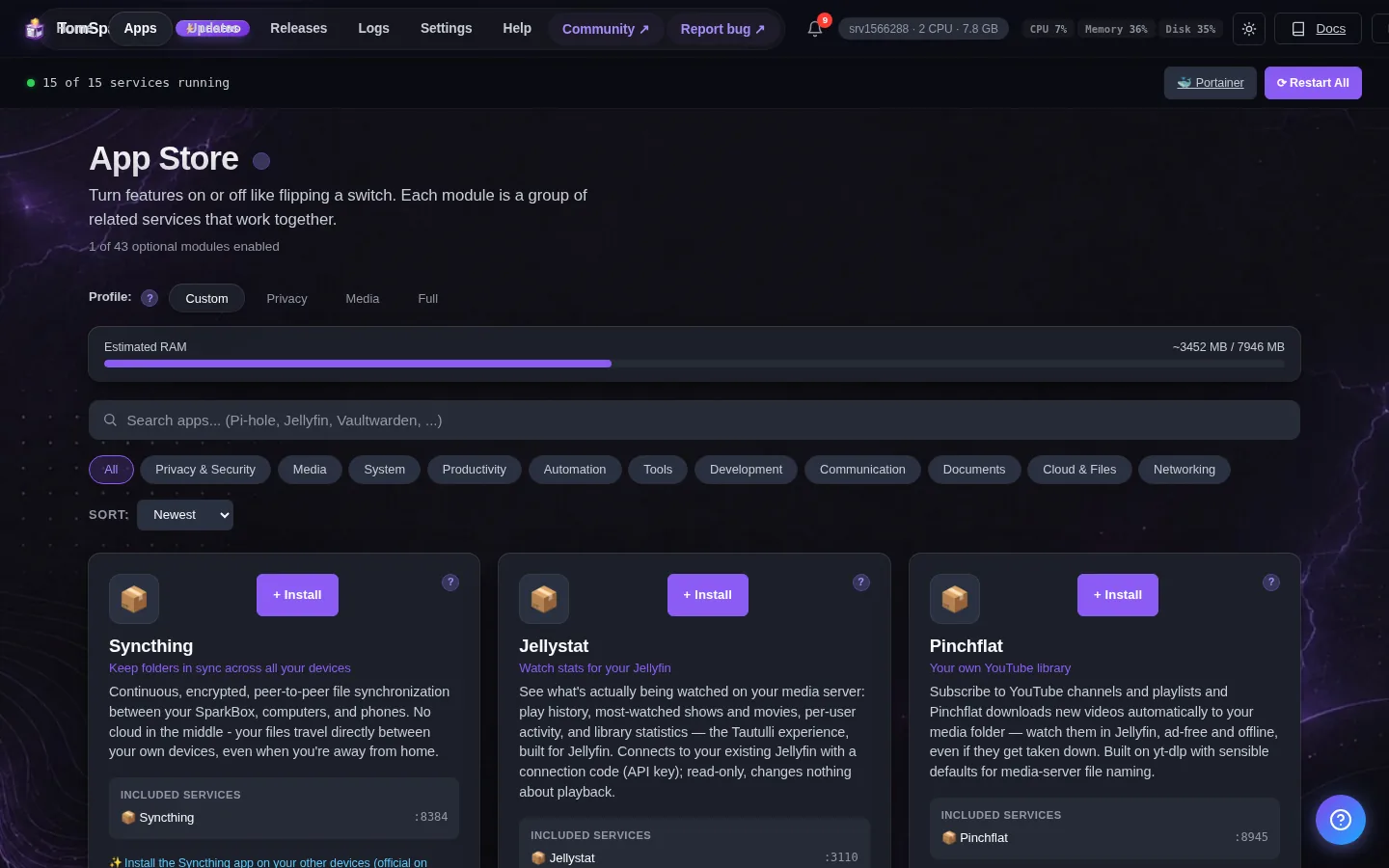
- Open your SparkBox dashboard in a browser (the address ends in
:8443, the same link the installer printed). - Find the Linkding tile — it's in the Tools group, with a little bookmark icon.
- Click Install (or Enable). Wait about half a minute while the tile shows it's working.
- That's it. SparkBox wrote the setup file, picked a safe port, and started the app for you. You didn't choose a port or edit anything.
Behind that one click, Linkding starts up listening on port 9090, so once it's running you can reach it directly at http://<your-box-IP>:9090 — but the dashboard tile will link you straight there, so you rarely need to type the address yourself.
Don't have SparkBox yet? It's a single install command that sets up a browser dashboard with around 35 apps as one-click tiles, Linkding among them. The no-terminal walkthrough covers that one command, read word by word, if the command line is what's been stopping you.
4. Log in for the first time
You don't invent a username and password for Linkding — SparkBox already made one for you when it installed the app. Here's how that works, in SparkBox's own first-login note:
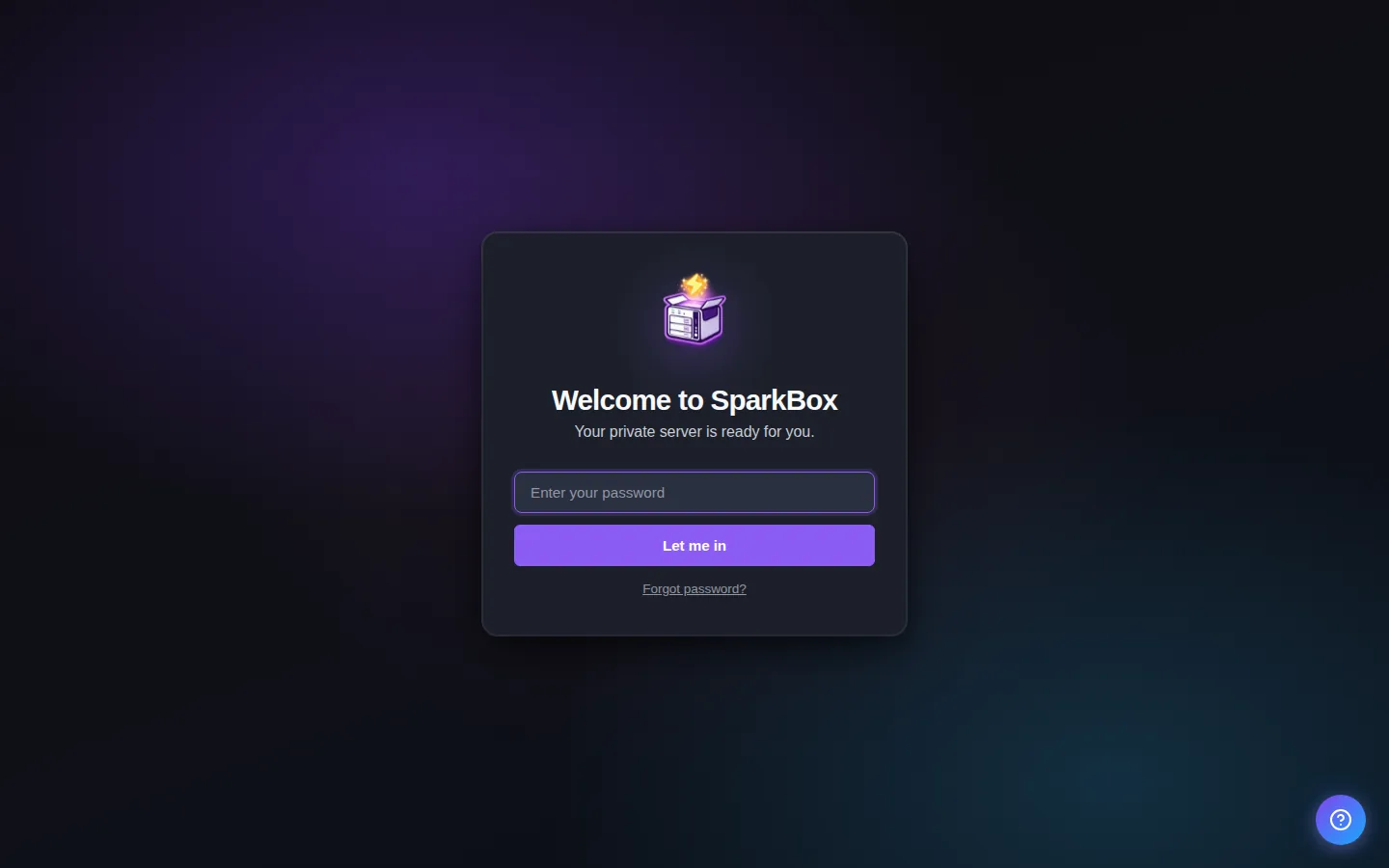
"SparkBox auto-created a Linkding admin for you — the credentials are shown below. Log in with username 'admin' and the password. You can change the password inside Linkding at Settings → Account."
So the steps are:
- Click the Linkding tile to launch it. A small popup appears with the address and the auto-generated password.
- The username is
admin. Copy the password from the popup. - Paste it into the Linkding login form and you're in.
If you ever close that popup before copying the password, you can find every auto-generated credential again in the dashboard under Settings → Passwords. And once you're logged in, it's a good habit to set your own password under Linkding's Settings → Account — same place the first-login note points to.
5. Save your first bookmark — and tag it
Inside Linkding, saving a link is about as simple as it sounds:
- Click Add bookmark.
- Paste the web address (the URL). Linkding fetches the page title automatically, so you usually don't have to type a name.
- Add a tag or two — just plain words like
recipes,work, orread-later. Press save.
Tags are the whole trick to keeping this from turning into the same overflowing mess your browser's bookmark bar became. Instead of digging through nested folders, you click a tag (or type it into the search box) and instantly see just those links. SparkBox's own tip for Linkding says it plainly: "Use tags to organize your bookmarks and find them quickly." There's also full-text search, so even an untagged link is findable by a word from its title.
6. The one-click browser extension
Adding bookmarks by pasting URLs is fine, but the real "replaces Chrome's star button" moment is the browser extension. Linkding has an official one for Chrome and Firefox (and Chrome-based browsers like Edge and Brave). SparkBox calls this out as its top tip for the app: "Install the browser extension for one-click bookmark saving."
The setup is a one-time thing:
- Install the linkding extension from the Chrome Web Store or Firefox Add-ons (search "linkding").
- Open the extension's options and paste in your Linkding address — the same
http://<your-box-IP>:9090you log in at. - Generate an access token inside Linkding (it's under your account settings) and paste that into the extension so it can talk to your server. Save.
From then on, saving a page is one click on the extension's toolbar button — it pre-fills the title and lets you add tags right there, the same as Chrome's star, except the bookmark lands in your list instead of your Google account.
7. How "sync across devices" actually works here
This is the part worth being precise about, because it's different from how Chrome sync feels.
With Chrome, sync happens silently in the background and the bookmarks live inside the browser. With Linkding, your bookmarks live on your server, and every device simply talks to that one server. So "sync" isn't a copy being shuffled between machines — there's a single list, and every device is a window onto it. Save a link on your laptop, and it's already there when you open Linkding on your phone, because they're both looking at the same place.
Concretely, you reach your bookmarks from any device three ways:
- The web page. Open
http://<your-box-IP>:9090in any browser on your home network. Linkding's interface works well on a phone screen, so you can save and read on the go. - The browser extension on each computer you use, pointed at the same address (section 6).
- From outside the house. By default your box is only reachable on your home network. To get at your bookmarks from a coffee shop or while traveling, the clean beginner answer is Tailscale — a free tool that makes your devices act like they're on your home network no matter where they are. We've got a no-terminal walkthrough that links onward to remote-access setup; you don't need to open any ports on your router.
8. The honest tradeoffs
We'd rather tell you the rough edges up front than have you discover them later:
- It does not auto-import from Chrome by clicking a button. To bring your existing bookmarks over, you export them from Chrome (Bookmarks → Bookmark manager → the three-dot menu → Export bookmarks, which saves an HTML file) and then import that file in Linkding under its settings. It's a two-minute job, but it's a manual one — not magic.
- Your bookmarks are only as safe as your backups. Living on your own box is the point, but it also means it's on you to keep a copy. SparkBox's backup feature covers Linkding's data along with everything else, so the main thing is to actually turn backups on.
- Reaching it from outside the house needs one extra setup. On your home network it just works. Away from home, you'll want Tailscale or similar first (see section 7). For a lot of people, "saves on my laptop, syncs to my phone at home" is already enough.
- It's deliberately plain. Linkding isn't trying to be Pinterest. No social feed, no recommendations. If you want a flashy visual board, this isn't it — and that minimalism is exactly why it's fast and stays out of your way.
If you want the bare-bones, screenshot-by-screenshot version of just getting Linkding running, the dedicated Linkding setup guide walks the install on its own. And if blocking the tracking side of the web is your bigger goal, pairing this with a network ad-blocker is a natural combo — see how to block ads with Pi-hole.
Next steps
Your reading list, on your side of the fence.
Linkding is one of around 35 apps SparkBox installs as one-click tiles — it writes the config, picks the port (9090), and generates your login for you. Turn it on, install the browser extension, and your bookmarks stop riding up to Google. Free and open, and the only line you type is the one that installs SparkBox itself.