How to Host Your Own Audiobook Library (Without Audible)
If you've built up a shelf of audiobooks over the years, you can put them all in your own private listening library — with chapters, bookmarks, sleep timer, and a phone app that remembers exactly where you left off. It works like Audible, minus the monthly credit and minus being locked into one company's app. The books are files on your own server, and they're yours. Here's how to set it up, no terminal required.
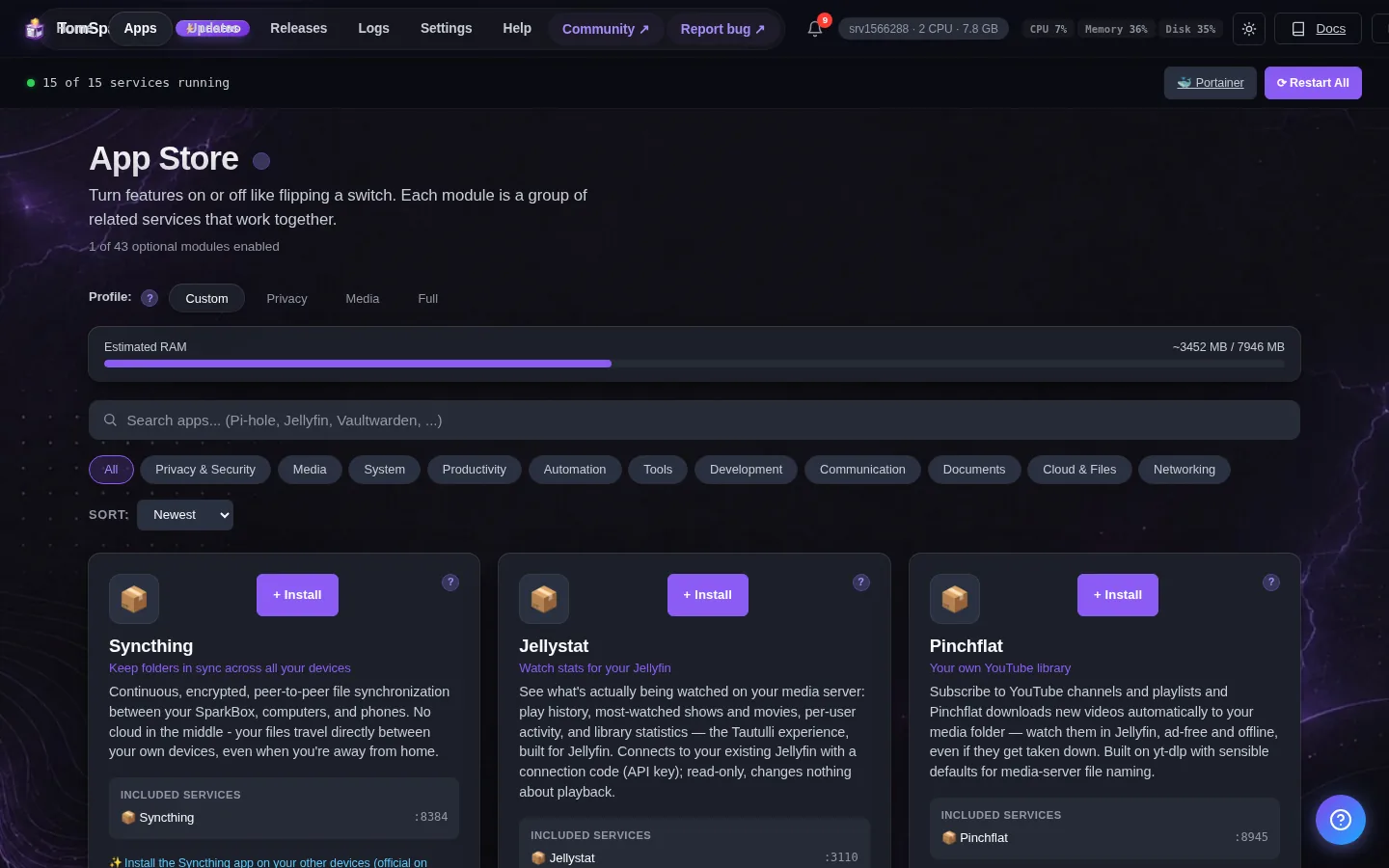
Tested on: UGREEN DXP4800 Plus and a $7/month Hostinger VPS, both running SparkBox v1.6.265 with Audiobookshelf 2.35.0. The same steps work on any SparkBox install.
1. What you get
The app doing the work is called Audiobookshelf. It's a free, self-hosted audiobook and podcast server: it reads a folder of your audiobook files and turns them into a proper listening library — cover art, author and series, chapter navigation, bookmarks, and playback speed. You open it in a browser or, more usefully, in its phone app.
The feature that makes it feel like Audible is progress sync. Start a book on your phone in the car, pick it up on your tablet at home, and it knows exactly where you were. A few specifics worth knowing up front:
- You bring the books. Audiobookshelf plays the files you already own — it isn't a store and won't fetch titles you don't have.
- It's light. It uses roughly 100 MB of memory, so it sits quietly on your server.
- There's a real app. The official Audiobookshelf app is free on both iPhone and Android, with offline downloads and a sleep timer.
- It does podcasts too — more on that near the end.
2. Where the audiobooks come from
This is the honest part. Audiobookshelf plays standard audio files — usually MP3 or M4B (an audiobook format that keeps chapters). So the question is where you get those files. Common, legitimate sources:
- Audiobook CDs you own, ripped to MP3 on your computer.
- Stores that sell DRM-free downloads — Libro.fm, Downpour, and many publishers sell audiobooks as plain MP3 or M4B files you can download and keep.
- Files you already have sitting in a folder somewhere.
One thing it does not do is play files that are locked to another app. Audible downloads, for example, are tied to Audible's own player by design — getting your own purchases into a standard file format is a separate process this guide doesn't cover. If your collection is already in MP3 or M4B form, you're ready to go.
3. Get your files into the audiobooks folder
SparkBox has a dedicated audiobooks folder on the server, and Audiobookshelf reads from it. Your first job is to get your files in there. Audiobookshelf is happiest when each book is in its own folder:
audiobooks/
  Andy Weir/
    Project Hail Mary/
      Project Hail Mary.m4b
  Brandon Sanderson/
    Mistborn/
      Mistborn.mp3
That's "Author, then the book, then the audio file(s)." A single M4B file per book is the cleanest, but a book split into many MP3s (one per chapter or disc) works fine too — just keep all of one book's files together in that book's folder.
If you've never moved files onto a server before, two easy ways:
- The Files app in your dashboard — open it, find the audiobooks folder, and drag your files in from your computer.
- As a network drive — connect to the server's folders like a shared drive and copy in bulk. The no-terminal guide covers both in detail.
4. Turn on Audiobookshelf
Audiobookshelf is an optional app — included with SparkBox but off by default, so it only runs when you want it. Turning it on is one toggle:
- Open your SparkBox dashboard.
- Go to the list of apps you can add.
- Find Audiobookshelf (its icon is a pair of headphones) and switch it on.
Give it a minute to start. When its tile turns green and ready, you're set.
5. Create your account and a library
Click the Audiobookshelf tile, or open it directly in your browser at:
http://<your-server-IP>:13378(That's the same server address you use for the SparkBox dashboard, with :13378 on the end.)
On first launch there's no default login — Audiobookshelf shows a setup screen and asks you to create the admin account right then. Pick a username and password and keep them somewhere safe; this is your main account.
Next it asks you to create a library. A library is just a name plus a folder. Call it "Audiobooks," and when it asks for the folder, point it at the audiobooks folder (inside the app it appears as /audiobooks). Save, and Audiobookshelf scans your files and builds the shelf. A big collection takes a little while on the first scan — let it finish, then refresh and your books appear.
6. Listen on your phone
This is where it becomes your everyday audiobook player. Unlike some self-hosted apps, Audiobookshelf has its own official app, free on both the App Store (iPhone) and Google Play (Android) — you don't need a third-party player.
Setup is quick. Install the app, and on the login screen it asks for:
- Server address:
http://your-server-IP:13378 - Username and password: the ones you just created
Log in and your whole library is on your phone. Tap a book to stream it, or download it for offline listening on a plane or a commute with no signal. Your position, bookmarks, and playback speed sync back to the server, so any other device picks up right where you stopped. While you're on home Wi-Fi this works immediately; to listen away from home on mobile data, set up remote access first (the next section points you there).
7. Bonus: it does podcasts too
Audiobookshelf isn't only for audiobooks — it's also a podcast server, and SparkBox gives it a separate podcasts folder for exactly that. You can create a second library set to "Podcasts," search for a show, and Audiobookshelf will subscribe and download new episodes on its own.
It's a nice perk if you'd rather your podcast history live on your own server than inside a big app that also tracks what you listen to. That said, if you're happy with your current podcast app, you can ignore this entirely and just use the audiobook side — nothing forces you to set podcasts up.
8. Honest limits: what this isn't
An audiobook server you own is a great thing, but it helps to know its edges so it matches what you expect:
- It's not a store. There's no browsing-and-buying, no Audible catalog. You bring the files; Audiobookshelf organizes and plays them.
- It won't play DRM-locked files. Audiobooks tied to another company's app (like standard Audible downloads) won't work as-is. You need files in a standard format.
- Cover art and details aren't always perfect. Audiobookshelf tries to match each book to online info, but for obscure titles or homemade rips you may need to fix a cover or author by hand. It makes that easy, but it's a few minutes of tidying.
- Listening away from home needs one more step. On your home network it just works; streaming on mobile data needs a safe way to reach your server from outside, which is its own short setup.
None of these are dealbreakers — they're the trade for owning your library instead of renting access to one. No monthly credit, no book vanishing because a license changed, and a collection that stays yours.
Next steps
Your audiobooks are one shelf. Here's the rest.
For the deeper walkthrough — multiple libraries, user accounts for family, and fixing metadata — see the full Audiobookshelf setup guide. If you also have a pile of e-books, the same idea works for those (see the e-book library guide). The natural next step is making your server reachable from outside the house so you can listen anywhere, and that same setup covers all your other apps too.
If you don't have SparkBox yet, it installs Audiobookshelf and the rest with a single command — no wiring apps together by hand.