Sonarr: "Missing root folder: /data/TV" and imports silently fail
Sonarr shows a red Missing root folder: /data/TV warning (or a similar path), downloads finish but nothing lands on disk, and Jellyfin or Plex never sees the new episodes. The gist: the folder Sonarr expects on your host doesn't actually exist, so imports have nowhere to go.
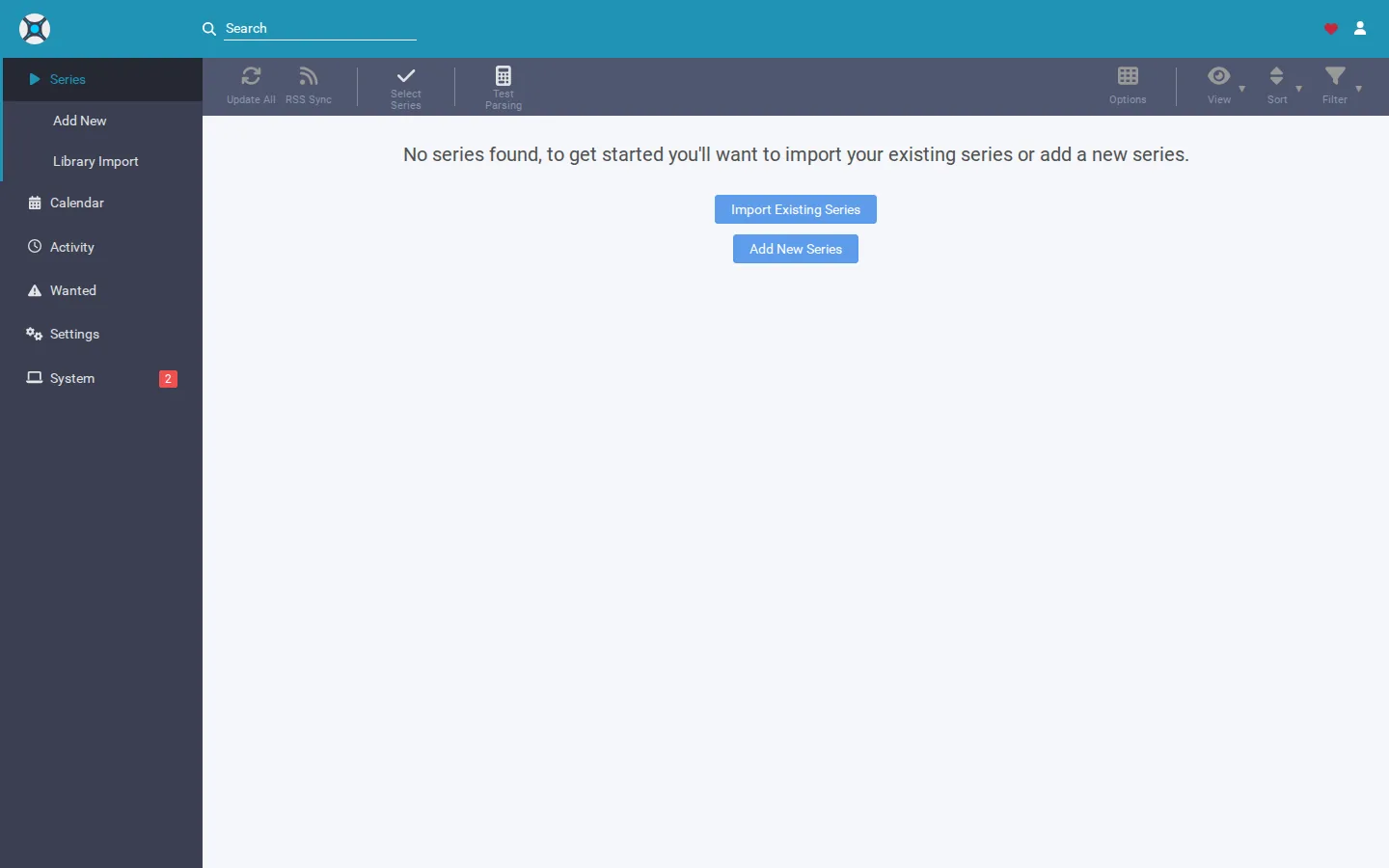
Rather not hand-fix paths and permissions? SparkBox creates the media folders, sets ownership, and re-heals a stray root folder on every start-up, so this warning clears itself. See the walkthrough →
The 10-second version: /data inside the Sonarr container is a mount of your host media folder. Sonarr registered /data/TV, but the matching folder on your host is missing or misnamed. Create it, give it the right owner, and re-select it in Sonarr — imports resume immediately.
What "root folder" actually means in Sonarr
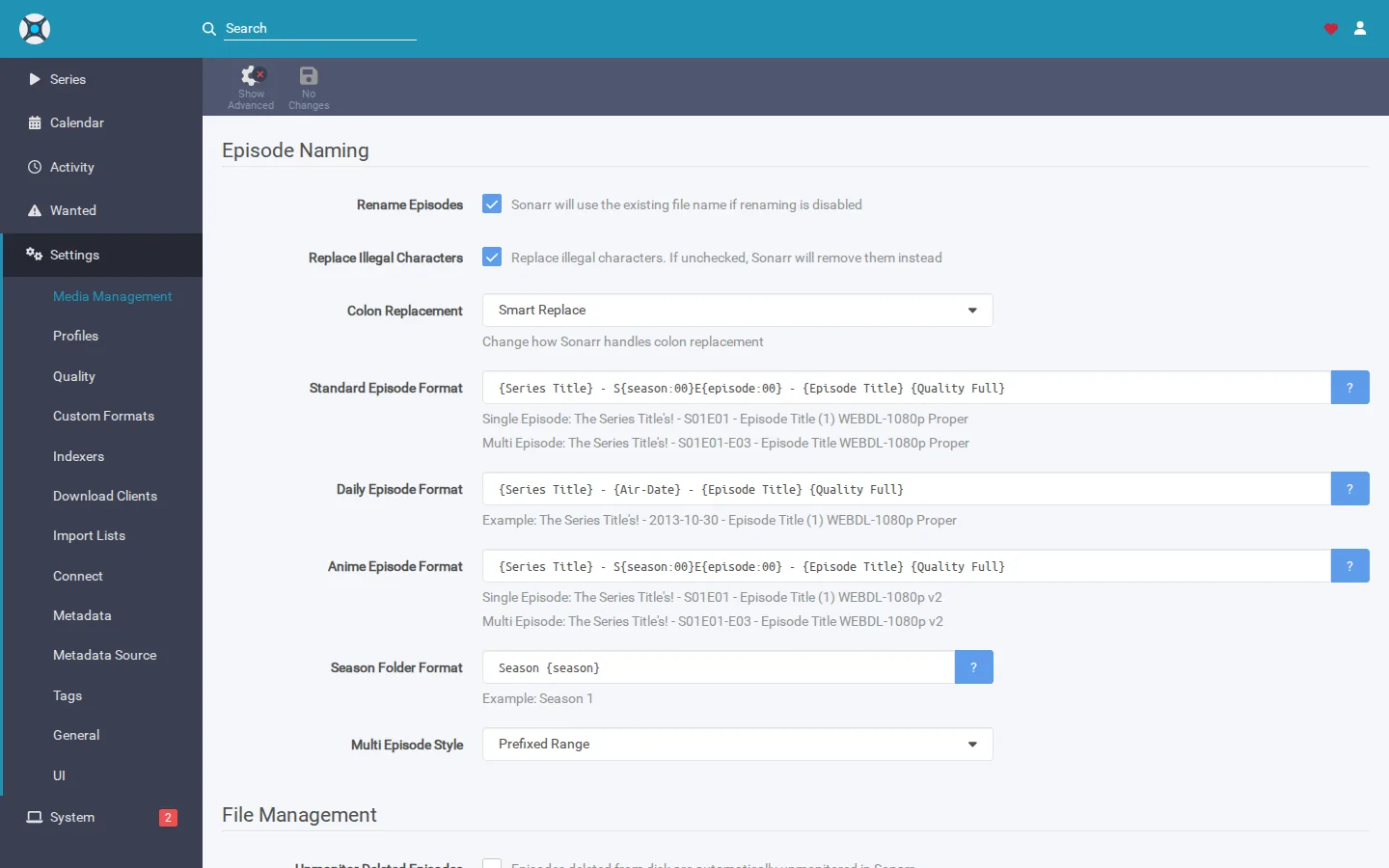
A root folder is the top-level directory where Sonarr files finished downloads — for TV that's typically something like /data/TV. It's the destination for the import, the step where Sonarr moves or hardlinks a completed download into your library and renames it.
The key detail people miss: /data is a path inside the container, not a real folder on your machine. Your Docker Compose file binds a host directory (often called MEDIA_ROOT) to /data in the container. So when Sonarr writes to /data/TV, it is really writing to MEDIA_ROOT/TV on the host disk. If that host folder doesn't exist, Sonarr sees an empty mount point and marks the root folder as missing.
Why it's silent: a download can complete perfectly and still never import. With no valid root folder, Sonarr has nowhere to place the file, so the import quietly stalls. You won't get a loud crash — just episodes that never appear in your media server.
Cause 1: the host folder simply isn't there
This is the most common trigger. It happens after you repoint MEDIA_ROOT to a new disk, do a fresh install on a new OS, or manually create the media folder at a slightly different path or letter case (/data/tv instead of /data/TV). Sonarr's registered root points at a location that doesn't exist on disk.
Fix it
- Find your real host path. Open your Compose file and read the Sonarr volume line. It looks like
MEDIA_ROOT:/dataor an explicit host path such as/mnt/storage/media:/data. The part before the colon is the host folder that stands in for/data. - Create the missing subfolder on the host. If
/data/TVis missing, create theTVfolder inside that host path. For example, if your host path is/mnt/storage/media:mkdir -p /mnt/storage/media/TV - Match the exact name and case. Linux paths are case-sensitive. If Sonarr expects
TV, a folder namedtvorTvwill not satisfy it. Rename or recreate so the case matches what Sonarr registered. - Set ownership so Sonarr can write. Sonarr runs as a specific user/group inside its container (commonly set with
PUID/PGIDenvironment variables). The host folder must be owned by that same user, or Sonarr can see the folder but not write into it. Change the owner to match, e.g.:
Replacechown -R 1000:1000 /mnt/storage/media/TV1000:1000with your actual PUID:PGID. - Re-check in Sonarr. Go to Settings → Media Management → Root Folders. The warning should clear. If it doesn't, remove the stale root folder entry and add
/data/TVagain — Sonarr will now find it.
Cause 2: the request service points at the wrong path
If you use Overseerr or Jellyseerr to request shows, requests can fail with "Root folder does not exist" and a 400 error, even when Sonarr itself looks healthy. This is a path mismatch: the request service tells Sonarr to use one path while Sonarr actually registered another.
A common version of this: the request service was configured for /data/media/TV, but Sonarr registers /data/TV. Those are different folders. The request service must send the exact path Sonarr uses.
Fix it
- In Sonarr, confirm the exact registered path under Settings → Media Management → Root Folders (for example
/data/TV). - In Overseerr/Jellyseerr, open Settings → Services → Sonarr, edit the connection, and set the Root Folder to the identical path Sonarr reports.
- Save and re-test the connection. Submit a fresh request — the 400 should be gone.
On SparkBox: the seed script (seerr-seed.sh) was itself writing /data/media/TV and /data/media/Movies while the bootstrap registered /data/TV and /data/Movies. That mismatch was fixed — the seed now writes /data/TV and /data/Movies to match, and re-runs itself if it finds a stale path left over from an older install.
Cause 3: requests 400 with a quality-profile error, not a folder error
A close cousin worth ruling out. If your request service returns QualityProfileExistsValidator: Quality Profile Id 1 does not exist, that's not a root-folder problem — it's a quality profile that was referenced before it was created. On SparkBox this happened because the seed fell back to profile ID 1 while the curated profile (applied by Recyclarr) hadn't been created yet at seed time, leaving a bad activeProfileId in the request service's settings.json. This was fixed in v1.6.116.
Fix it
- In Sonarr, open Settings → Profiles and note the name and ID of a profile that exists.
- In Overseerr/Jellyseerr, edit the Sonarr service and select that real quality profile from the dropdown instead of a leftover invalid ID.
- Save, re-test, and resubmit the request.
Bonus: a stale operation lock blocking the import fix
Occasionally you'll fix the folder but Sonarr still refuses to act, reporting operation:busy from a leftover operation.lock — a file that says "a task is running" long after the task died (for example after an unclean container restart). A live lock protects a real running job; a stale one just gets stuck.
SparkBox now inspects that lock automatically: it distinguishes a live lock (real process still running) from a stale one using a PID probe with a 10-minute time-to-live, reports it over the API, and offers a one-click clear when it's safe. Live locks are refused unless you force them. If you're not on SparkBox and you're certain no task is running, restarting the Sonarr container clears an in-memory stale lock.
Verify the fix end to end
- Root Folders page in Sonarr shows no red warning and lists free space.
- Trigger a manual import or re-search an episode; confirm the file lands in
MEDIA_ROOT/TVon the host. - Confirm Jellyfin/Plex picks up the new file after a library scan.
- If you use a request service, submit a test request and confirm it reaches Sonarr without a 400.
Frequently asked
Why does Sonarr say the root folder /data/TV is missing?
Inside the container, /data is a mount of your host's media root. Sonarr registered /data/TV, but the matching host folder (MEDIA_ROOT/TV) doesn't exist — usually after a repoint, a fresh install, or a folder made at the wrong path or letter case. With no valid root folder, imports have nowhere to land.
Why do my Sonarr imports fail silently?
When the configured root folder is missing, Sonarr has no valid destination for the completed download, so the import step never finishes. The download itself succeeds, but nothing reaches your library and your media server never sees it.
Why do Overseerr/Jellyseerr requests get a "Root folder does not exist" 400?
The request service was pointed at a path (like /data/media/TV) that doesn't match the one Sonarr registered (/data/TV). Set the request service's root folder to the exact path Sonarr uses and re-test.
Do I need to recreate my Sonarr container to fix this?
No. In most cases you only create the missing host folder, fix its ownership, and re-select the root folder in Sonarr. Your container and database stay intact.
Skip the path-and-permissions dance
SparkBox creates your media folders, sets ownership to the media user, and re-heals a stray Sonarr root folder on every start-up — so "Missing root folder" clears itself instead of stalling your imports.