qBittorrent "Unauthorized" 401: Fixing the WebUI Login Loop
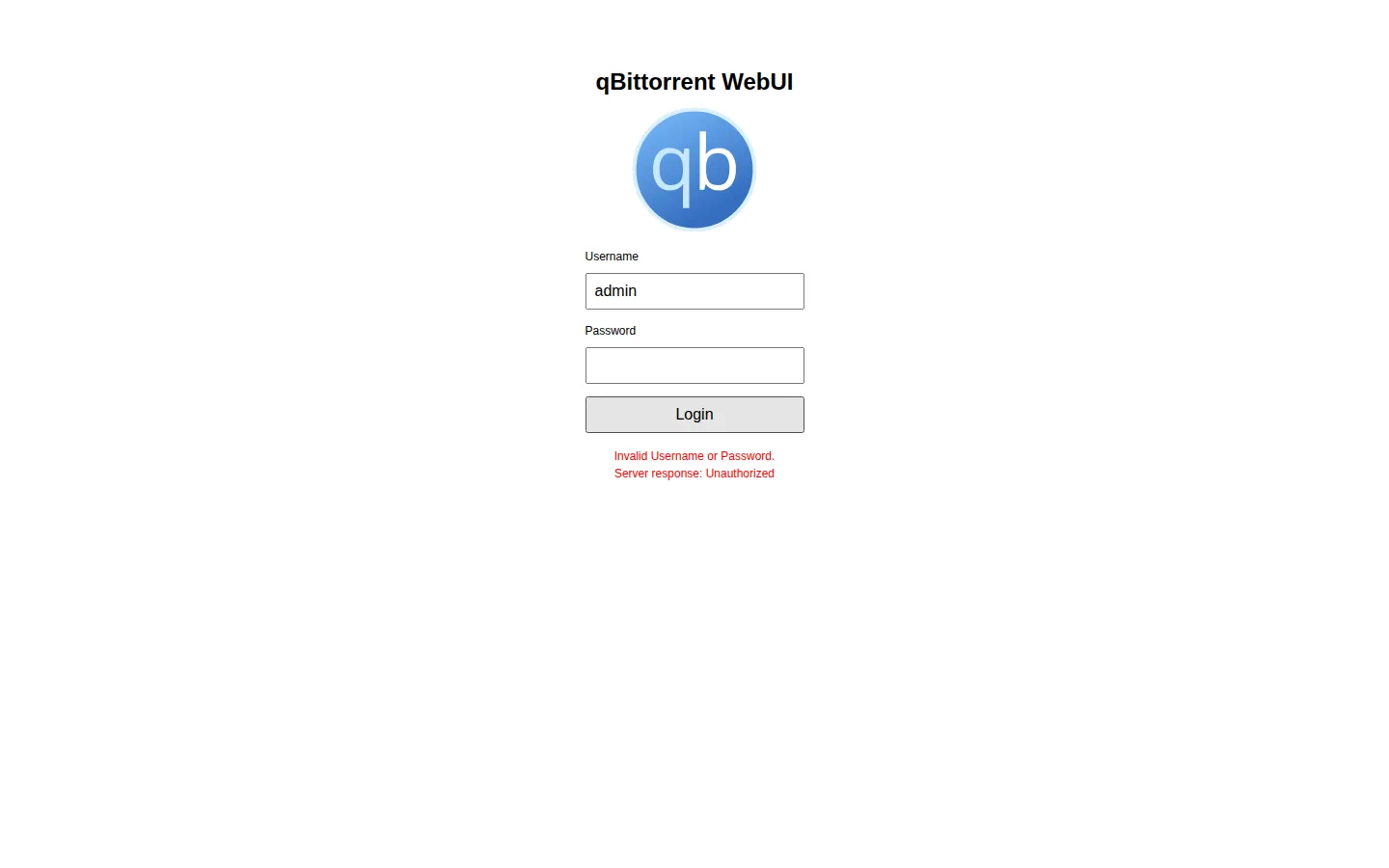
You open the qBittorrent WebUI and get a blank page that just says Unauthorized, or a login screen that never accepts your password no matter what you type. In almost every case this comes down to two things: a Host header check that blocks access by IP, or a WebUI password that was never actually saved to disk — so qBittorrent quietly hands out a brand-new temporary one on every restart.
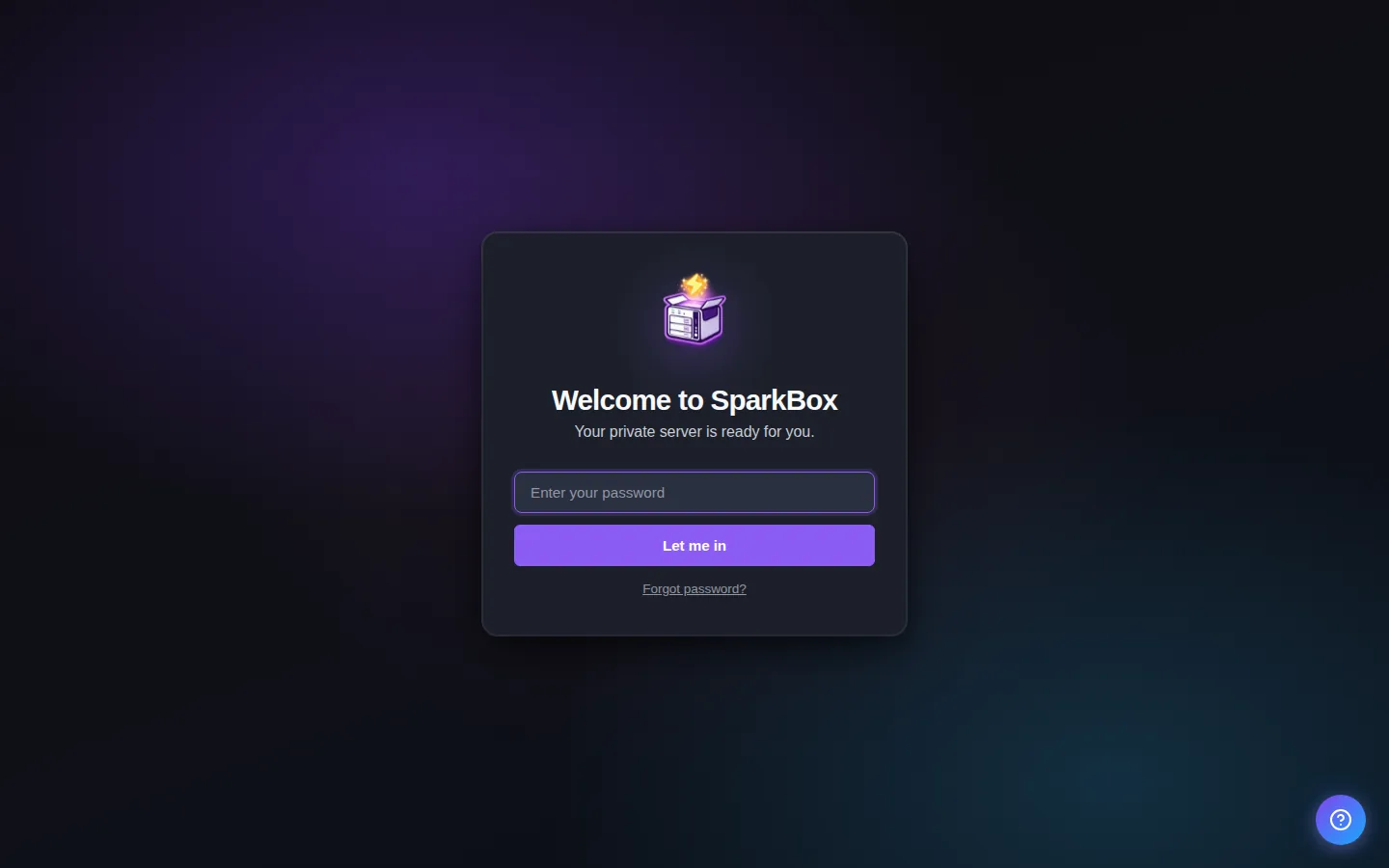
Rather not hand-edit config files? SparkBox seeds a stable qBittorrent password and pre-sets the Host header options for you, and self-heals older installs that were missing them. See the walkthrough →
The 10-second version: Open qBittorrent.conf, and under [Preferences] add WebUI\HostHeaderValidation=false and WebUI\CSRFProtection=false. If the login also never works, check the container/console log for the temporary password — and if a new one appears on every boot, your password hash was never saved, so you need to set one that persists.
First, know which "Unauthorized" you have
The word Unauthorized is a generic HTTP 401 status. In qBittorrent it shows up for two very different reasons, and the fix depends on which one you're hitting:
- You never even see a login box — the page is blank with just "Unauthorized" plain text. That's the Host header check rejecting the request. Jump to Cause 1.
- You see the login form but every password is refused, or it worked yesterday and not today. That's a password problem — usually a temporary password you don't know, or one that rotates on each restart. Jump to Cause 2.
Quick vocabulary check, since we'll use these terms throughout: the WebUI is qBittorrent's browser interface (default port 8080). qBittorrent.conf is the plain-text settings file where the WebUI options live, inside a [Preferences] section. A Host header is the address your browser sends with every request (for example 192.168.1.50:8080); qBittorrent can be told to reject anything it doesn't recognize.
Cause 1: Host header validation blocks LAN-IP access
Modern qBittorrent turns on Host header validation by default. It's a security feature: it refuses requests whose Host header doesn't match an approved value. The catch is that reaching the WebUI by raw IP address — which is exactly how most people open it on a home network or NAS — trips this check. qBittorrent returns 401 before it ever serves the login page, which is why you get a bare "Unauthorized" and no form.
A closely related setting, CSRF protection (Cross-Site Request Forgery — a defense against other sites making requests on your behalf), can cause the same symptom when you access the UI by IP.
Fix: turn off the two checks for local access
- Stop qBittorrent first. Editing
qBittorrent.confwhile it's running means your changes get overwritten when it shuts down. - Open
qBittorrent.confin a text editor. Its location depends on your setup — in Docker it's inside the config volume you mapped; on a bare install it lives in qBittorrent's config directory. Find the file that contains a[Preferences]section. - Under
[Preferences], add or edit these two lines:[Preferences] WebUI\HostHeaderValidation=false WebUI\CSRFProtection=false - Save the file and start qBittorrent again. Reload the WebUI in your browser. The login page should now appear instead of the Unauthorized message.
Gotcha: the backslash in WebUI\HostHeaderValidation is part of the key name — keep it exactly as shown. If you're on a Windows-style INI editor that "helpfully" escapes characters, verify the saved line still reads WebUI\HostHeaderValidation=false with a single backslash.
Security note: only disable these on a network you trust. If qBittorrent is reachable from the internet, leave both protections on and put it behind a reverse proxy that handles authentication and a proper hostname. Turning them off is for private LAN and localhost access.
Cause 2: the WebUI password was never saved (rotating temp password)
qBittorrent no longer ships with the old fixed admin / adminadmin credentials. On first start it generates a random temporary password and prints it once to the log or console, something like "A temporary password is provided for this session…". You're supposed to log in with that, then set a permanent one in Settings.
The problem: if a permanent password hash was never written to qBittorrent.conf, qBittorrent generates a new temporary password on every restart. You log in fine, then the container restarts overnight, and now yesterday's password is dead. On some NAS-style installs this is exactly what happens — the install routine that was meant to seed a permanent hash silently failed (for example because the tool it used to compute the hash wasn't present on the box), so nothing was ever saved and the temporary password just keeps rotating.
Fix A: log in with the current temporary password, then set a real one
- Look at qBittorrent's log or console output right after it starts. In Docker, run your platform's "view logs" command on the qBittorrent container; on a bare install, check the terminal or service log. Find the line stating the temporary password for this session.
- Open the WebUI, log in with username
adminand that temporary password. - Go to Tools → Options → Web UI (or Settings → Web UI), and under Authentication set a username and a password you'll remember. Click Save/Apply.
- Restart qBittorrent and confirm the new password still works. If it does, the hash is now on disk and the temporary-password rotation stops.
Fix B: when no temporary password ever appears in the log
If your install seeds the password through a script rather than the log line, and that seeding failed, the WebUI stays unreachable. The permanent fix is to make sure a valid WebUI\Password_PBKDF2 line exists in qBittorrent.conf. This value is a hashed password in qBittorrent's @ByteArray(...) format — you cannot type a plain password in there by hand.
The reliable route is Fix A: get one working login, set the password in the UI, and let qBittorrent write the hash itself. If you truly can't get in, the fallback is to let a tool that knows how to compute qBittorrent's PBKDF2-HMAC-SHA512 hash write it for you.
Gotcha: the hash line must use the unquoted @ByteArray form. Wrapping the value in quotes changes how qBittorrent parses it and the login silently fails. If you ever inspect the line, it should read WebUI\Password_PBKDF2=@ByteArray(...) with no surrounding quotes.
This is the exact scenario SparkBox now handles automatically: on hosts where the usual hashing tool is missing, it falls back to a bundled runtime that produces a byte-identical hash, so every install — NAS included — gets one stable, seeded qBittorrent password instead of a rotating temp. You can reset it any time with sparkbox reset-password.
Cause 3: an upgraded install still 401s because the config was never healed
There's a subtler version of Cause 1 that bites people who upgraded from an older setup. If the original install script wrote the config through a branch that exited early — for instance, after fixing up a badly quoted password hash — it never got as far as writing the HostHeaderValidation and CSRFProtection lines. The result is an existing config that looks complete but is missing the two keys, so you keep getting Unauthorized even after "updating."
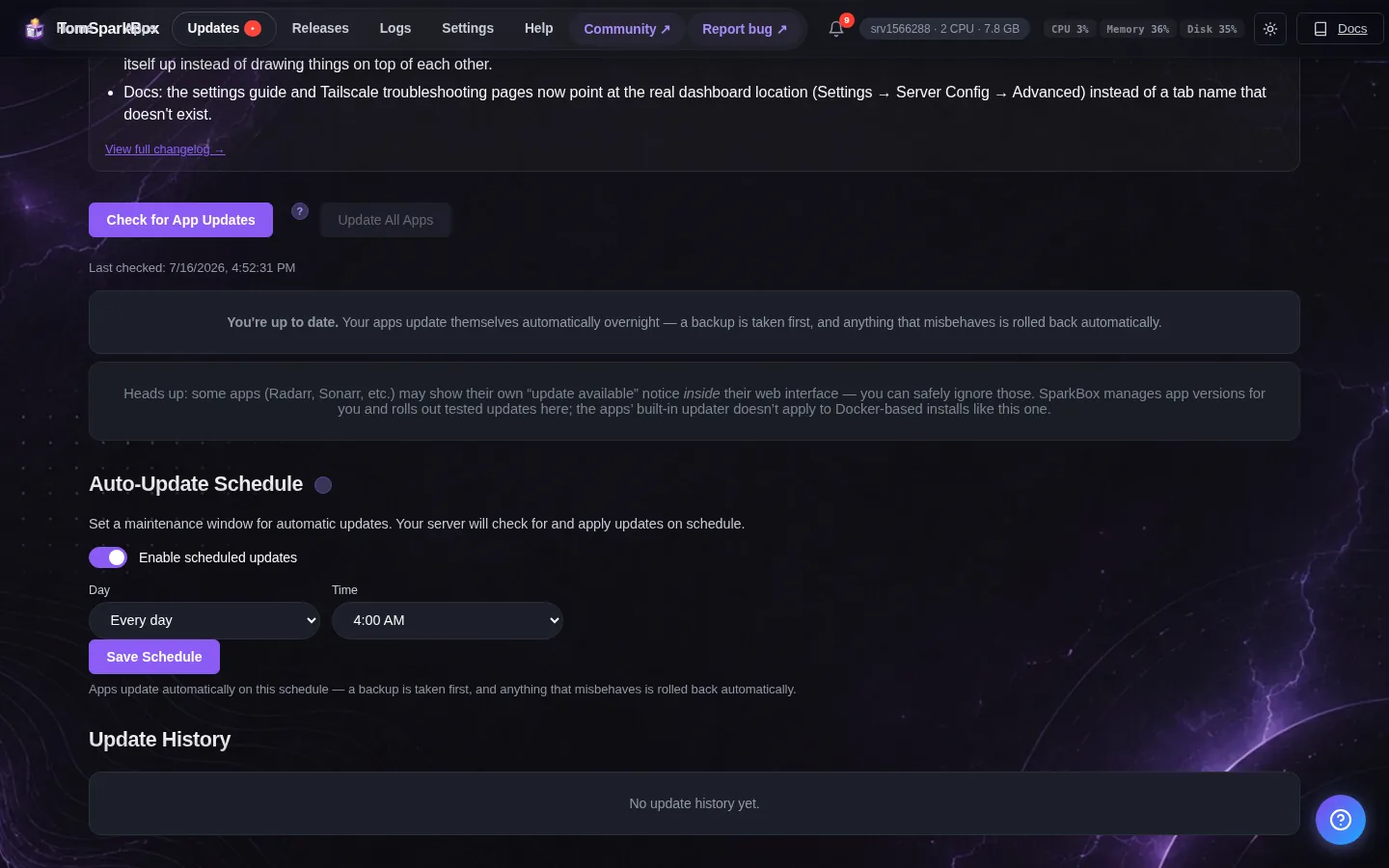
The trap: a plain software update that only pulls new container images won't touch an init script or a config file that's already on disk. The missing lines stay missing until something actively adds them back.
- Open your existing
qBittorrent.confand search forHostHeaderValidation. If the key is absent, that's your problem. - Add the two lines from Fix (Cause 1) under
[Preferences], save, and restart qBittorrent. - If you're on a managed setup, make sure whatever writes your config actually re-runs — a bare image pull may not. On SparkBox, the seeding script now idempotently (meaning: safe to run repeatedly, only adds what's missing) injects both lines on the next container restart, so upgraded boxes heal themselves without you editing anything.
A note on password exposure
If you've shared a screenshot for help — in a forum, a Discord, anywhere — check that no password is visible in it. Service passwords can appear in settings panels and log output, and once they're public you should rotate them. The lesson from a real incident behind these fixes: every generated password needs a reset route. On SparkBox, sparkbox reset-password now covers the dashboard, qBittorrent, FileBrowser, and the media-server password too. On any other stack, make sure you know how to change each generated credential before you post a screenshot.
Frequently asked
Why does qBittorrent say Unauthorized on my LAN IP?
Host header validation is on by default and rejects requests that reach the WebUI by IP address rather than an approved hostname, returning 401 before the login page loads. Setting WebUI\HostHeaderValidation=false under [Preferences] in qBittorrent.conf resolves it for trusted local access.
What is the default qBittorrent WebUI username and password?
The username is admin. Older builds used adminadmin, but current versions generate a random temporary password on first start and print it to the log or console. If that message scrolls past — or a new one is generated every boot — you'll never manage to log in until a permanent password is saved.
Why does qBittorrent generate a new password every time it restarts?
Because no permanent password hash was ever written to qBittorrent.conf, so qBittorrent falls back to a fresh temporary password each start. This happens when a seeding script fails silently — often because the tool it needed to compute the hash was missing. Setting a password once in the WebUI (or seeding a valid hash) stops the rotation.
Do I need to disable CSRF protection to fix the 401?
On a trusted local network, disabling WebUI\CSRFProtection alongside Host header validation is the standard way to make IP-based access work. If you expose qBittorrent to the internet, keep both on and use a reverse proxy with proper authentication instead.
Skip the config-file archaeology
SparkBox seeds a stable qBittorrent password, pre-sets the Host header and CSRF options for LAN access, and self-heals older installs that were missing them — no manual qBittorrent.conf edits.