Jellyfin 401: The Stuck Seerr Wizard and Failing Logins
You try to sign in with your Jellyfin account and get a 401 Unauthorized — or the Seerr setup wizard sits frozen on step 3 and never lets you finish. The short version: Jellyfin itself is usually fine. The problem is a half-finished link between Jellyfin and Seerr (the request app), plus a Seerr endpoint that refuses to re-authenticate once it thinks setup is done.
Rather not hand-edit JSON files? SparkBox ships a pinned, working Jellyfin + request-app pairing and a recovery path so a half-failed link can't trap you. See the walkthrough →
The 10-second version: If logins return 500 with Jellyfin hostname already configured, update Seerr to v1.6.222 or later. If the wizard is stuck on step 3 with a 401, clear the stale Jellyfin keys from settings.json so the wizard restarts at step 1, then pair manually.
What these errors actually mean
Three apps are involved, so let's name them:
- Jellyfin — your media server, the thing that holds your library and accounts.
- Seerr — the request app (the "I want to watch this movie" front end) that signs people in using their Jellyfin accounts.
- Moonfin — a plugin that also signs Jellyfin users in through Seerr's login endpoint.
An HTTP 401 (Unauthorized) means the request reached the server but no valid credentials or session were accepted. An HTTP 500 (Internal Server Error) means the server hit a condition it refused to process. You will see both codes in this situation, depending on which stage fails, and that's exactly why it's confusing.
Cause 1: Seerr's Jellyfin login endpoint is hard-coded as setup-only (the 500)
This is the deeper of the two problems. Seerr stores its configuration in a file called settings.json. When you finish the first-run wizard successfully, Seerr writes your server's address into jellyfin.hostname.
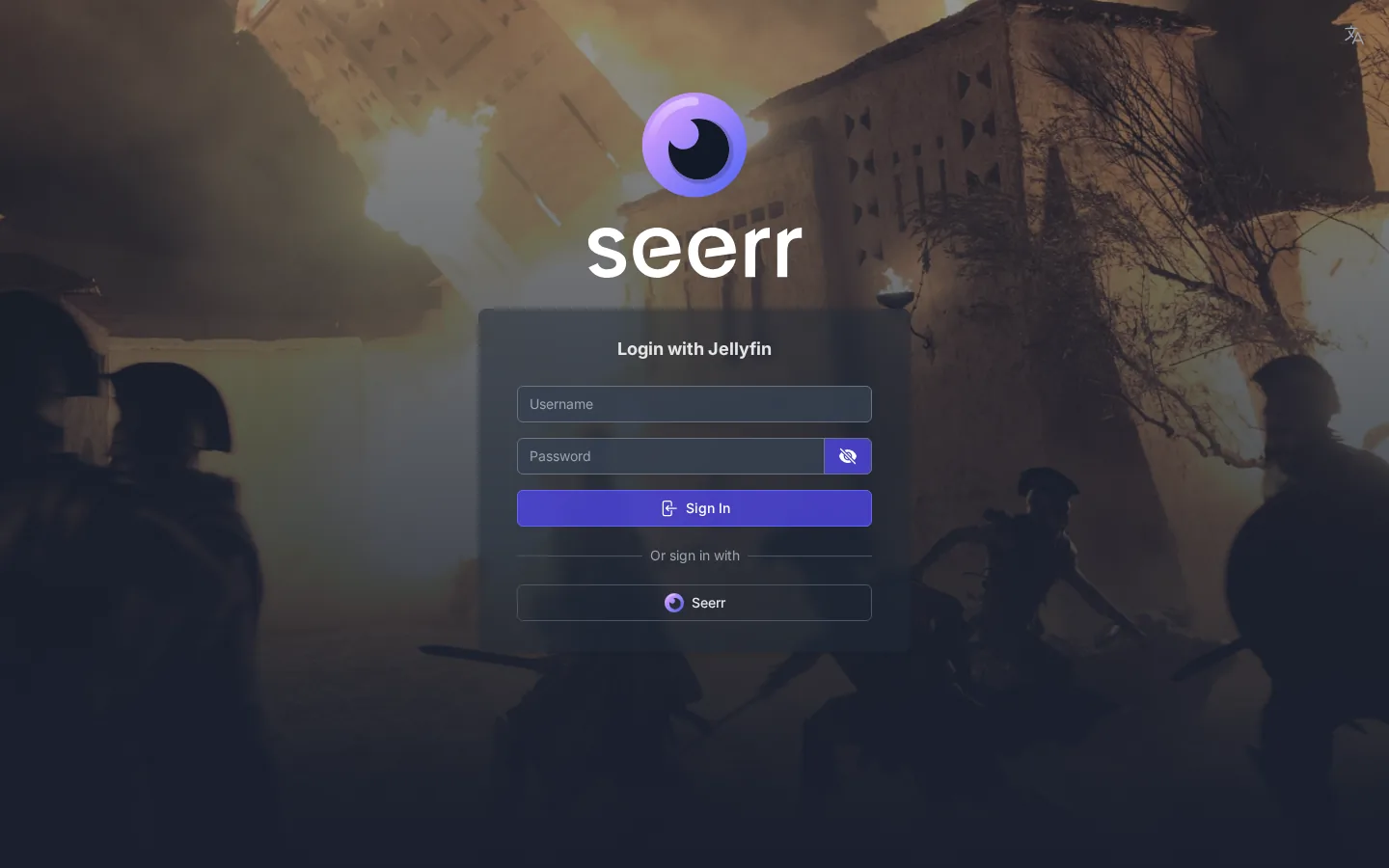
Here's the bug: Seerr's /api/v1/auth/jellyfin POST handler — the code that processes a Jellyfin login — is written to run only during setup. As soon as jellyfin.hostname is non-empty (which it always is after a successful first run), every later POST to that endpoint returns:
HTTP 500
{"error":"Jellyfin hostname already configured"}
It returns this regardless of the credentials you send. The login can't succeed because the server never even checks the password — it bails out the moment it sees a configured hostname. Because Moonfin uses that exact endpoint for ongoing logins, Moonfin breaks the same way, and so does Seerr's own wizard if it ever needs to re-authenticate.
Fix: update Seerr to v1.6.222 or later
- Check your current Seerr version (it's shown in the app's settings/about screen).
- If it's below v1.6.222, update. This release (2026-06-10) corrects the setup-only restriction so the endpoint authenticates Jellyfin users normally after first-run. The same change had been on the v1.7.x track since 2026-05-12 before being back-ported, so a current build on either line includes it.
- Restart the Seerr container/service after updating.
- Try the Jellyfin login again. The 500 with
Jellyfin hostname already configuredshould be gone.
Gotcha: Updating fixes the 500, but it does not retroactively repair a settings.json that was already left in a broken state by the half-finished link. If you were stuck before updating, also work through Cause 2 below.
Cause 2: the auto-link half-fails and traps the wizard at step 3 (the 401)
When the Jellyfin↔Seerr pairing is automated, it can fail partway through. The damaging part is the order things get written. Seerr sets mediaServerType=2 (its code for "Jellyfin is the media server") before it has confirmed a working Jellyfin session. So you end up with:
mediaServerType=2present — which tells the wizard to skip step 1 (the Jellyfin pairing step), and- no valid Jellyfin session — so any login attempt returns 401.
The result is a dead end: the wizard jumps you to step 3, but step 3 needs the working session that step 1 was supposed to create. There's no button to go back and re-pair. Worse, a "full reset" often leaves mediaServerType=2 in place, so the reset lands you right back in the same trap.
Fix: clear the stale Jellyfin keys so the wizard restarts at step 1
The goal is to get settings.json back to a clean, pre-Jellyfin state so the wizard offers step 1 again and you can pair manually.
- Stop Seerr. Editing
settings.jsonwhile the app is running risks it overwriting your changes on shutdown. - Back up the file. Copy
settings.jsontosettings.json.bakbefore touching it, so you can restore if needed. - Open
settings.jsonin a text editor. Its location depends on how you installed Seerr (commonly under the app's config/data directory) — find the same file the app reads, not a copy. - Reset the media-server fields. Set
mediaServerTypeback to its unconfigured value and clear the stale Jellyfin block — in particular emptyjellyfin.hostnameso the wizard treats Jellyfin as not-yet-set-up. Removing the half-written Jellyfin session/credential values in the same block prevents the 401 from a dead session. - Save, then start Seerr. Reload the wizard. It should now open at step 1.
- Pair Jellyfin manually through the wizard. Make sure you're already on the fixed Seerr build (Cause 1) first, otherwise the re-auth can fail with the 500 again.
Why manual pairing matters: the manual path runs the actual Jellyfin authentication before anything is committed. If it fails, you're left on a clean step-1 wizard instead of a trapped step-3 one — which is exactly the behavior the auto-link should have had.
Where to find the real failure reason
If you want to know precisely why the auto-link failed, the seeding/finishing logs record it. On a setup that runs the automated pipeline, check:
state/media-autoseed.log
state/media-finish.log
These show the specific request and response from the failed Jellyfin step — the difference between "Jellyfin was unreachable," "credentials were wrong," and "the endpoint returned 500." That tells you whether you need the version bump (Cause 1), the settings.json cleanup (Cause 2), or both.
How to confirm you're fully recovered
- Seerr login with a Jellyfin account succeeds — no 401, no 500.
- The setup wizard either completes or no longer appears.
- If you use Moonfin, an ongoing Jellyfin-user login through it now works (it shares the same endpoint that was returning 500).
settings.jsonshows a populated, valid Jellyfin block — notmediaServerType=2with an empty or dead session.
Frequently asked
Why does my Jellyfin login return a 401 inside Seerr?
A 401 means Seerr never obtained a valid Jellyfin session. When the auto-link half-fails, Seerr can still write mediaServerType=2 into settings.json, so it believes Jellyfin is configured even though no working session exists. The login then fails with 401 and the wizard can't advance.
Why does Seerr return 500 "Jellyfin hostname already configured"?
The /api/v1/auth/jellyfin endpoint is hard-coded as setup-only. Once jellyfin.hostname is non-empty in settings.json — true after any successful first-run — every later POST returns HTTP 500 with that body, no matter the credentials. Moonfin uses the same endpoint for ongoing logins, so it fails identically.
Is there a fix for the Seerr Jellyfin 500 error?
Yes. The 500 from the /api/v1/auth/jellyfin handler was fixed in v1.6.222 (2026-06-10). The change had been on the v1.7.x track since 2026-05-12 before being back-ported. Update to v1.6.222 or later to resolve both Moonfin login and Seerr first-run re-auth.
Why didn't a full reset fix the stuck wizard?
A "full reset" frequently leaves mediaServerType=2 in settings.json, which makes the wizard skip step 1 (the Jellyfin pairing step). You land back on step 3 with no valid session and no way to re-pair. Clearing the stale Jellyfin keys so the wizard restarts at step 1 is what actually breaks the loop.
Skip the JSON surgery
SparkBox ships Jellyfin and the request app pre-paired on a known-good version, with a recovery path so a half-failed link can't strand you on step 3.