How to set up Tdarr
Automatically transcode and health-check your media. This guide covers how to access it, log in for the first time, configure the basics, and where its data lives so you can back it up.
1. What is Tdarr?
Tdarr transcodes your library to save space and standardize formats, and runs health checks to catch corrupt files. It ships with a built-in worker node, so it works out of the box — add an Intel/AMD GPU for fast hardware transcoding.
2. How to access it
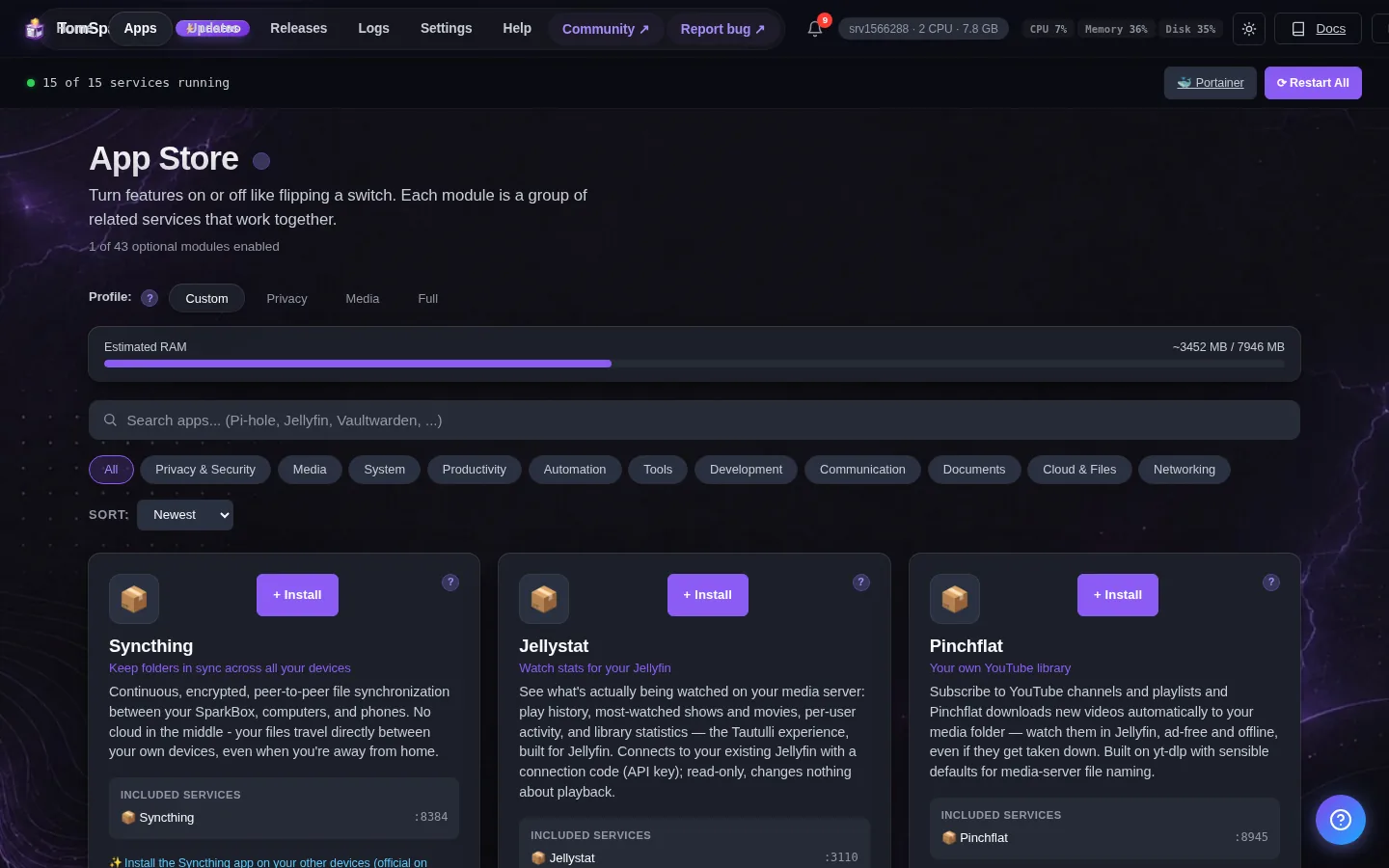
Once it's enabled, Tdarr runs on your SparkBox at:
http://<your-NAS-IP>:8265Point a Tdarr Library at /data to scan your movies and shows
3. First login
Tdarr opens a setup wizard on first launch. The built-in worker node connects on its own — just create a Library pointing at /data.
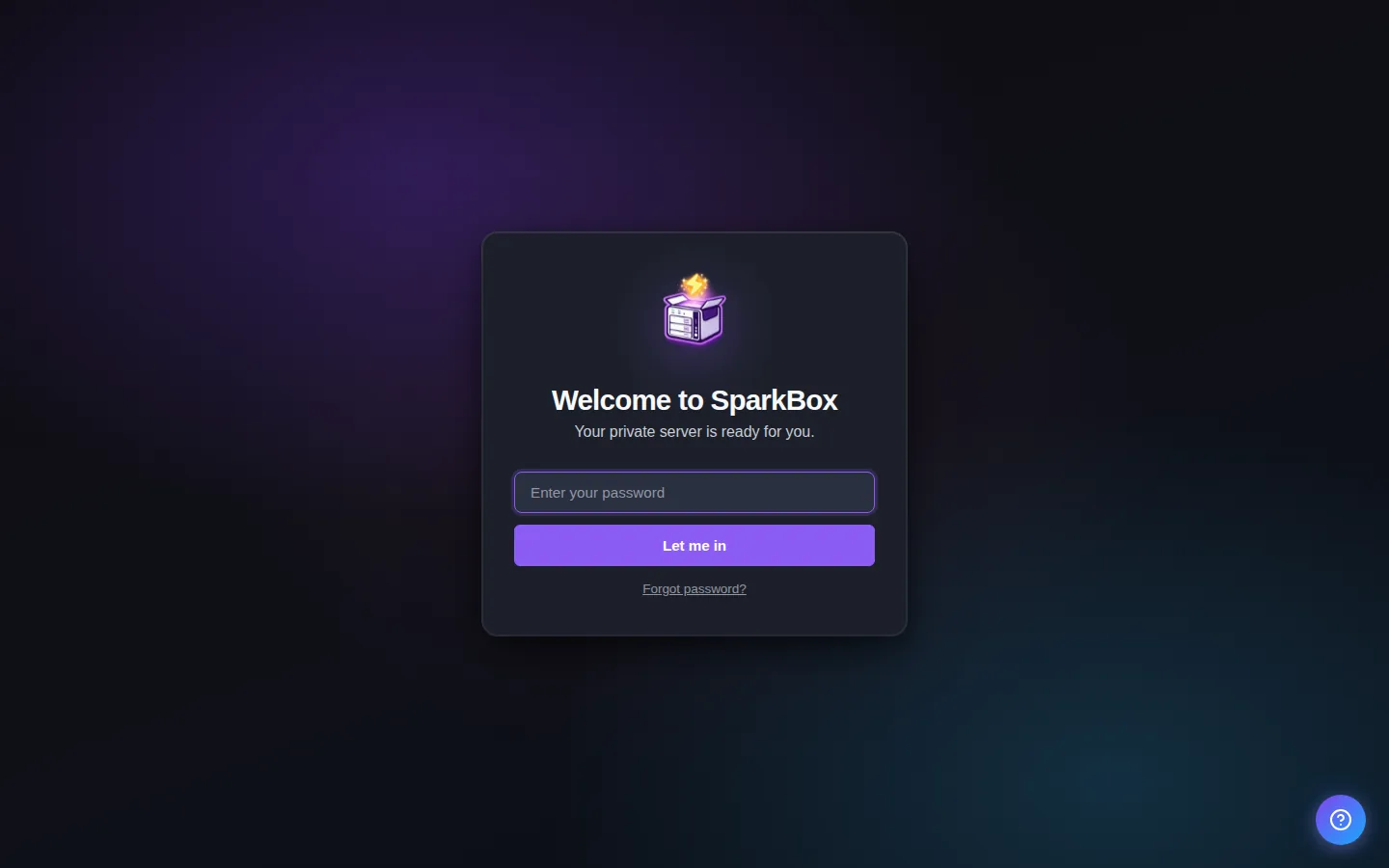
If it instead asks for a password you didn't set, check Settings → Passwords in your SparkBox dashboard — every auto-generated credential is listed there.
4. Tips
- On first visit, Tdarr runs a quick setup wizard — the built-in node connects automatically
- Add a Library pointing at /data and pick a transcode plan to start saving space
- Got an Intel/AMD GPU? Set JELLYFIN_HW_ACCEL in Settings for fast hardware transcoding
5. Settings you can change
You can set these when you enable the module, or later from Apps → Tdarr in the dashboard:
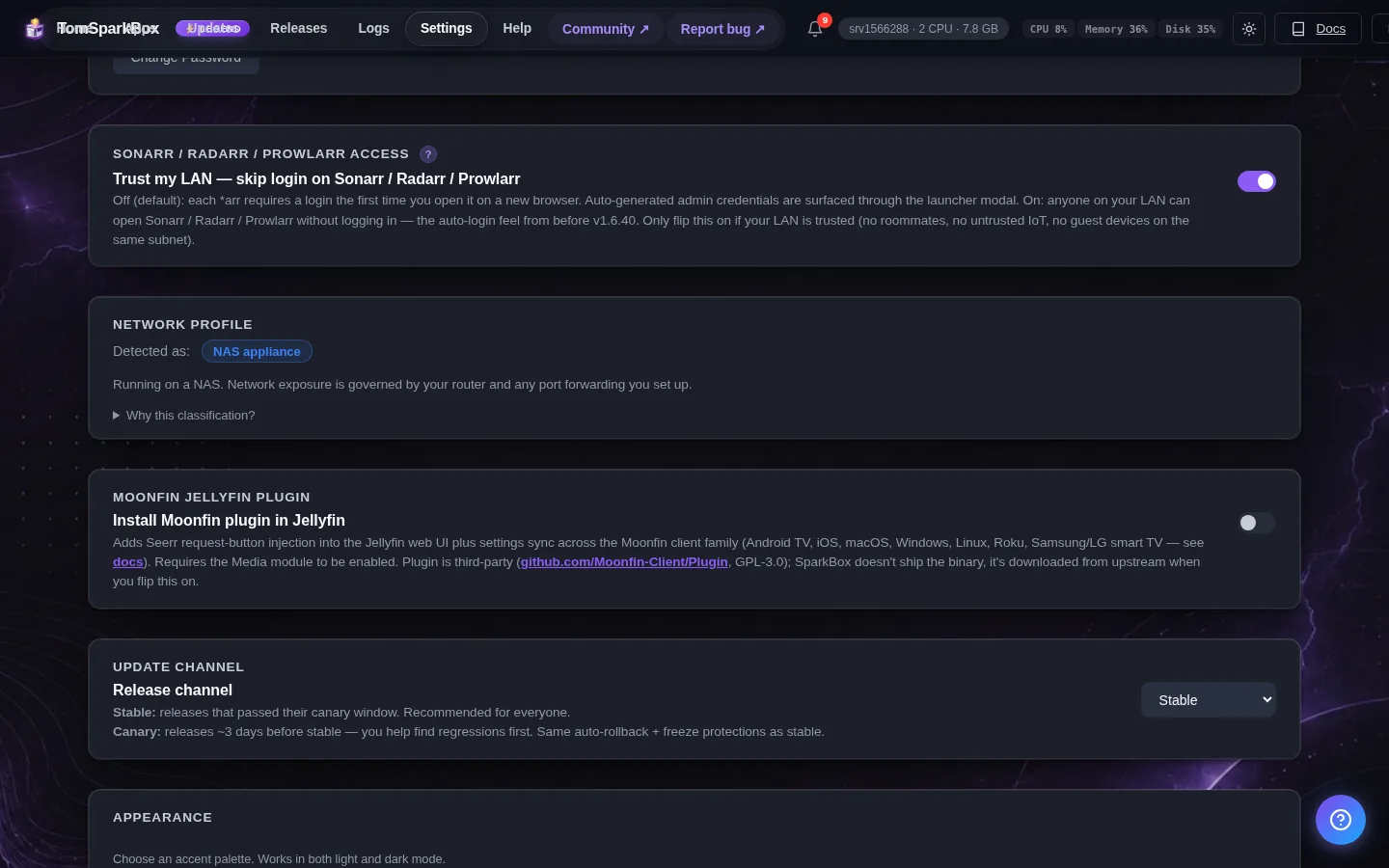
- Worker node name — Configurable value.
6. Where your data lives
Tdarr's config and persistent data are stored on the SparkBox host under:
/opt/sparkbox/modules/tdarr/config/Backups via the SparkBox dashboard's Backup tile include this directory by default, so a single restore brings Tdarr back to its current state on a fresh install.
7. A safe first run (health checks only)
Tdarr can MODIFY your media files, so don't point it at your whole library with a transcode plan on day one. Safer order: create a Library (Libraries, then Library+) pointing at /data/Movies, leave Transcode options OFF, and let it run health checks first - that alone finds corrupt files without touching anything. When you're ready to actually transcode, test on a single folder you can afford to lose, check the result plays fine on your TV/phone, and only then widen the library. Transcodes also need scratch space: Tdarr's cache lives on your storage pool and a single 4K job can use tens of GB, so keep some headroom free there.
8. What to expect without a GPU
On a typical NAS CPU, software-transcoding a single movie can take hours and will pin the CPU while everything else on the box fights for scraps. That's not a bug, it's physics. If your box has an Intel CPU with quick-sync (most do) set JELLYFIN_HW_ACCEL in SparkBox Settings so /dev/dri is passed through, and pick a hardware (QSV/VAAPI) plugin in your transcode plan - the difference is 10x or more. If you have no GPU at all, stick to health checks and the occasional one-off transcode overnight.
Next steps
That's Tdarr live on SparkBox.
If something doesn't match what you see, post in d/sparkbox or hit us up on YouTube. Every SparkBox bug gets patched; every UX-stumble in this guide gets rewritten.