How to set up Monitoring
Get alerts when something goes down. This guide covers how to access it, log in for the first time, configure the basics, and where its data lives so you can back it up.
1. What is Monitoring?
Keeps an eye on all your services 24/7 and sends you alerts via Telegram, Discord, email, Slack, and 90+ other notification services when something goes down.
2. How to access it
Once it's enabled, Monitoring runs on your SparkBox at:
http://<your-NAS-IP>:3001Set up a Telegram or Discord webhook to get notified when services have problems
3. First login
No preset password. On your first visit Uptime Kuma asks you to create an admin account - pick any username and password (it's separate from your SparkBox dashboard login). Whoever creates it first owns it, so do this right after enabling the module.
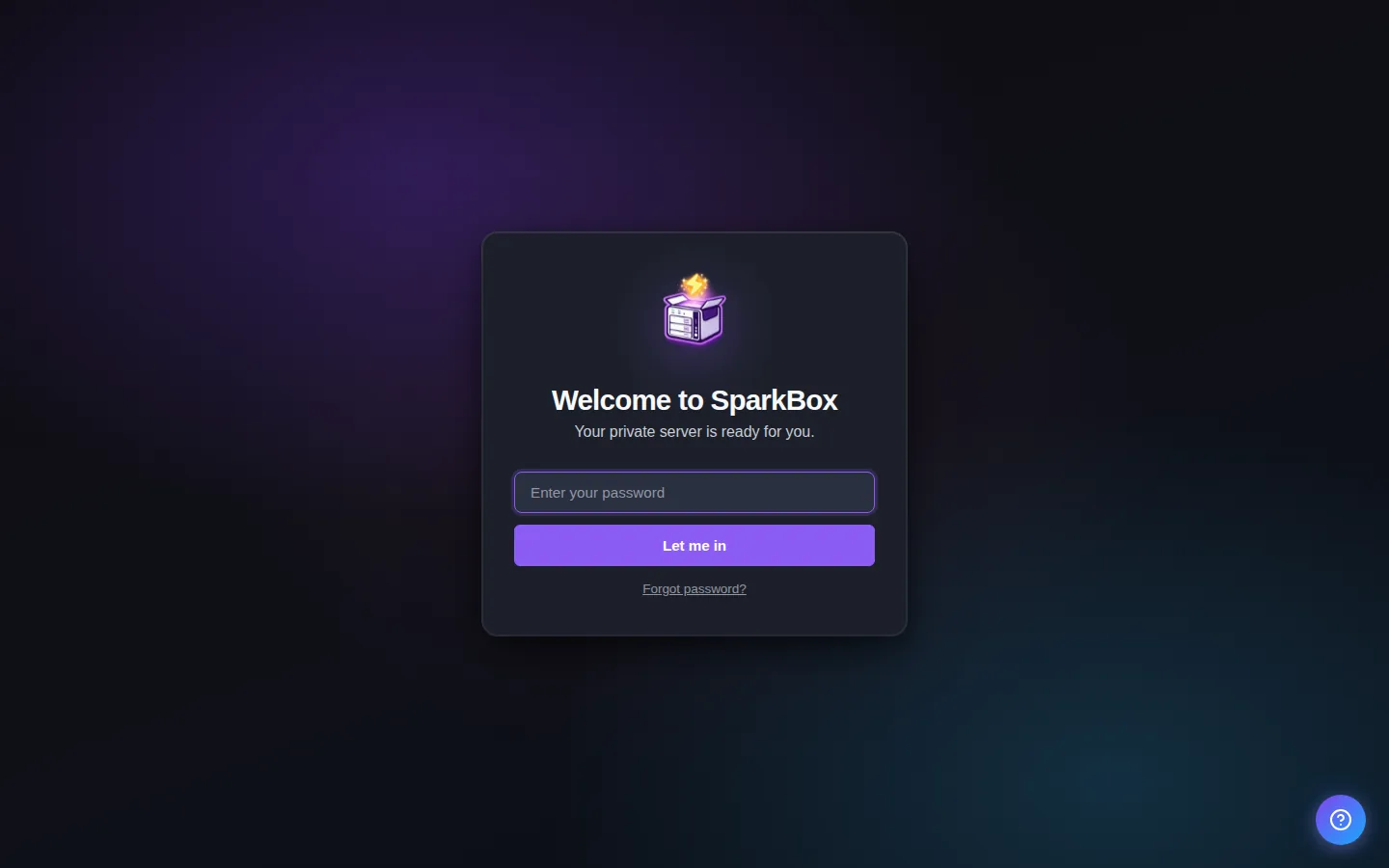
If it instead asks for a password you didn't set, check Settings → Passwords in your SparkBox dashboard — every auto-generated credential is listed there.
4. Tips
- Start with one monitor for the SparkBox dashboard itself (HTTP, your box's IP, port 8443) and add your favourite apps from there
- When adding a monitor for another app on the same box, use your box's LAN IP and the app's port - not 'localhost', which would point at the Uptime Kuma container itself
- Alerts only help if they reach you somewhere you'll actually see them - Telegram and Discord are the two easiest to set up
5. Where your data lives
Monitoring's config and persistent data are stored on the SparkBox host under:
/opt/sparkbox/modules/monitoring/config/Backups via the SparkBox dashboard's Backup tile include this directory by default, so a single restore brings Monitoring back to its current state on a fresh install.
6. Add your first monitor
Click Add New Monitor. Monitor type: HTTP(s). Friendly name: whatever you like. URL: your box's IP plus the app's port - for example http://192.168.1.50:8096 for Jellyfin. Save, and Uptime Kuma starts checking it every 60 seconds; the tile turns red the moment the app stops answering. One honest caveat: Uptime Kuma runs ON your SparkBox, so if the whole box goes down it goes down with it and can't alert you - it's best at catching a single app misbehaving, not a power cut.
7. Get alerted on your phone
Open Settings (top right), then Notifications, then Setup Notification. Telegram is the easiest: message @BotFather on Telegram, send /newbot, copy the token it gives you into Uptime Kuma, then message your new bot once and click Auto Get to fill in the chat ID. Test, save, and tick the notification on each monitor you want it for. Discord is similar - create a webhook in any channel (Channel settings, Integrations, Webhooks) and paste the URL in.
Next steps
That's Monitoring live on SparkBox.
If something doesn't match what you see, post in d/sparkbox or hit us up on YouTube. Every SparkBox bug gets patched; every UX-stumble in this guide gets rewritten.